This article is an add-on to our SAML configuration guide, supplementing the process described there with specific details and additional information unique to configuring SAML for the GitHub Enterprise Cloud app connector in OneLogin's app catalog.
Note: SAML SSO on GitHub.com does not automatically log users into their personal accounts. It primarily serves to grant and maintain access to those SAML-protected organizations that they're a member of. This means that users will be prompted for their GitHub password during the authentication process even though SAML is enabled.
Prerequisites
- Your GitHub organization must be on the GitHub Enterprise Cloud plan.
- If you intend to configure both SAML and provisioning for GitHub, you must enable provisioning first before completing your SAML configuration.
- You must have administrative access to enable SAML in GitHub; you should follow the GitHub SAML process described there in conjunction with your OneLogin setup, as you will be exchanging some details between your accounts during the configuration.
Configuration
|
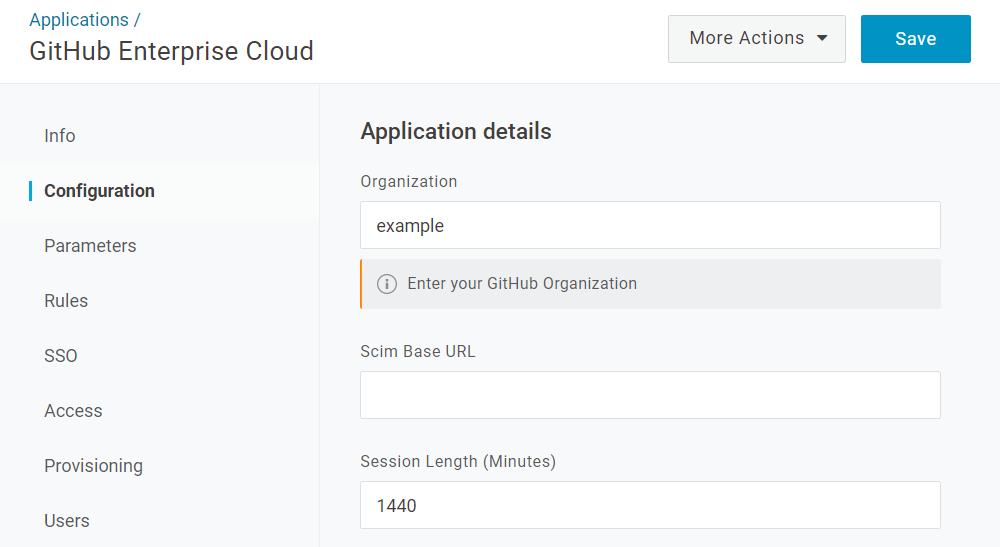
Organization |
Enter your organization name in GitHub. This is typically the part of your GitHub URL immediately following the top-level domain, e.g. |
|---|---|
|
Scim Base URL |
This is used only during provisioning setup and may be disregarded if you're not configuring user provisioning for GitHub. |
|
Session Length |
Enter the maximum length of a user's login session in minutes; the user will be automatically logged out of GitHub after this time has elapsed. The default session length is |
SSO
-
Copy your OneLogin SSO values to their corresponding fields in GitHub:
OneLogin
GitHub
Issuer URL
Issuer
SAML 2.0 Endpoint (HTTP)
Sign on URL
X.509 Certificate
Public certificate
-
In GitHub, click the pencil icon (
 ) to the right of the phrase "Your SAML provider is using..." and select the same SAML Signature Algorithm you've chosen in OneLogin.
-
Click Test SAML configuration in GitHub to verify your account details.