This article describes how to configure OneLogin to provide single sign-on (SSO) for your Concur users using SAML.
Note: ensure your OneLogin instance has been registered with Concur's SSO service by requesting activation with your OneLogin account manager.
Configuration Steps
1. Add the region specific Concur connector from the App Catalog:
- ‘Concur’ (US)
- ‘Concur EMEA’
- ‘Concur CN’ (China)
2. Login to SSO management page based on the region your Concur entity is hosted in:
- US: https://www.concursolutions.com/nui/authadmin/ssoadmin
- EMEA: https://eu1.concursolutions.com/nui/authadmin/ssoadmin
- China: https://www.concurcdc.cn/nui/authadmin/ssoadmin
Note: if you can’t access the URL, please contact Concur Support
3. Click Add from IdP Metadata section

4. Then follow the steps below:
- Add a friendly name for your IdP
- Provide link to your IdP's metadata:
- This is the ‘Issuer URL’ from the SSO tab of the Onelogin connector, which typically looks like
- https://app.onelogin.com/saml/metadata/88a7b66e-19dc-4c3f-ba85-01360c634269
- https://{yoursubdomain}.onelogin.com/saml/metadata/88a7b66e-19dc-4c3f-ba85-01360c634269
- This is the ‘Issuer URL’ from the SSO tab of the Onelogin connector, which typically looks like
- Click Add Metadata
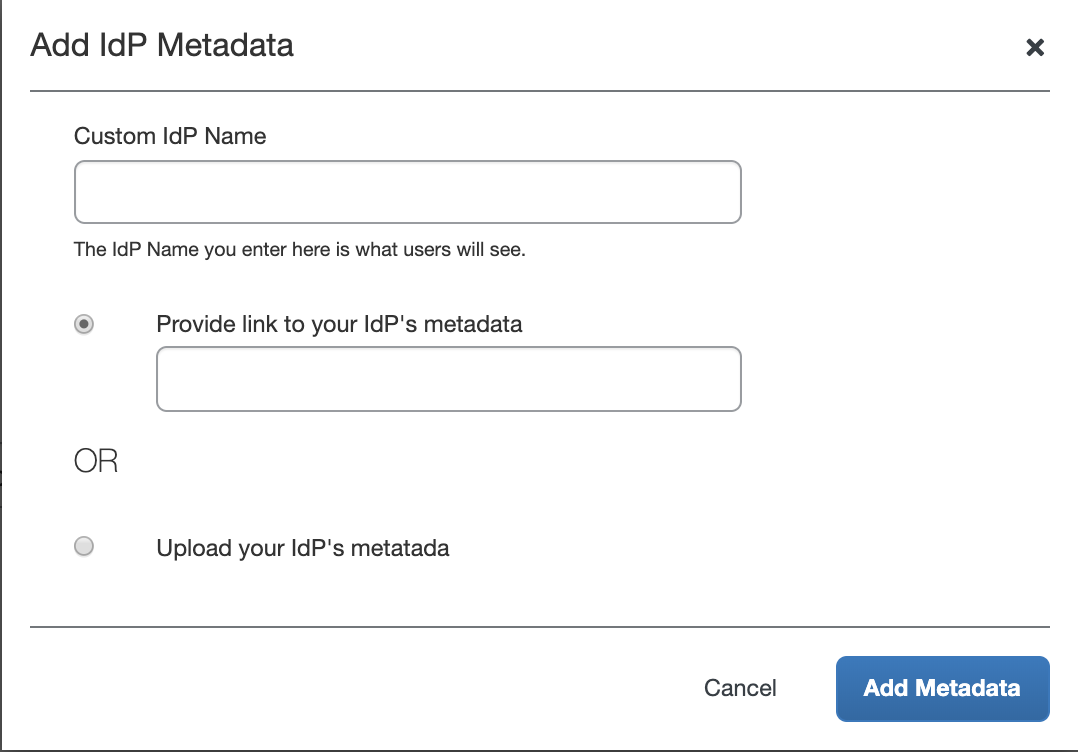
Done!
Concur Mobile SSO Configuration Steps
Using the processes described above does not automatically activate mobile SSO. To enable SSO for the SAP Concur mobile app, follow the steps below.
1. Find the HTTP-Redirect URL from your IdP metadata. You can download the metadata.xml document via the ‘More actions’ menu from the OneLogin admin console.
a. Locate the IdP metadata you previously uploaded to SAP Concur. Look for HTTP-Redirect URL in the IdP metadata. For example:
<SingleSignOnService Binding="urn:oasis:names:tc:SAML:2.0:bindings:HTTP-Redirect" Location="https://subdomain.onelogin.com/trust/saml2/http-redirect/sso/88a7b66e-19dc-4c3f-ba85-01360c634269"/>
2. Provide the HTTP-Redirect URL to SAP Concur support. They will ensure that this URL is added properly as the Mobile SSO URL on Concur side.
3. Work with Concur Support and learn how to use SSO to log into Concur mobile.