This article describes how to integrate OneLogin with JumpCloud’s LDAP Service, communicating over SSL through LDAPSearch.
In this scenario, OneLogin provides authentication. You cannot update passwords in OneLogin and pass them to the LDAP service; you must manage them through the LDAP service.
To set up the integration, you first configure your JumpCloud account and then complete the configuration in your OneLogin account.
Note. OneLogin LDAP over SSL does not support POSIX groups.
Configuring JumpCloud
-
Log into your JumpCloud account as an admin.
-
Go to Settings.
-
Toggle ON to enable the LDAP Service.
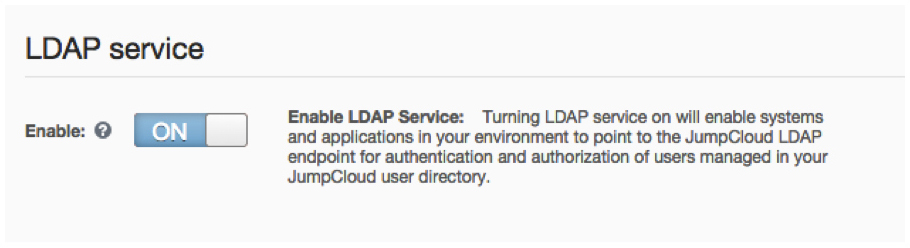
The page will display the Organization ID, API Key, and Administrator email. You will use these to complete the configuration in later steps.

-
Create a binding user service account.
JumpCloud recommends that you use a binding user service account with your LDAP service. This user acts as a true service account, enabling LDAP to search the user directory as the Bind DN.
-
Go to Users and select Add User.
-
Create a service account.

Configure it with whatever properties you want, ensuring that:
- LDAP binding user service account is enabled
- The email field contains some permutation of the Administrator email from earlier.
-
-
Enter a password for the service account to ensure that the account is "verified" and active.
Configuring OneLogin
-
Log into your OneLogin account as an admin.
-
Go to Users > Directories > Add a New Directory.
-
Select LDAP VIA SSL.
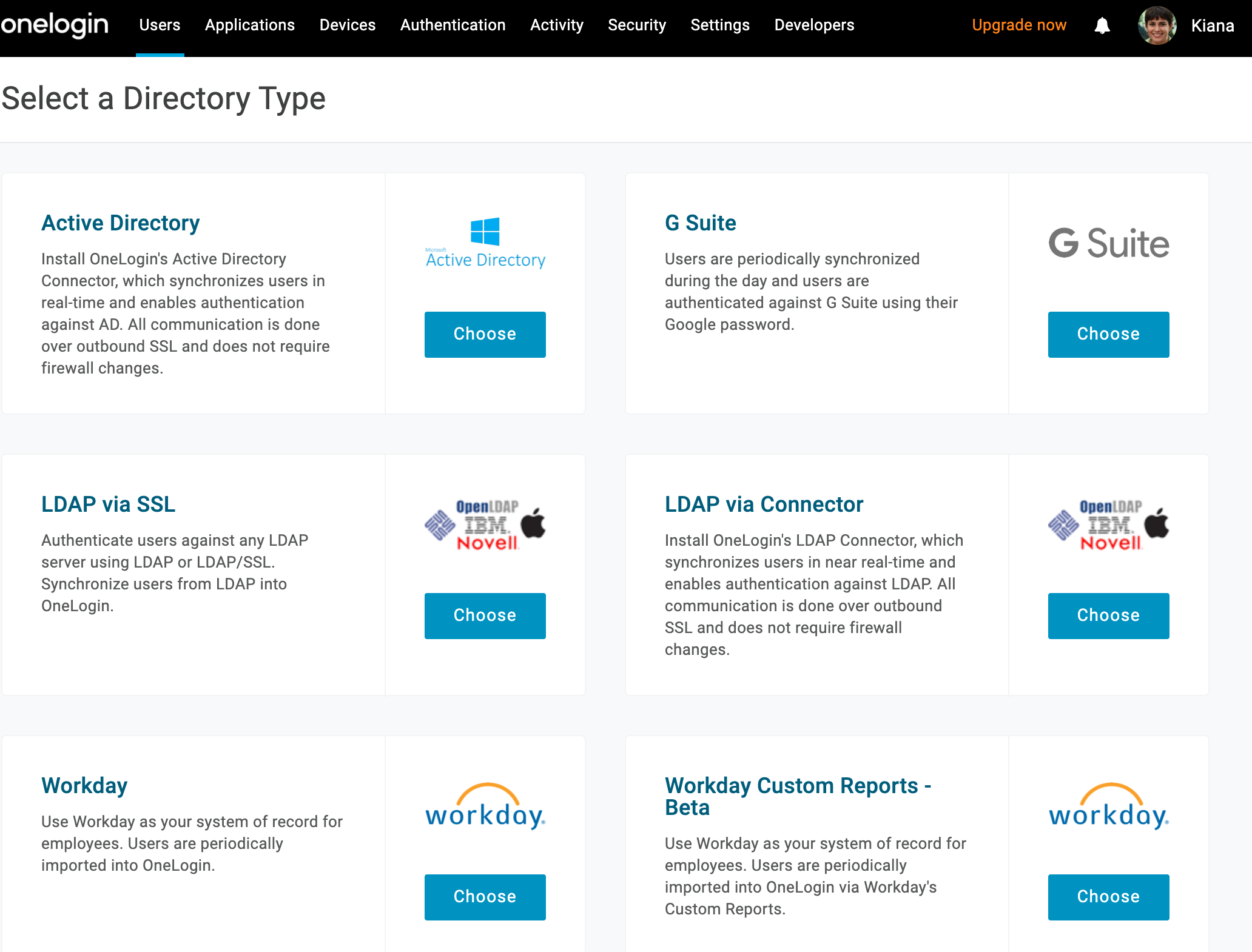
-
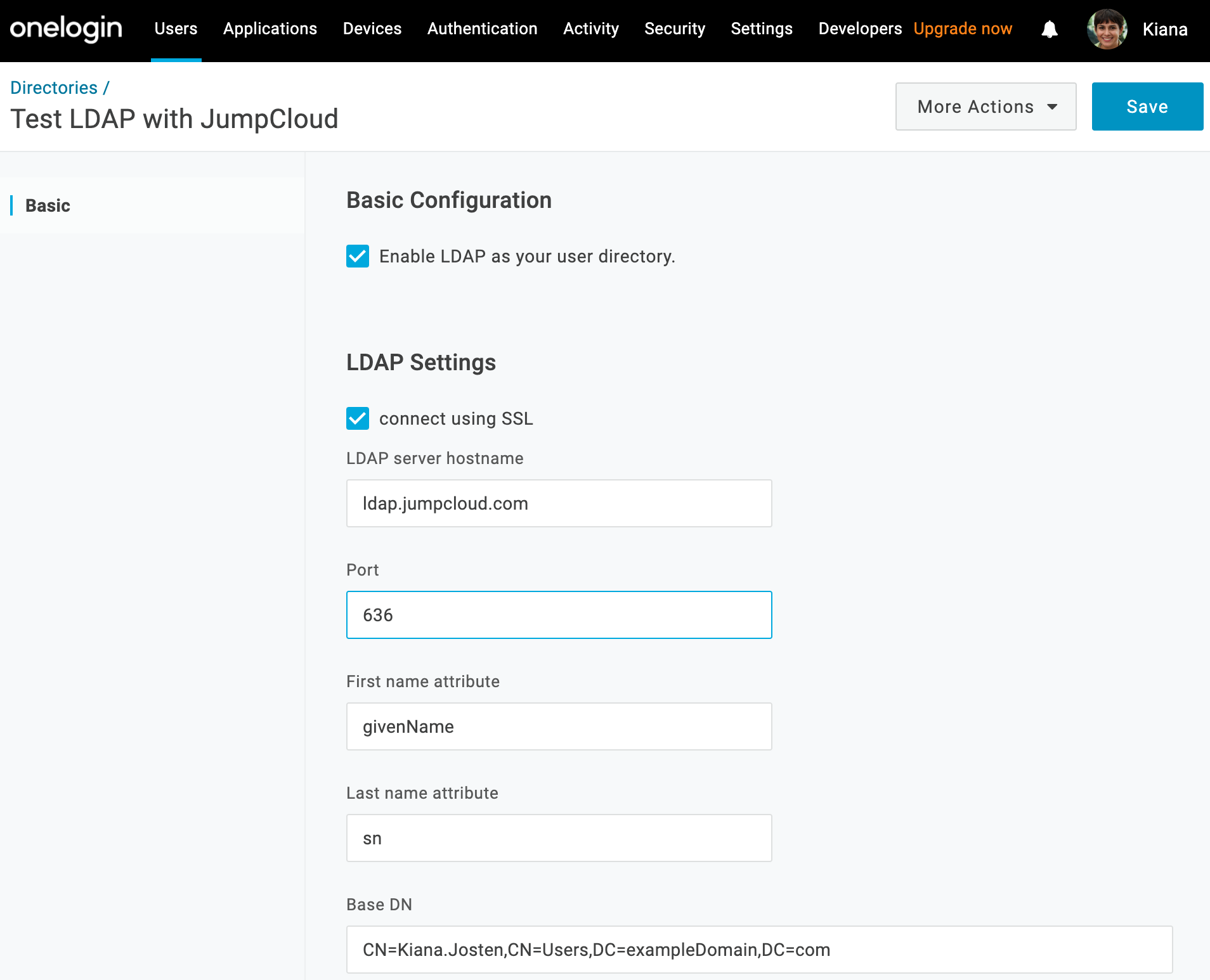
On the Basic tab, name your OneLogin directory connection, select Enable LDAP as your user directory, and select connect using SSL.
-
Provide your JumpCloud LDAP service details to complete the integration:
Note: We highly recommend that you consult this article on Configuring LDAP with Applications to ensure that you understand JumpCloud’s binding needs before you complete this step.
- LDAP server hostname: ldap.jumpcloud.com
- Port: 636
- Base DN: ou=Users,o={your_org_id},dc=jumpcloud,dc=com
- First Name Attribute: givenName
- Last Name Attribute: sn
- Bind DN: uid={username},ou=Users,o={your_org_id},dc=jumpcloud,dc=com
Note. UID should be username NOT email address. - Password: the password you set for your LDAP service account
- LDAP user Password: the password you set for your LDAP service account
- Select Enable Mappings.
- Select Automatically Create Users and configure as necessary.
-
Click Save.
JumpCloud should now be integrated with OneLogin as an LDAP directory.