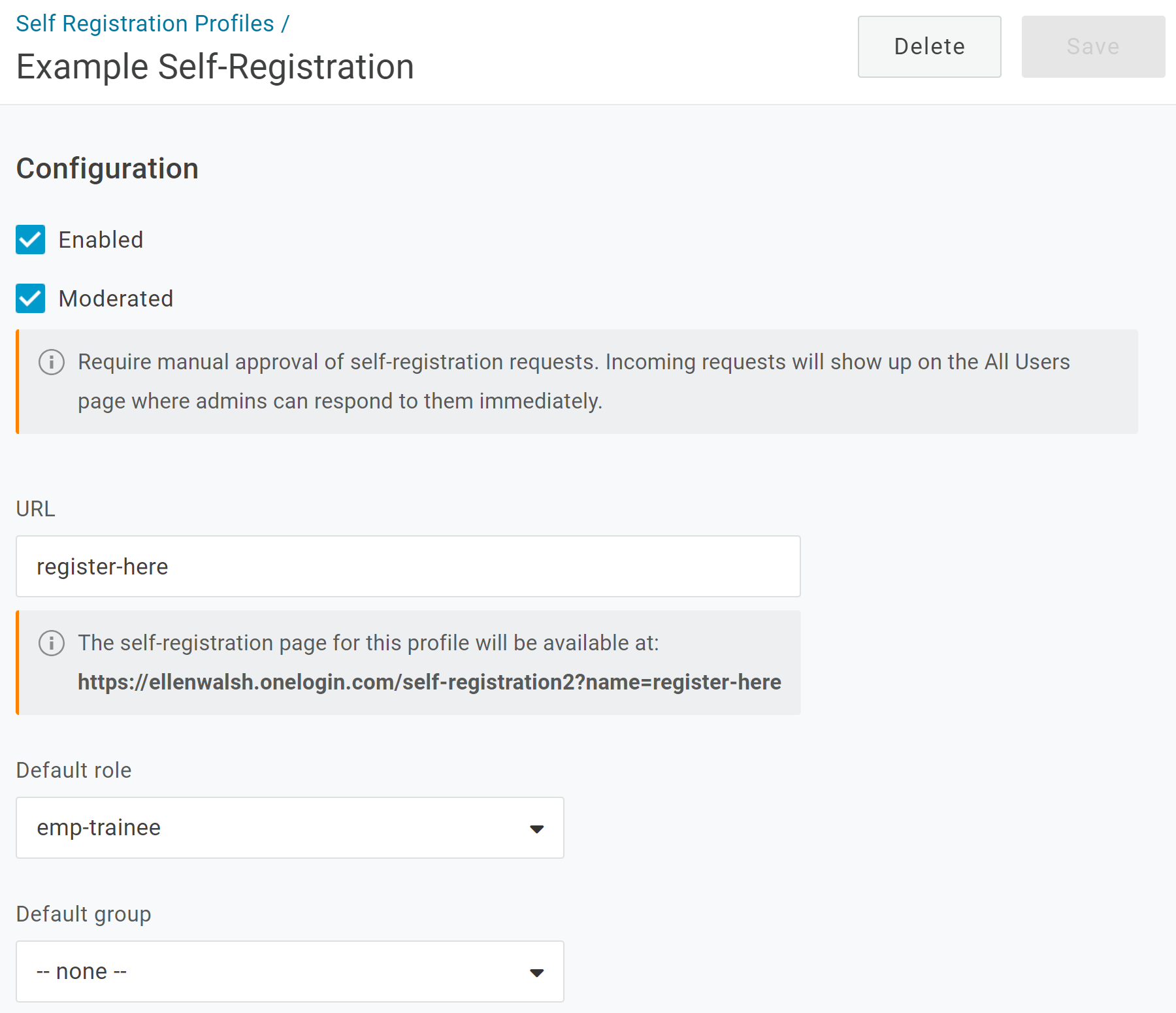
If your organization onboards many users, it can be time-consuming for your administrators to create them all manually. Instead, you can empower your users to add themselves with a customized registration link that you can configure in Users > Self Registration.
|
Enabled |
Select this option when you have finished configuration and are prepared to launch the custom URL. |
|---|---|
|
Moderated |
Select this option to require each user to be approved by an administrator upon registration. Users can be approved from the Events log or by activating their user record. |
|
URL |
Enter the final portion of the URL that you will give to your users to complete self-registration, e.g. |
|
Default Role |
If desired, select a role to automatically apply to self-registered users. |
|
Default Group |
If desired, select a group to automatically apply to self-registered users. |
|
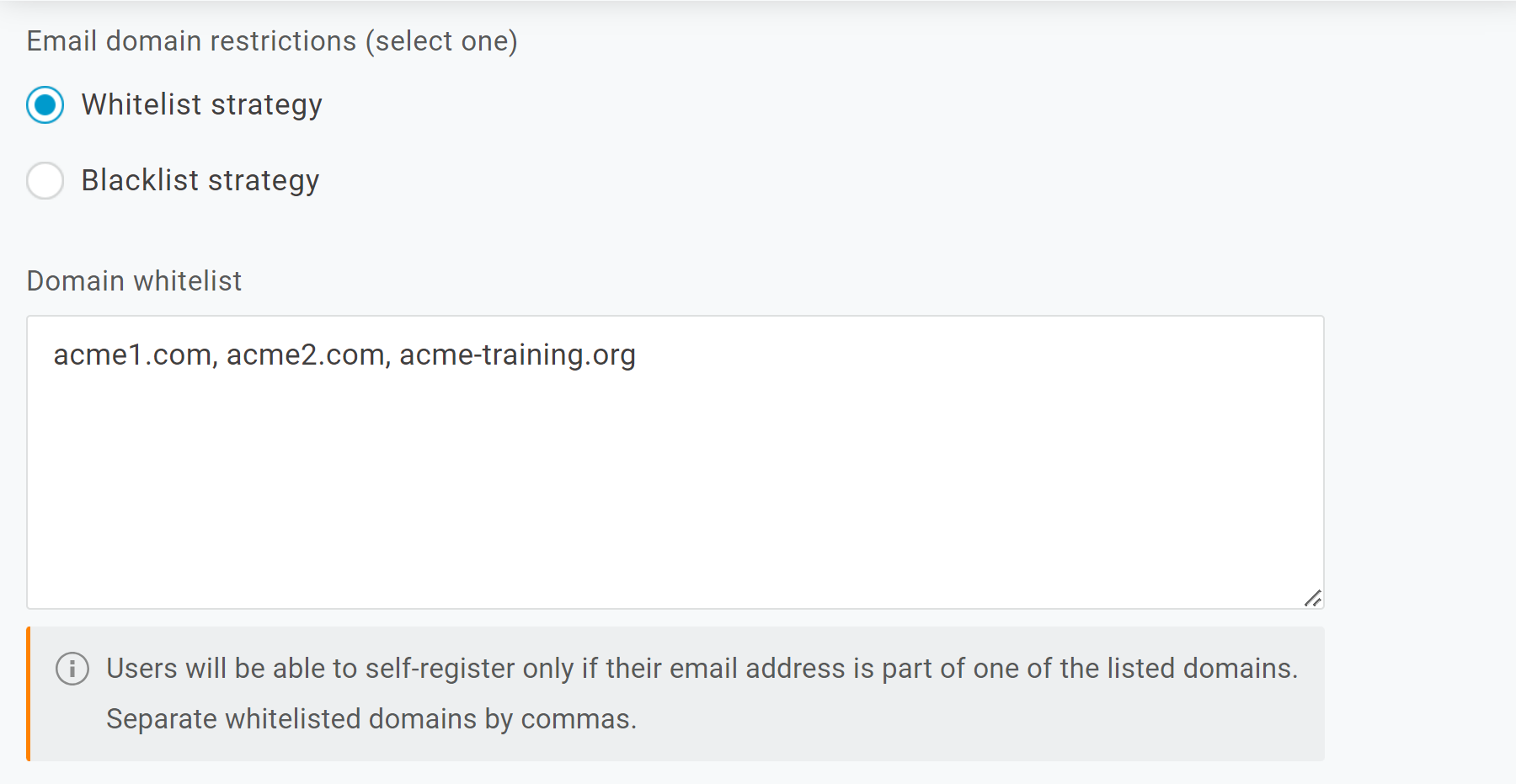
Email domain restrictions |
If you want to restrict self-registration to only users with specific email domains, select whether you'd like to use a Allow list strategy (only listed domains are accepted) or Block list strategy (all domains except those listed are accepted), then enter your desired domains separated by commas. |
|
Help Text |
If desired, enter any instructions or welcome messages you'd like to display for users when they access your custom URL. |
|
Thank You Text |
If desired, enter any confirmation details you'd like to display for users after submitting their self-registration. |
|
User Fields |
By default, the self-registration form requires users to enter a First Name, Last Name, and Email Address. Click + to add any desired custom fields to the self-registration form. |