Roles are the most efficient way to control your users' access to apps. A role in OneLogin is simply a collection of apps. You create a role, assign apps to it, and when you assign users to the role, you grant them access to all of the apps included in the role. This gives you the ability to give or take away a user's access to multiple apps at once, or to grant or remove an app's access to multiple users at once. You can also use roles to filter and search for users when performing a variety of other OneLogin functions, such as sending invitations, creating mappings, or configuring reports and notifications.
Prerequisites
- You must be an account owner or super user to create or delete roles, to add or remove apps associated with a role, or to create mappings that apply to the role.
- You must have the Manage Role privilege scoped to a given role to view, add, or remove users associated with it or to view other role admins with access to that role.
Creating Roles
-
In your OneLogin admin portal, go to Users > Roles and click New Role.

-
Give your new role a name and select the applications it should include, then click Save.

Recommendations & Best Practices
- Create an Employees role for apps that are shared by all employees in your organization.
- Create Onboarding and Offboarding roles to give users access to the apps they might need before they start and after they leave employment, such as HR apps.
- Design your other roles to reflect groups of users who tend to use the same set of apps. Typically this means creating roles by job function or department (Sales, Finance, Engineering, etc).
- Only create a role if more than one user will be added to it.

Assigning Roles to Users
The most efficient way to give users access to apps is to create mappings that assign users to roles based on selected user attributes. For example, you can create a mapping that assigns all users with the Department attribute HR to the HR role. Whenever a user is added to the HR department in your user directory, they automatically get added to the HR role and have access to all of the apps included in the role.
If you're only modifying a few roles or users, you can also make manual assignments through either the role editor or the user record:
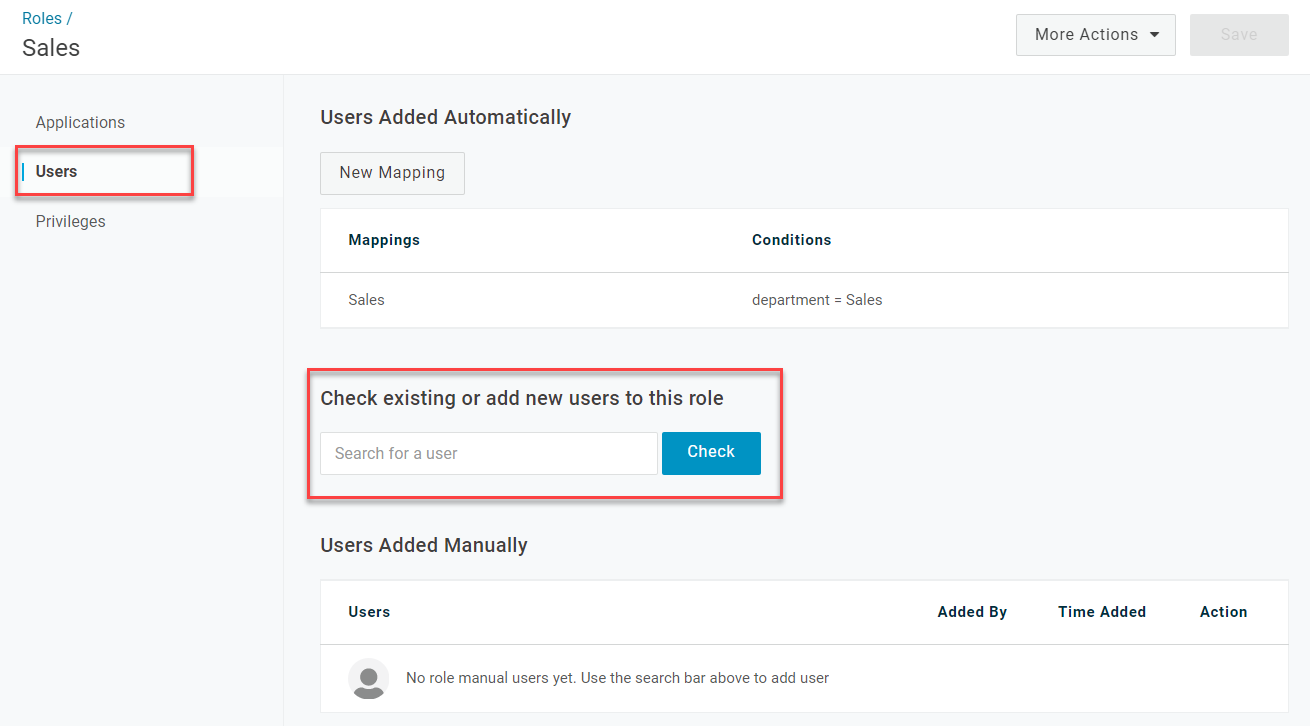
Go to Users in the role editor and enter one or more users in the Search for a user field. After checking the current membership status of the user(s), any who are not already assigned to the role can be added by clicking Add To Role.
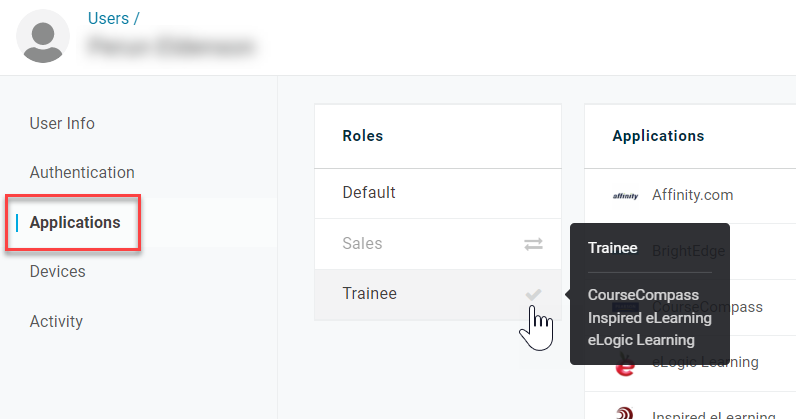
Open a user's record and go to Applications. The applications associated with a role appear when you hover your cursor over it. Click a role to add it to or remove it from the user.
Note: Roles that are added manually must be removed manually and vice versa. Removing a role from a mapping will not remove it from any users who have had it manually added, even if they are included in that mapping, and roles that have been added to a user by a mapping cannot be removed manually.