Welcome to OneLogin! With OneLogin, you'll be able to quickly access all the applications you need with one set of credentials. Sometimes, you may not even need a password to access the applications you need.
For a quick overview on OneLogin's password reset steps, check out this video:
To sign in, navigate to http://[yourcompany].onelogin.com and enter the user credentials that have been configured for you by the account administrator. Usually, this is your company email and password, but there are several ways that your admin can configure the way that you log in, adding extra steps of security along the way. Below, we'll walk through several of the options that you may encounter.
Log in with a username and password
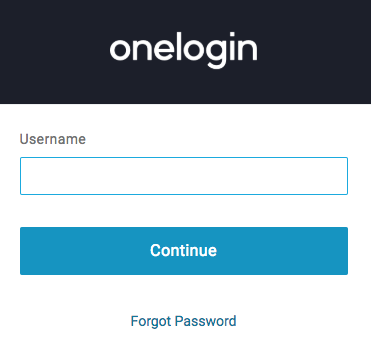
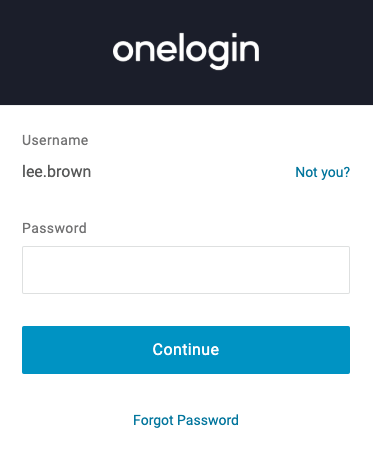
The login screen is separated into several steps, depending on how your admin configures it. The most basic setup is a simple username and password, which your admin will provide to you. Don't forget to change your password when you sign in for the first time. Prompted to enter a password and don't remember it? Simply click Forgot Password under the sign-in button to reset.
Log in and register multi-factor authentication (MFA)
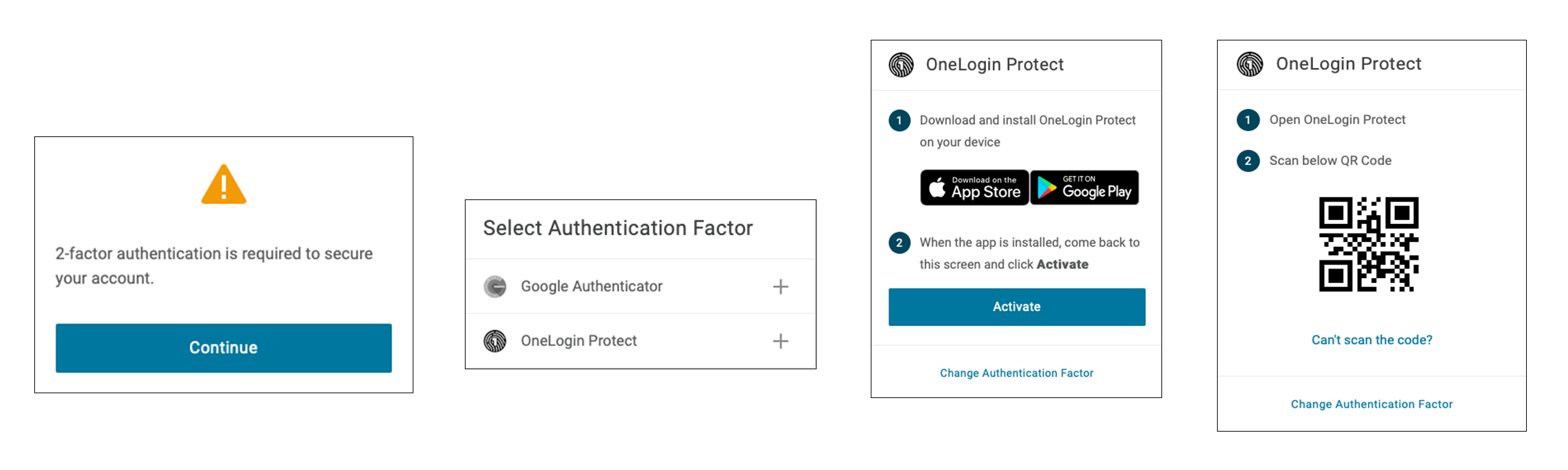
If your admin requires that you have an extra method of authentication, you'll be prompted to register MFA (sometimes called 2-factor authentication) before you are granted access to your app portal. Follow the steps to register.
Log in with OneLogin Desktop (and no password)
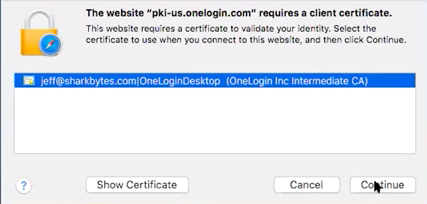
If your company uses OneLogin Desktop, then your computer has a certificate that signs you in automatically, no password required. In that case, you'll be asked to click Continue to allow OneLogin to use the certificate to authenticate you, and then you are granted access to your application portal.
How to change your password
To change your account password, go to the upper right-hand corner and select Profile under your name.
On the Profile page, under Personal Information, find the link Change Password, where you'll be prompted to enter your old password and create a new one.
If you don't see this option, your admin may not have enabled self-service password resets. Contact your admin for more information.