WebAuthn allows administrators to support built-in biometric sensors, as well as FIDO U2F (universal second factor) and security keys like Yubikey to authenticate in a user-friendly way.
Prerequisites
Browsers and tokens used for WebAuthn must be both fully U2F and FIDO2 compliant.
-
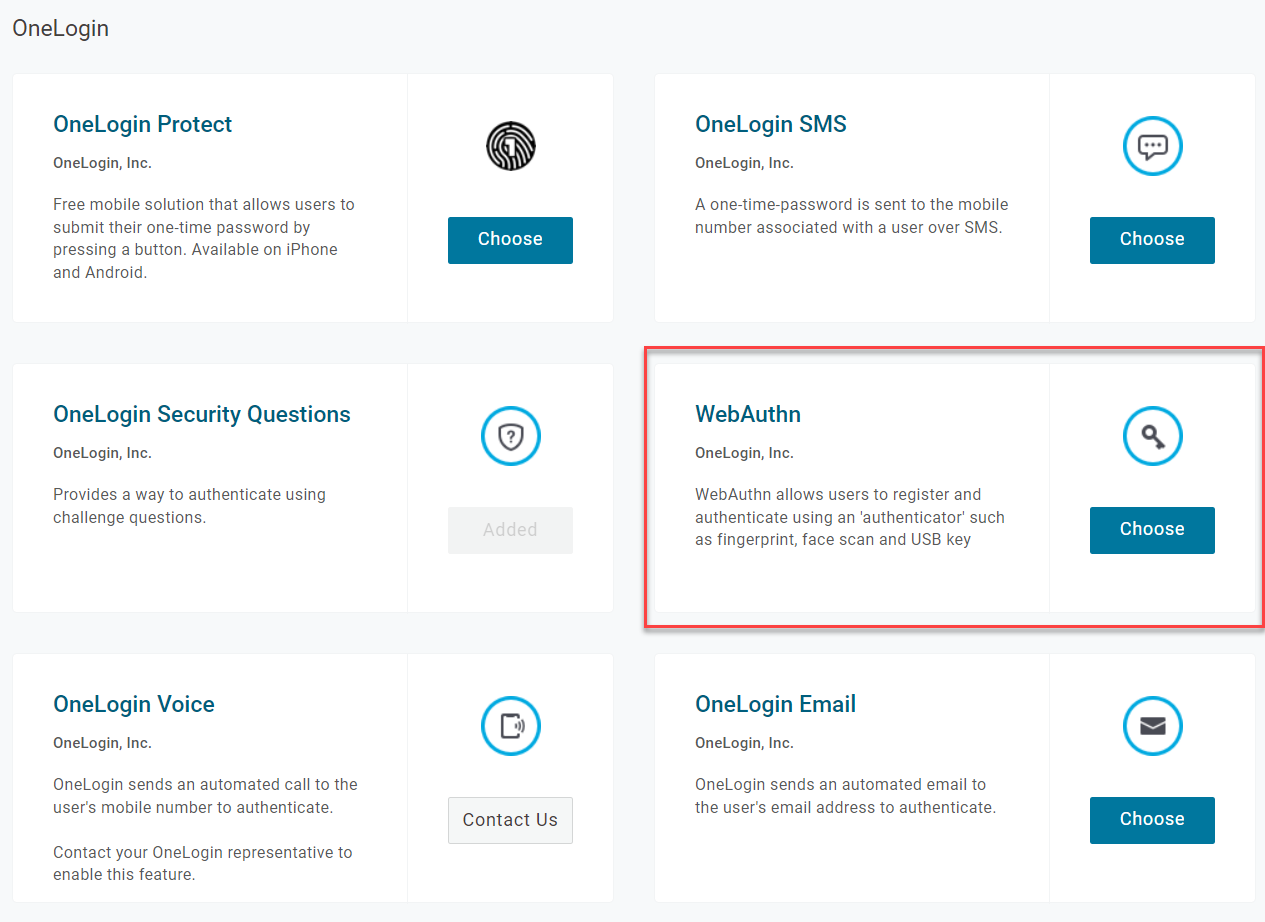
In your OneLogin admin portal, create a new authentication factor and choose WebAuthn from the OneLogin category.
-
To make registration and authentication simpler for end users, create a unique name for each instance of WebAuthn; your end users will see the name when they register MFA and it will be easier for them to understand which to select. For example, you might name one instance of WebAuthn Yubikey5, or another instance TouchID for macOS users.
Select whether User verification is Required, Preferred, or Discouraged with WebAuthn.
-
If Required, the user's browser will attempt to enforce authentication with ClientPin, biometrics, or other similar user verification methods. If none have been configured, authentication will fail and the user will be unable to sign in.
-
If Preferred, user verification will be attempted but if there is none present, the user will still be permitted access.
-
If Discouraged, WebAuthn will not attempt user verification and the user may freely sign into their account.
-
-
Save the new factor and assign it to your users in OneLogin.