Your user profile
Your user profile is organized into several sections. You will always see your Profile, Change Password, and Recent Activity sections. Based on the configuration made by your admin, you might see other sections, such as Security Factors, Browser Extension, and OneLogin Desktop.
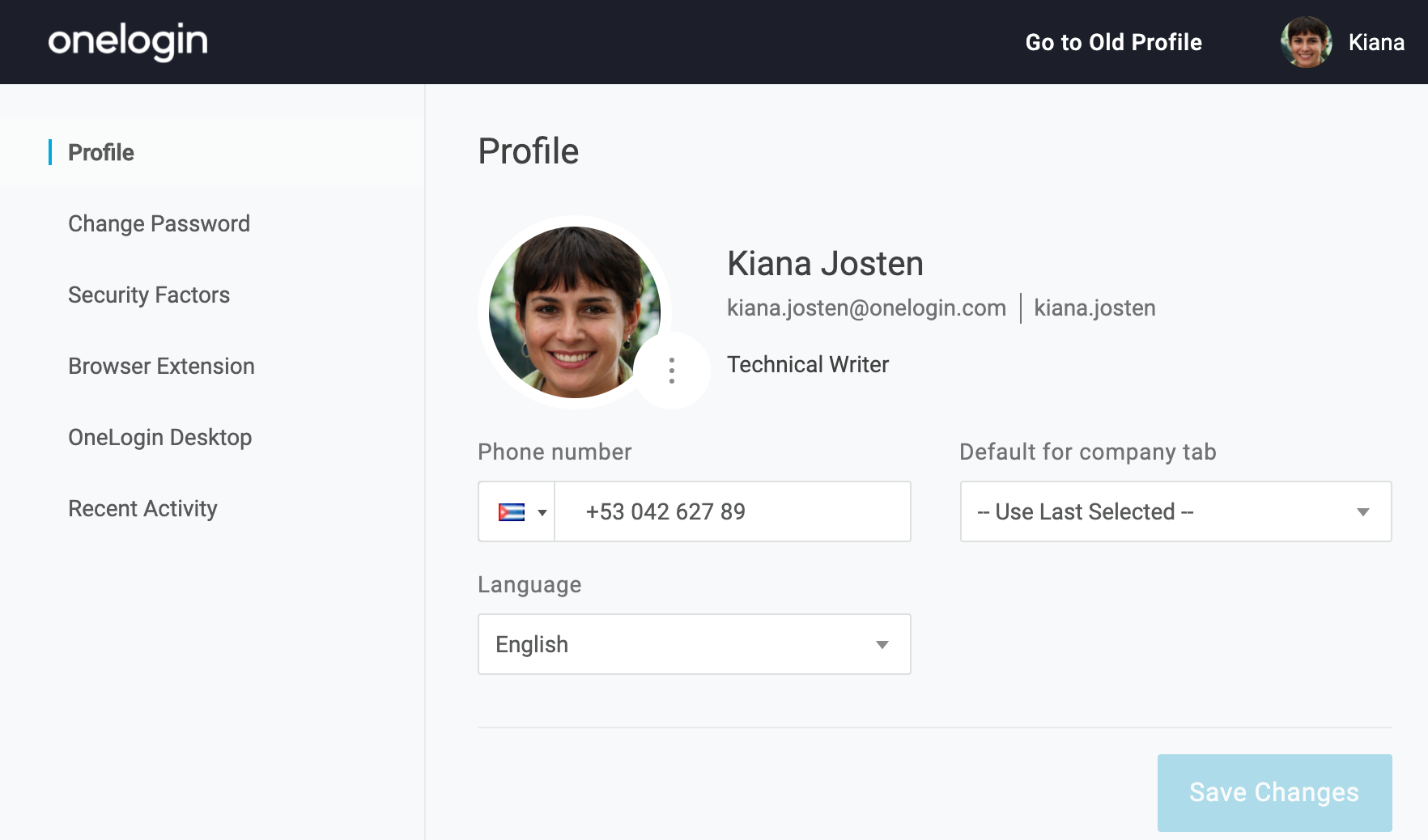
Profile
You can upload your profile picture at any time (unless your admin disabled this option). Click on the profile picture and select a new image from your computer. If you are on a mobile phone, tap the camera icon to take a selfie or select your new profile picture from your Photo Library.
You can change your phone number (unless your admin disabled this option). Make sure you select the correct country code for your phone number. Keep your phone number up to date, because sometimes we may need to send a code to this number to reset your password or authenticate (confirm that it's really you).
Apps in your portal are organized by tabs, such as Frequents or Company: HR. Your organization can customize the Default company tab.
The default language of your portal and profile (unless your admin disabled this option) can be changed. You can access your profile at https://yourdomain.onelogin.com/profile2.
Change password
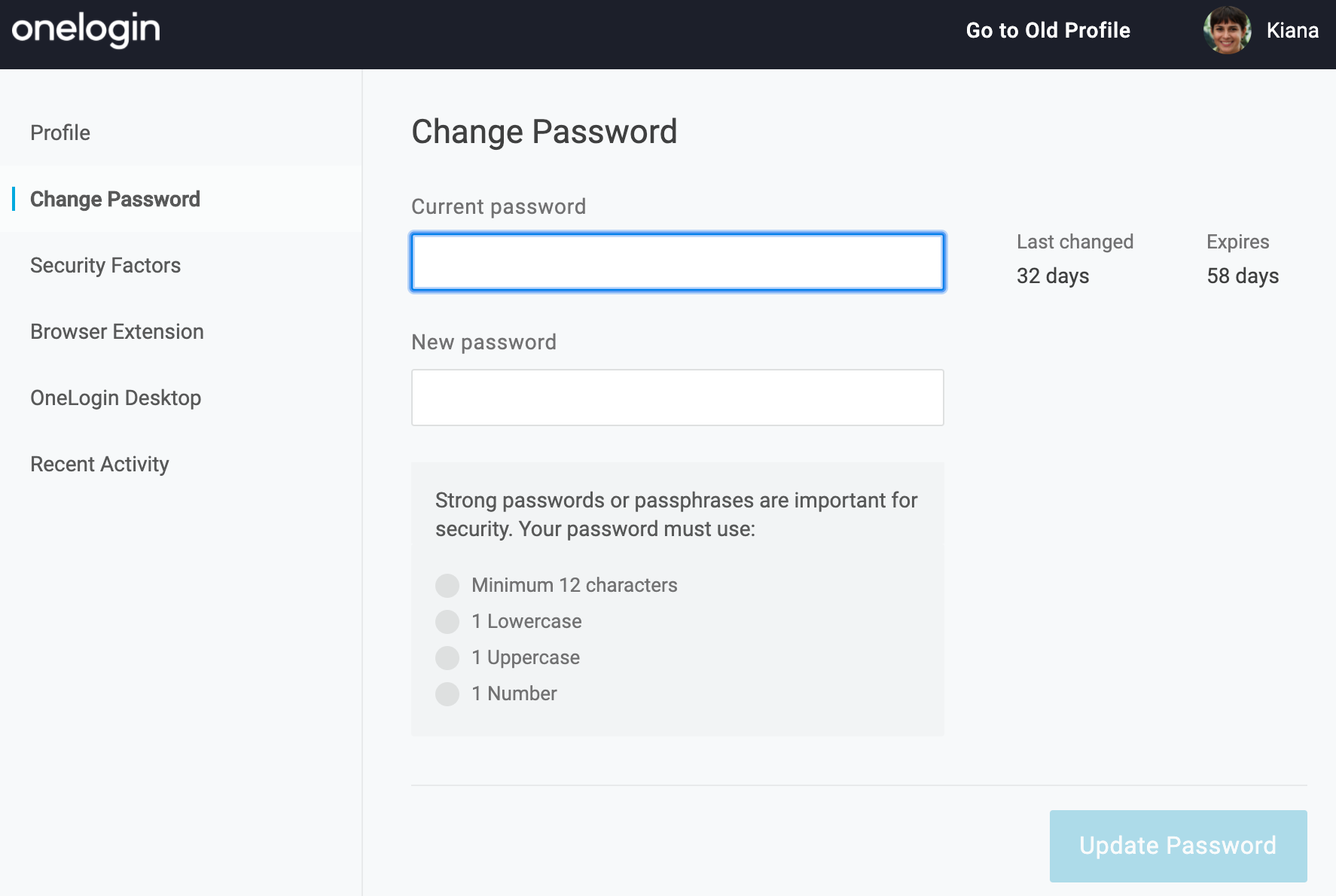
You can change your password at any time. The screen will tell you when you last changed your password and when you need to change it again. Your password must meet certain password complexity requirements, and you will see how your password meets them as you type. You can access the change password options at https://yourdomain.onelogin.com/profile2/password.
Security Factors
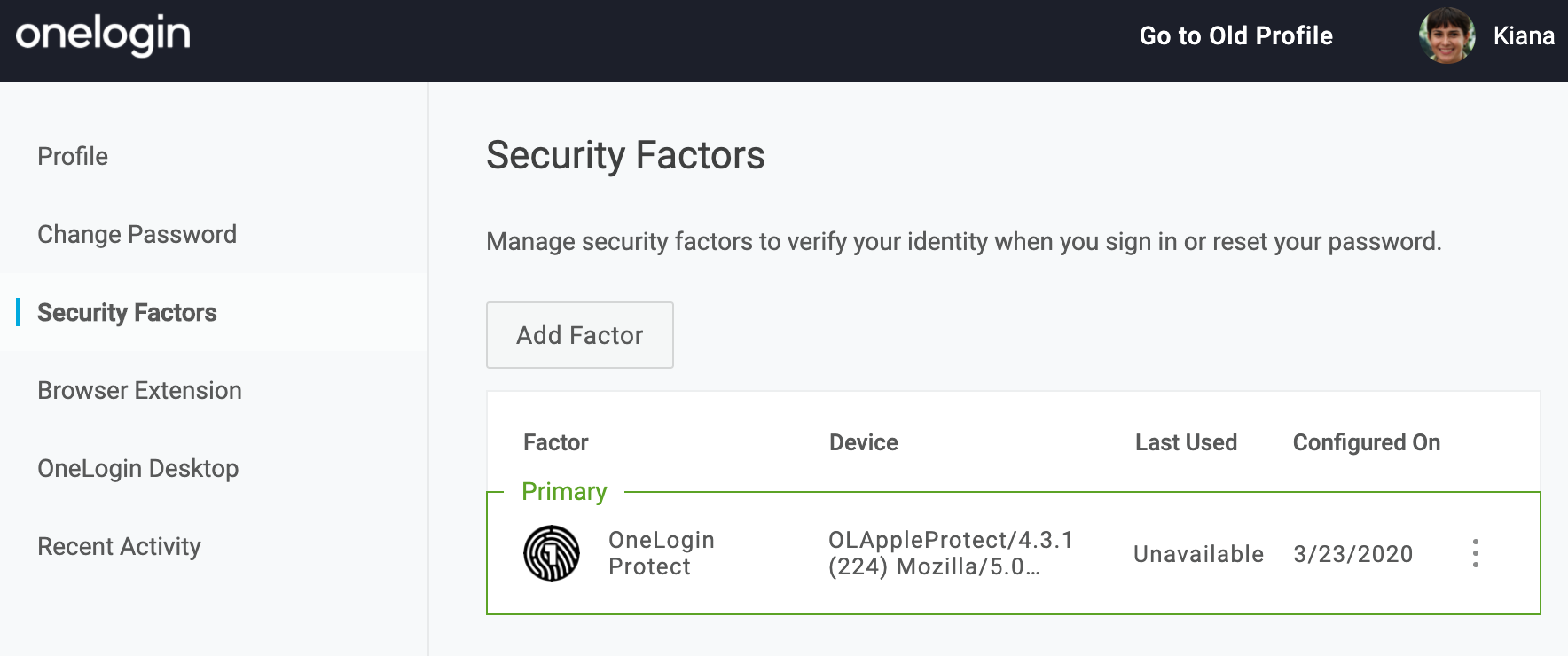
If your admin has enabled your account for multi-factor authentication (MFA), you can set up your primary or secondary authentication factors in Security Factors. You may need an authentication factor when you sign in to your Portal or your app, or for password reset. You can access this at https://yourdomain.onelogin.com/profile2/mfa.
-
How to add a new factor
Click Add factor to start the set up. A list of all options that are available to you will appear. If the Add factor button is grayed out, it means you have already set up all available factors and can't add an additional one.
-
How to delete a factor or remove an unused factor
For each factor that you previously set up, you will see information about when you configured it and last used it. If you see a factor you no longer use or you don't have the device anymore, remove it immediately! Go to the menu for the factor, and click Remove.
If you delete your primary factor, you will be prompted to create a new one. -
How to update or change an existing factor
Once created, factors cannot be changed. If you'd like a new factor, you can delete one and immediately start a new enrollment. You will use this method when you upgrade to a new phone and you need to set up OneLogin Protect or another authenticator on your new phone.
-
How to change my primary factor
If you have a secondary factor, click the three dots menu on this secondary factor and select Set as primary. This factor becomes your primary factor during the login flow. For factors that support push notifications, such as OneLogin Protect, you will receive a notification on your phone which makes your login experience faster.
You can also unset an MFA factor as the primary factor by selecting Unset as Primary. -
How to change a factor name
Each factor has a default name, such as OneLogin Protect. If you prefer, you can rename the factor to something that will help you identify the factor better - you will see this custom name when you login. To change the factor name, click Edit name (the name can be up 48 characters long) or double click the factor's name in the title.
Browser extensions
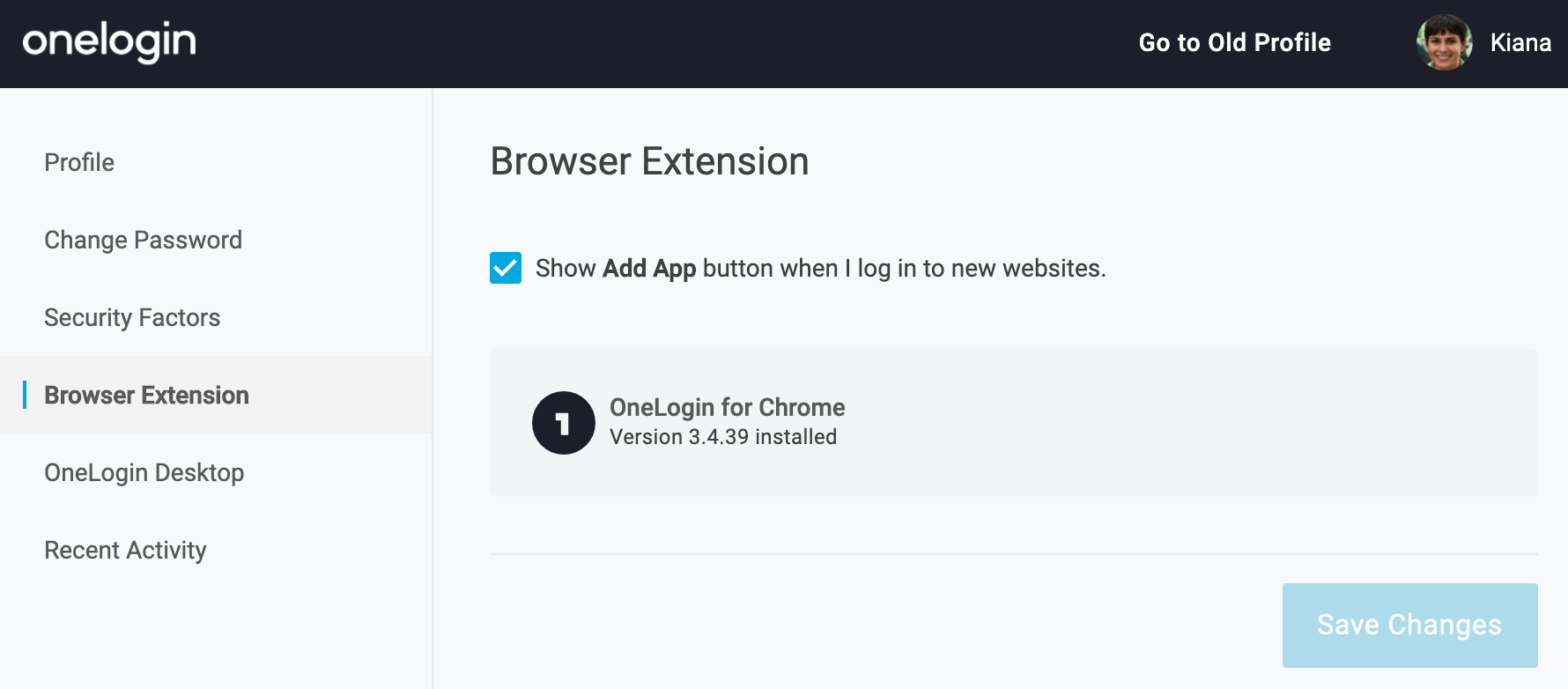
Your browser extension acts like a miniature portal. It can sign you in to apps and detect logins into a new app or website so you can save those logins for future use, just like a password manager. If you prefer not to see prompts to save new logins, simply uncheck Show Add App button when I log in to new websites. This always has the latest version of the browser extension available to download. You can access this at https://yourdomain.onelogin.com/profile2/browser_extension.
OneLogin Desktop
This screen shows where you (or your IT help desk) installed OneLogin Desktop. OneLogin Desktop puts a digital certificate on your computer so that you can login to your portal without having to provide a password every time. You can access this at https://yourdomain.onelogin.com/profile2/desktop.
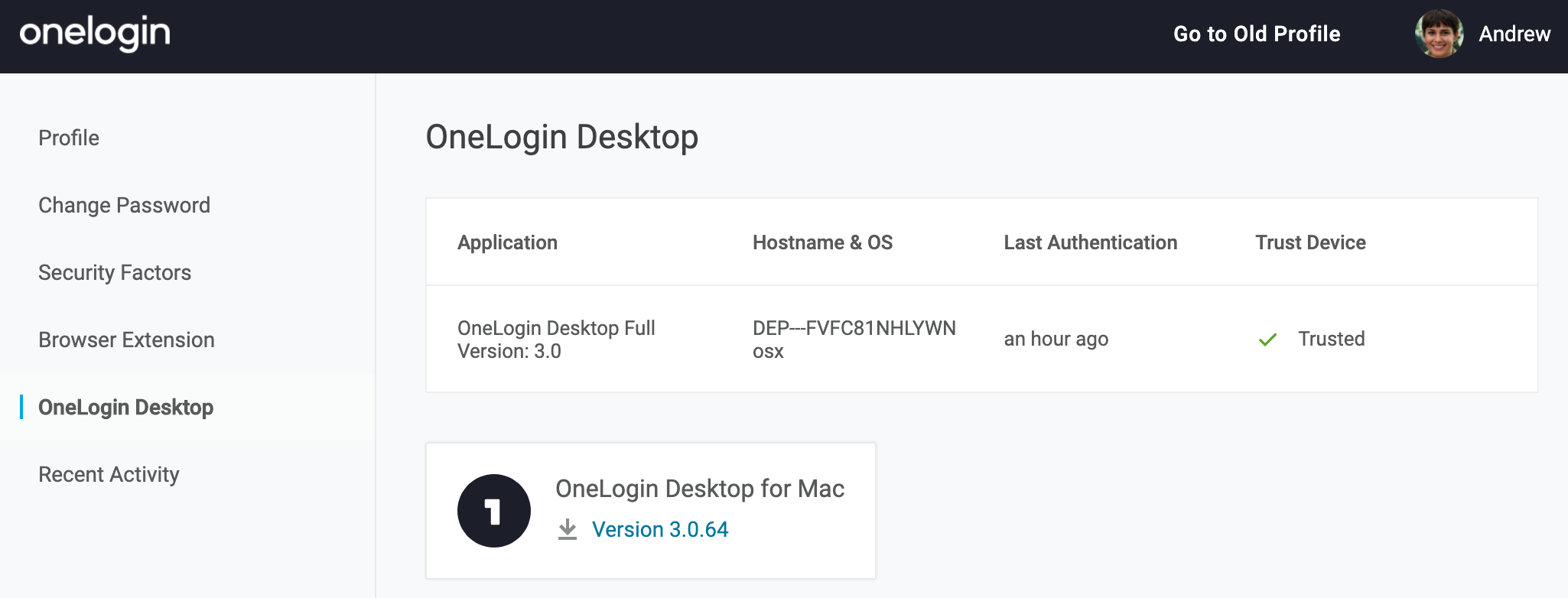
If you don't recognize the computer OneLogin Desktop is installed on, please inform your help desk.
You can download the latest version of OneLogin Desktop for your Windows or Mac computer. You won't be able to download and install OneLogin Desktop if you access your profile from a mobile phone or tablet because this software does not run on mobile devices.
Recent Activity
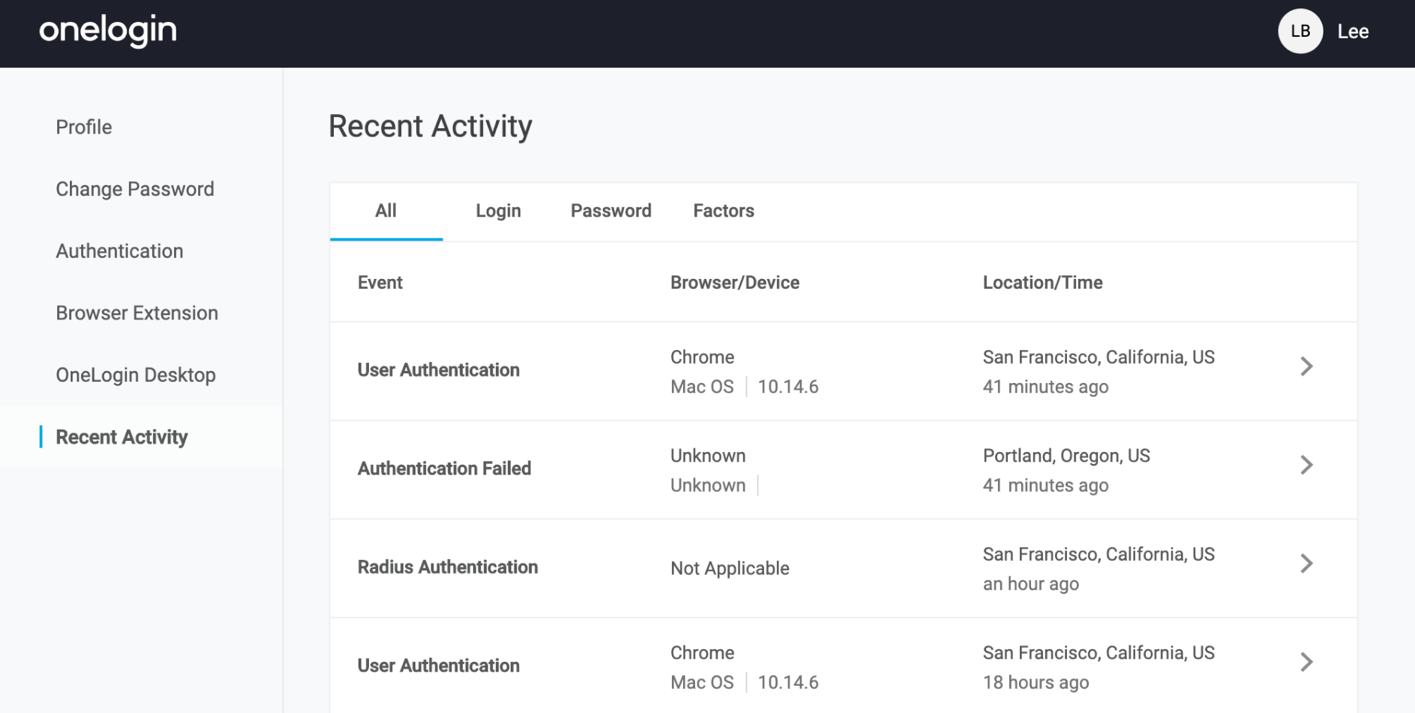
Recent Activity shows the most important events associated with your account.
Review your most recent logins. If you see a login that you don't recognize, for example from a location you have not visited, click Report as suspicious and send a report to the help desk to review. Briefly describe why you believe the login looks suspicious to you. You can access this at https://yourdomain.onelogin.com/profile2/recent_activity.
Note: user locations are defined by login IP address. These are typically accurate, but not always.
Trusted Browsers
This option will only appear when your admin requires you to authenticate with a one-time password (OTP) and when they have allowed your account to bypass multi-factor authentication while using a trusted device. If these settings have been enabled, then you may be prompted to "Remember this browser" when you access OneLogin. If you select Remember Me on a given browser, it will appear here.
Click the three dots to the right of a browser if you wish to Revoke its access. If you are currently using this browser, you will be logged out of your current session, and must reauthenticate the next sign you access OneLogin.
Note: Revoking a browser from this page will not revoke all current user sessions. It will only revoke access for this particular browser session. Contact your admin if you believe your account may have been compromised and they can force your account to log out of all sessions.
Return to your Portal
Return to your portal at any time by clicking your name in the top right, and going to App Portal.