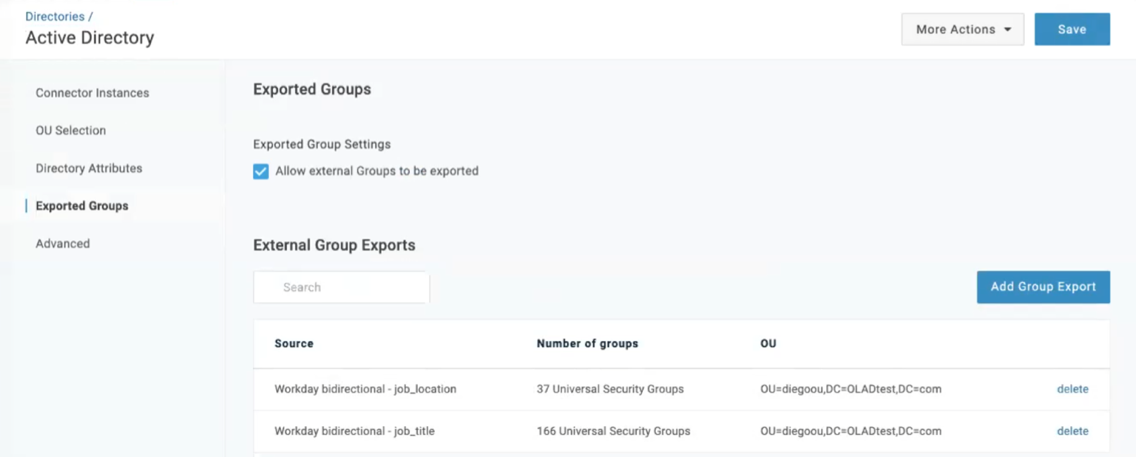
This article describes how to import multiple Groups from Workday into OneLogin and export them into Active Directory.
You can import Groups from Workday into OneLogin, then export the same groups to Active Directory. This feature works alongside the existing Workday & Active Directory import mechanisms. It supports multiple values (Ex. Division, Office Address, Department), each as its own unique external group. Multiple external groups can be exported to one/multiple locations in the AD group hierarchy.
Note: Contact your account manager to enable this feature.
Import Group Values
Prerequisite: Before you import groups values from Workday, go to Directories > Workday > Basic tab and configure the API Settings. Once this is complete, the Import Groups tab appears.
-
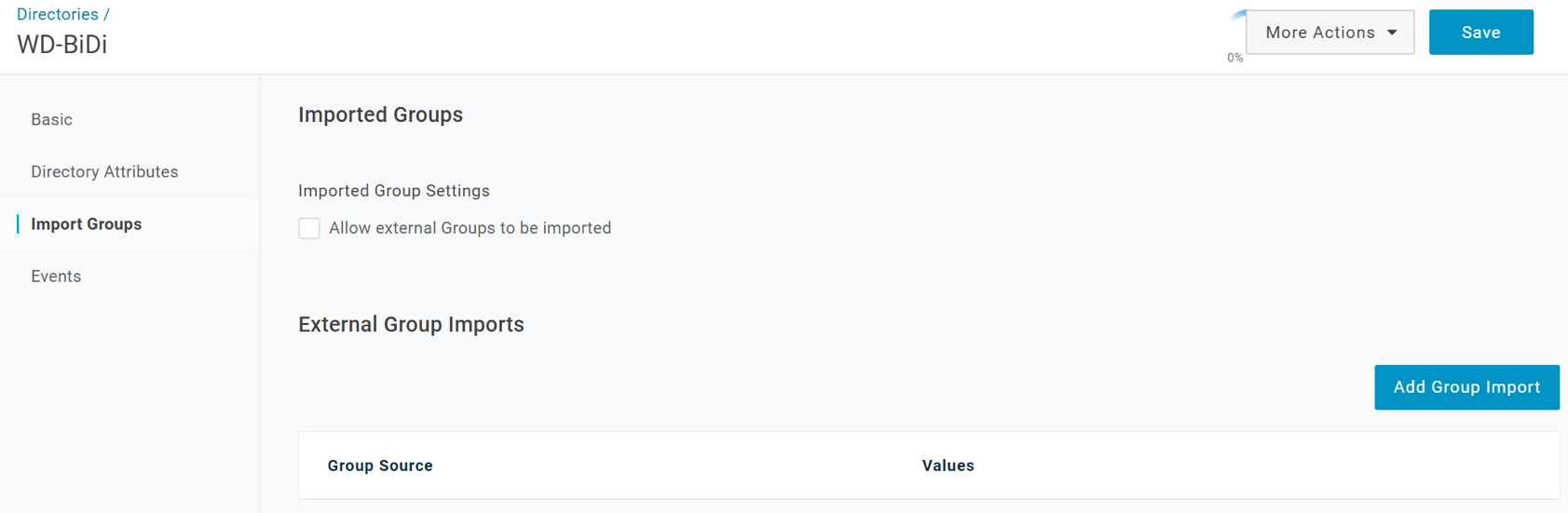
To import groups from Workday to OneLogin, go to Directories > Workday > Import Groups tab.
-
Under Imported Group Settings, check Allow external Groups to be imported.
-
Click Add Group Import.
-
In the Group source dropdown, select an attribute in the HR system to import as a Group value. Click Save.
Note: Select a value that functions as an intuitive group that is shared between users. Don't select a unique attribute, such as
first_name.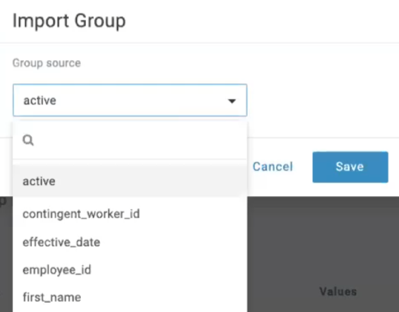
-
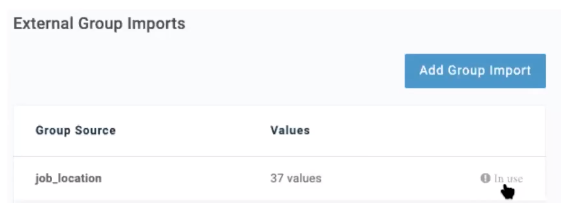
After you click Save, you see the Group Source,
job_location, and total Values in the list. To populate the Values, go to More Actions, click Synchronize Users, and Save.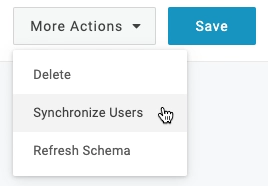
Once sync is complete, a Delete button appears to the right. You can't delete a group if you're actively exporting these values from OneLogin to your Active Directory instance.
-
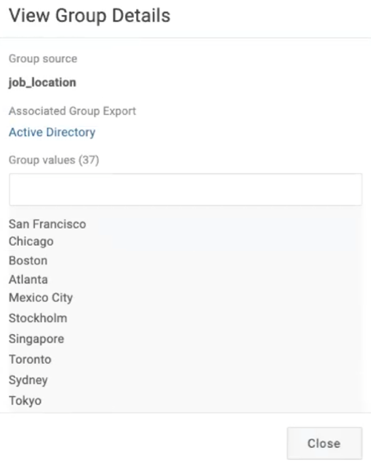
Click on
job_locationunder Group Source. The target directory is clickable and displays below Associated Group Export.You can search for groups in the Group values section and 30 of the groups values are listed.
Note: This is a good sanity check. If there is a large number of groups values, then we recommend you select a different attribute from Workday.
Export a Group to Active Directory
Prerequisite: The most recent ADC version is required to use this feature. For information about the latest ADC version, see Install & Configure Active Directory Connector 5.
Once you have successfully imported a group from Workday to OneLogin, you can export it to Active Directory.
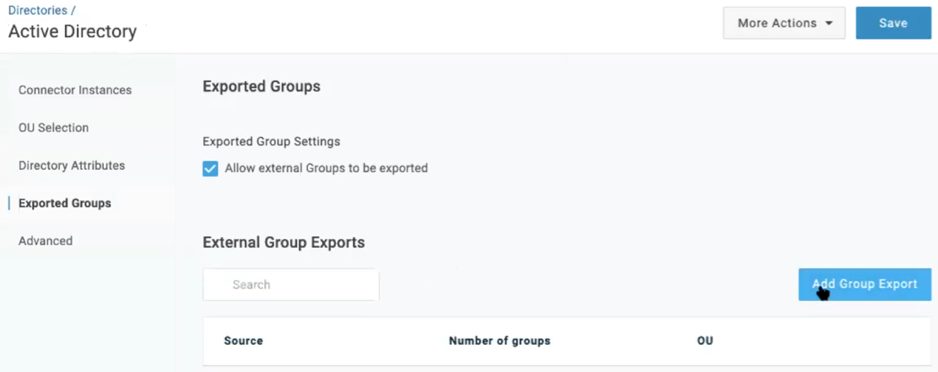
- To export a group to Active Directory, go to Users > Directories > select Active Directory > Exported Groups tab.
- Click Add Group Export.
Note: You must have provisioning for Active Directory enabled to export a group, see Provisioning for Active Directory.
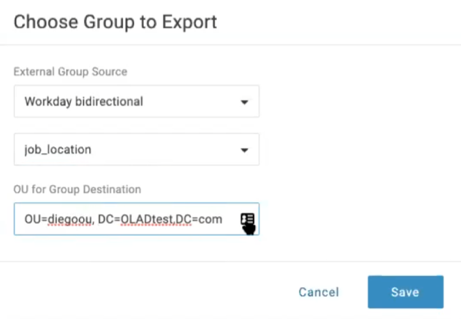
Configure a Group Export
You can set up multiple Groups Exports.
-
Choose an External Group Source- the origin directory for the group.
-
Select which group to export from that directory.
-
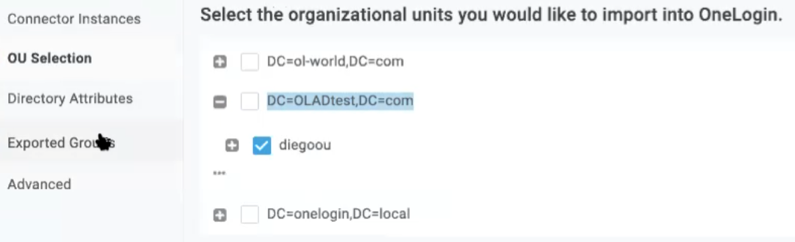
OU for Group Destination- select target OU for group export.
- To configure this field, go to the OU selection tab in Active Directory.
- Copy the OU and DC string from the target OU.
-
Click Save.
This group is created in Active Directory in the OU you defined in the steps above. A series of groups are created in AD such as San Francisco, Toronto, and Tokyo etc. If a user is assigned this attribute in Workday, they'll be assigned to that group in AD.