This topic describes how to configure OneLogin to provide SSO for Sisense using SAML.
Note: before beginning this process, ensure you have Full Administrative Access in Sisense and are a super user or above in OneLogin. In addition, identify a test user who has access to both Sisense and OneLogin so you can test the connection when you're done.
Sisense
Log into your Sisense application as an administrator, then note the hostname (or instance name) in the address bar, e.g. the hostname for the URL https://sisense.example.com/Sisense/home, the instance name is sisense.example.com.
OneLogin
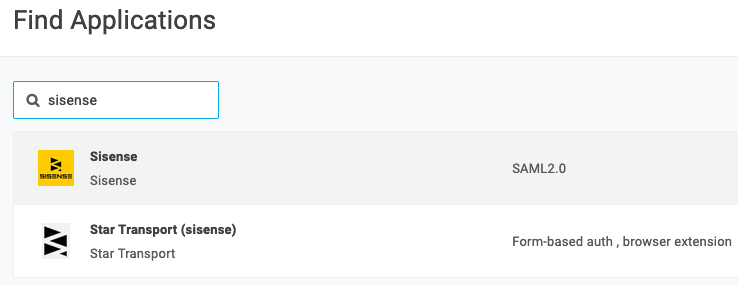
- Go to Administration > Applications > Applications, then click the Add App button, search for Sisense in the search box, and select Sisense. Click Save.
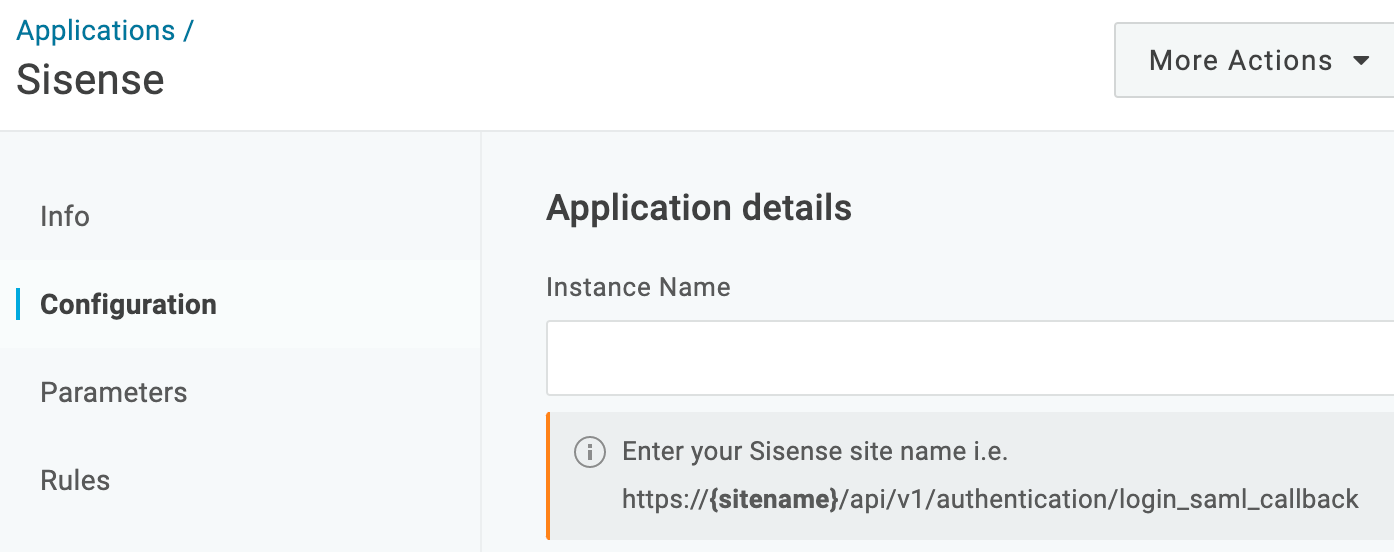
- Navigate to the Configuration tab and enter the instance name you noted earlier in these instructions.
- Switch to the SSO tab and copy the SAML 2.0 Endpoint (HTTP) value, then paste it somewhere to be retrieved later.
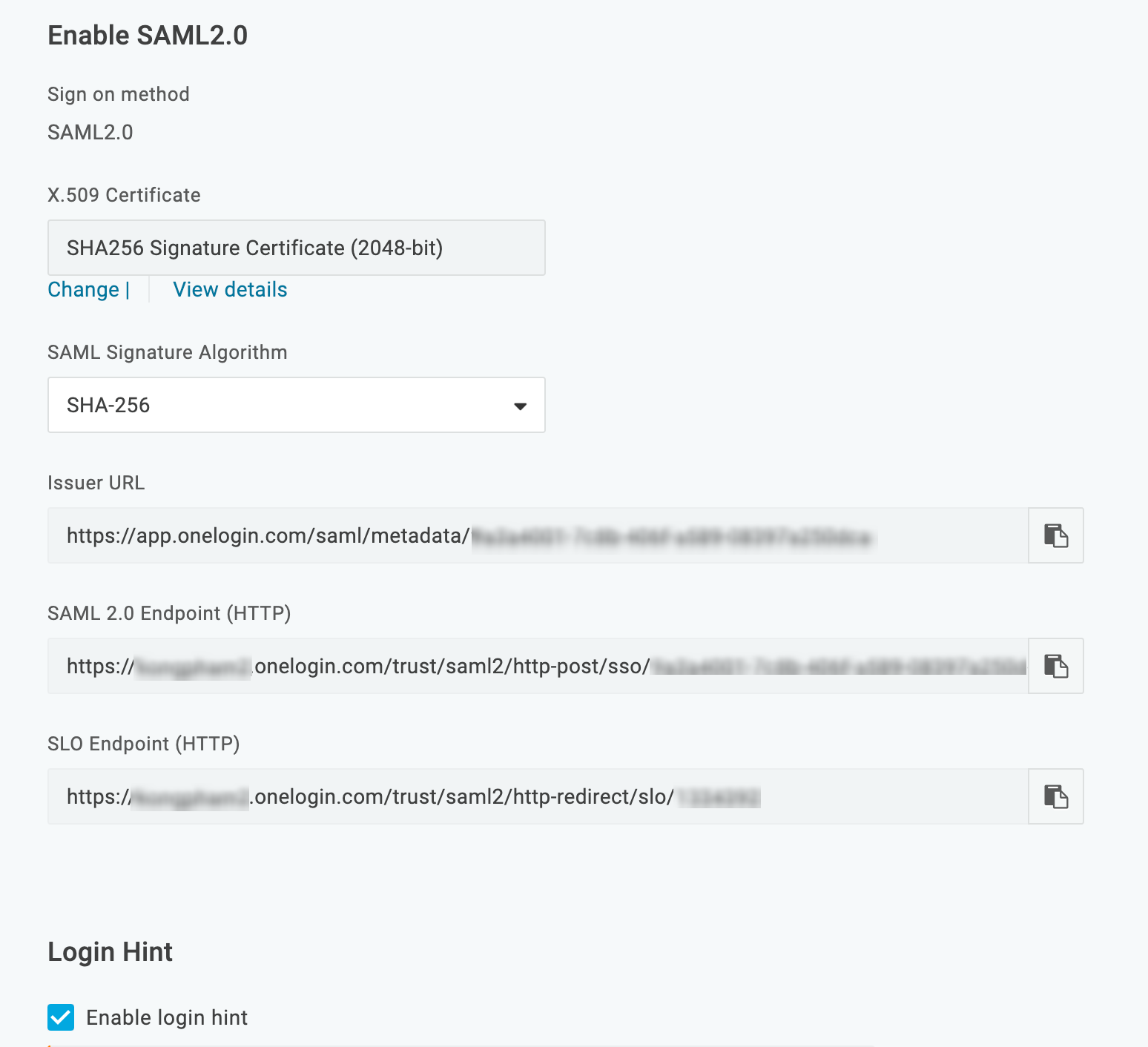
- Under the X.509 certificate value, click View Details link and copy the X.509 certificate, then paste it somewhere safe.
- Go to the Access tab and select the Roles to which you want to assign Sisense access. Click Save. For more information about Roles, click here.
Sisense
- Switch back to your Sisense administration panel, click Admin and select Single Sign On.
- Choose the SAML 2.0 radio button, then enter the SAML 2.0 Login Endpoint you copied before into the Remote Login URL field.
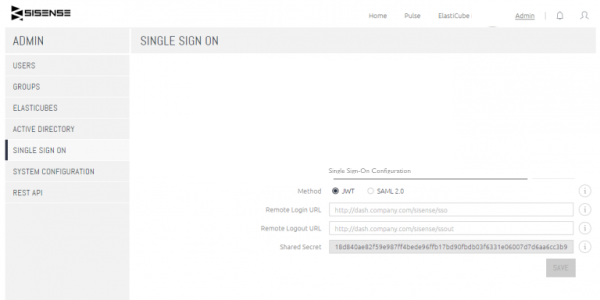
- Enter a logout URL to send the user to in the Remote Logout URL field. If you choose to enable Single Log Out for your users, the URL can be the SLO Endpoint from the Sisense connector in OneLogin. If you choose not to, simply enter your organization's default OneLogin user portal URL.
- Navigate to the Public X.509 Certificate field in Sisense and paste the X.509 certificate you copied from the OneLogin administration portal. Click Save.
Navigate to OneLogin and log into the test user account you identified earlier to. ensure that the OneLogin > Sisense connection has been made.
Sisense supports just-in-time provisioning. For setup help, see Introduction to User Provisioning.