This knowledge base article describes how to configure PowerSchool SIS to connect to OneLogin via SAML. The process below is for the student use case.
Before starting this process, identify a test account that has access to both PowerSchool SIS and OneLogin.
OneLogin
- Log into your OneLogin environment as an administrator and go to Users > Custom User Fields, then click New User Field.
- Create a new user field with Authentication ID (state-id or PSGUID) as the Name and PSGUID as the Shortname.
- navigate to Administration > Applications > Applications, click the Add App button, and search for PowerSchool.
- Select the app and name it PowerSchool SIS, then change the icon if you wish (noting that end users will see it), set it to be Visible in Portal, and click Save.
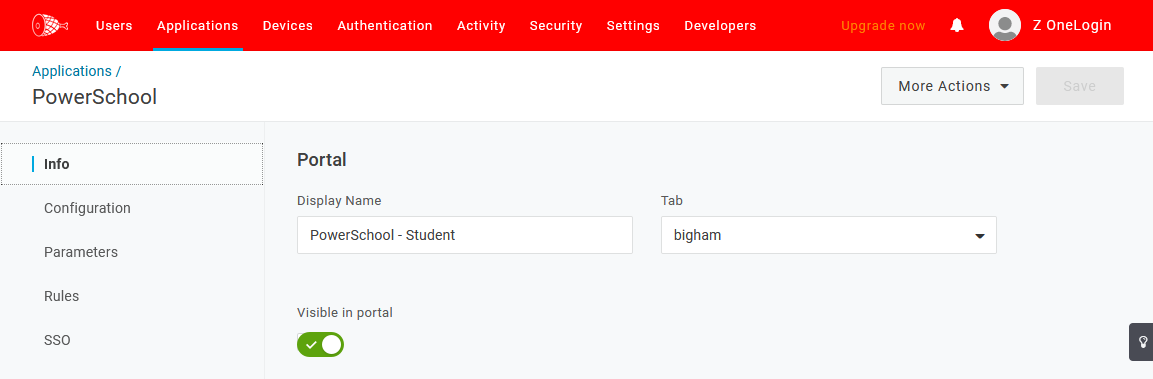
- Click Configuration and ensure that RelayState is set to
/student, then enter the following values and click Save:
| Audience (Entity ID) | https://partner2.powerschool.com:443/saml/entity-id/onelogin |
| Login URL | https://partner2.powerschool.com/student/pw.html |
| ACS (Consumer) URL Validator | ^https:\/\/partner2\.powerschool\.com:443\/saml\/SSO\/alias\/onelogin$ |
| ACS (Consumer) URL | https://partner2.powerschool.com:443/saml/SSO/alias/onelogin |
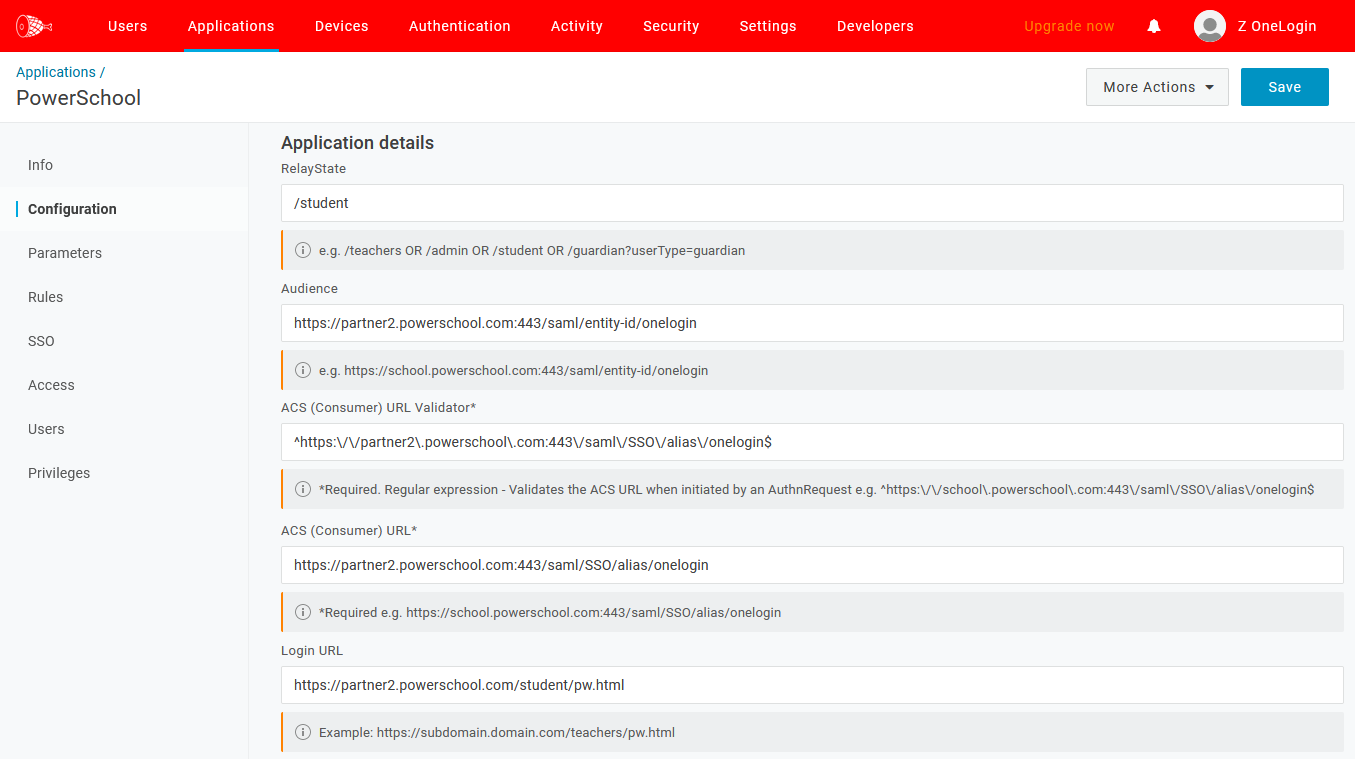
In addition, confirm the following settings:
- SAML initiator: OneLogin
- Display name: PowerSchool SIS
- Visible in Portal: Yes/enabled
- SAML signature element: Both
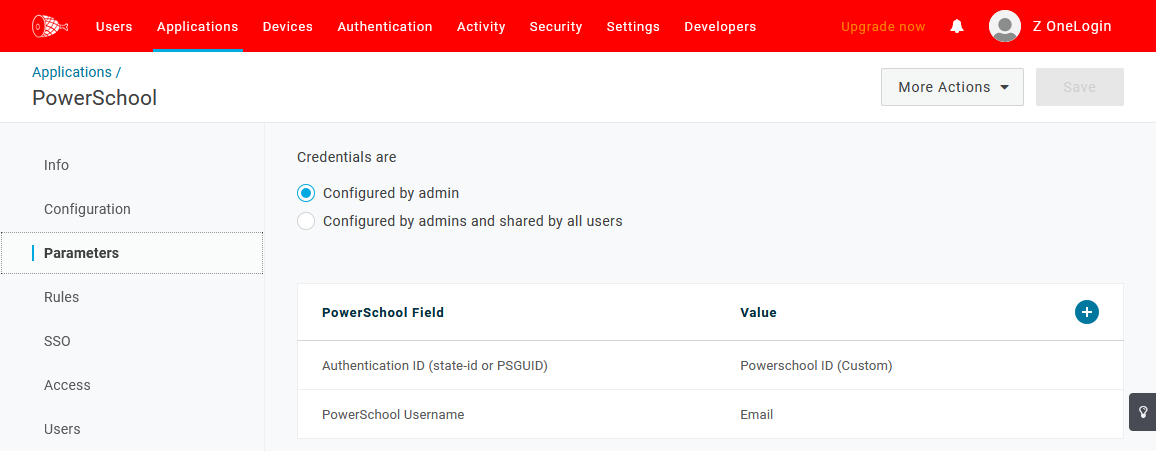
- Navigate to the Parameters tab and create two new parameters, ensuring that Include in SAML Assertion is checked for both:
| Name | Value |
| PSGUID | Powerschool ID |
| PowerSchool Username |
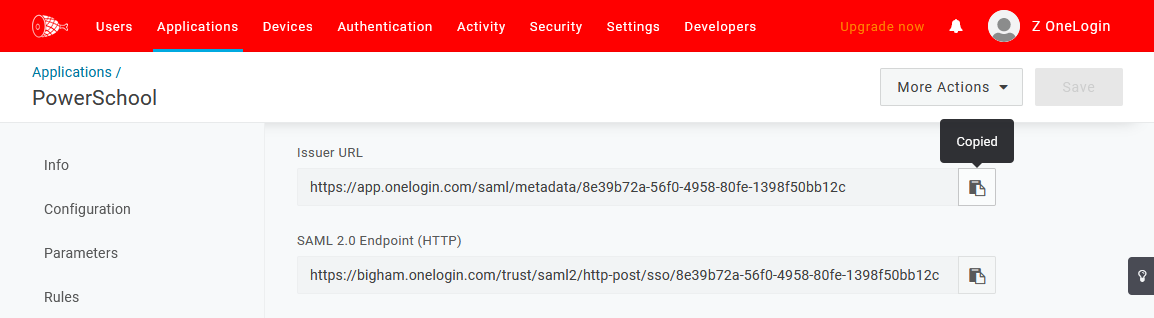
- Click the SSO tab and copy the Issuer URL, then paste it in a safe place for later retrieval.
- Click the Access tab and select which OneLogin role you want to grant to your users, then click Save.
Once you've done these things, but before opening your PowerSchool admin instance, download this PowerSchool plugin.xml template and replace the idp-entity-id and idp-metadata-url values with the OneLogin Issuer URL you just copied.
Powerschool
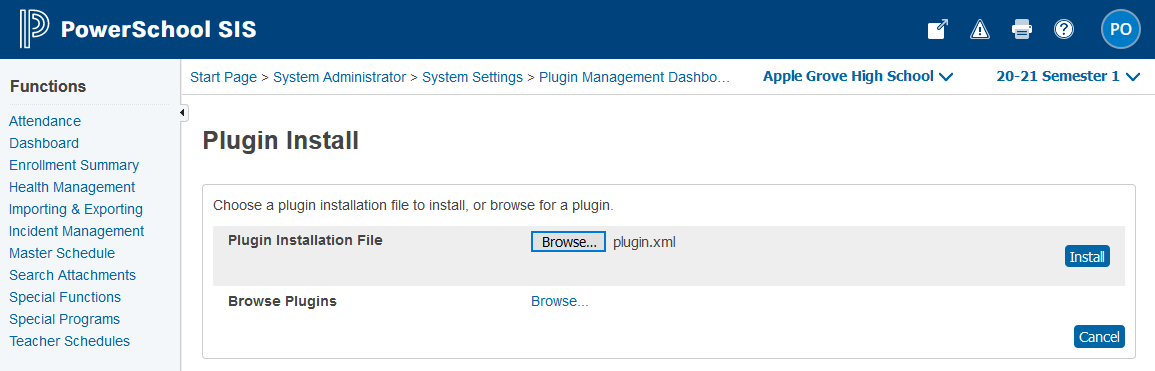
- Log in to PowerSchool SIS as an administrator and navigate to Start Page > System Administrator > System Settings > Plugin Management Dashboard and install your plugin.xml file, ensuring that you receive a message that says The plugin was installed successfully.
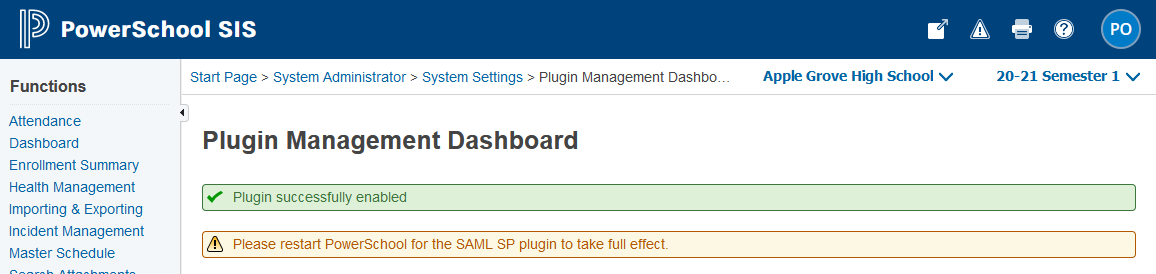
- Enable the plugin and receive the message Please restart PowerSchool for the SAML SP plugin to take full effect.
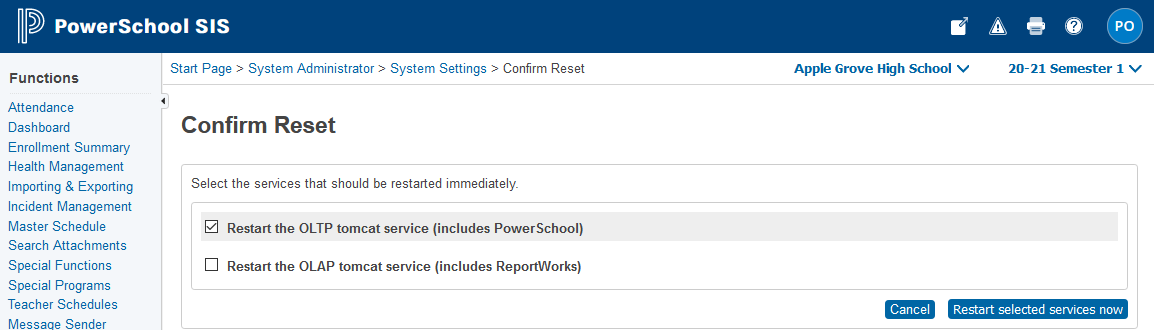
- Navigate to Start Page > System Administrator > System Settings > Confirm Reset and select your relevant services, then click the Restart selected services now button.
NOTE: It can take up to 15 minutes for PowerSchool SIS to complete its restart/reset procedure; please schedule accordingly.
- To test with your Student account, navigate to Start Page > System Administrator > SAML Authentication Setup, then enable the checkbox next to Enable SAML Authentication for Student Users and click the Submit button.

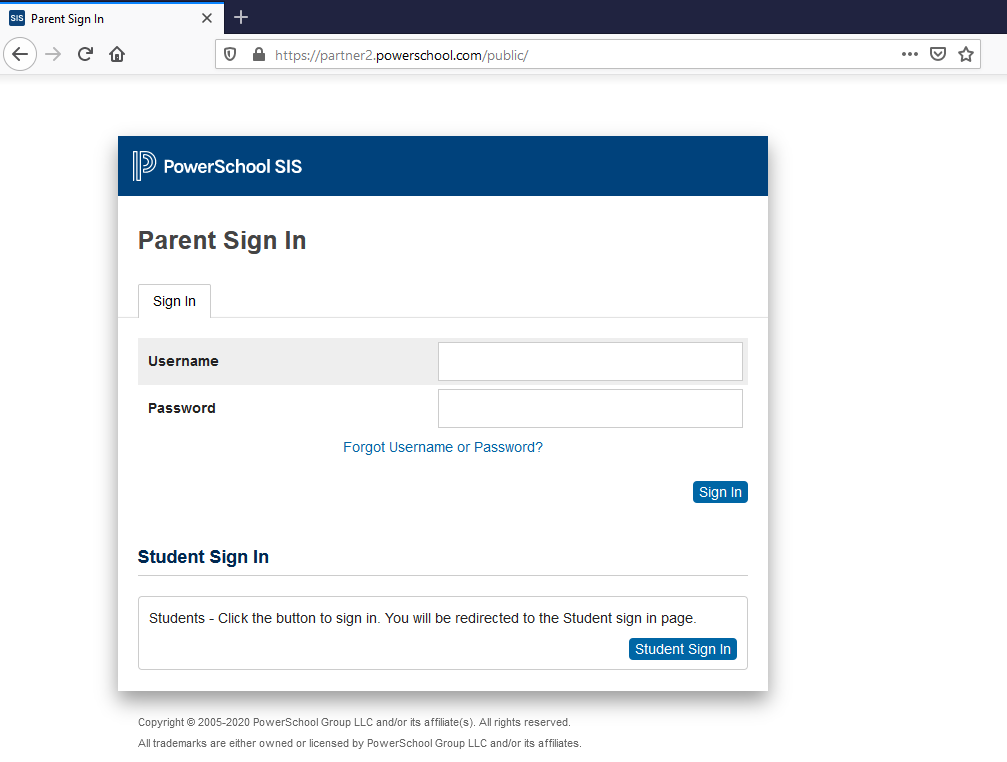
You can now test the setup. For an IdP-initiated test, via a separate browser or incognito browser session, click the PowerSchool - Student app icon from your OneLogin dashboard. For an SP-initiated test, via a separate browser or incognito browser session, navigate to your PowerSchool website and click the new Student Sign In button.
Notes
PowerSchool enforces the Single Logout (SLO) configuration within the OneLogin metadata file and this cannot be changed via the PowerSchool admin interface. If you do not want to utilize the SLO functionality as-is, you may host a modified copy of the OneLogin metadata file on your website, which requires you to periodically update the certificate within your hosted/modified copy of the OneLogin metadata file. A sample configuration for that file is at the end of this knowledge base article.
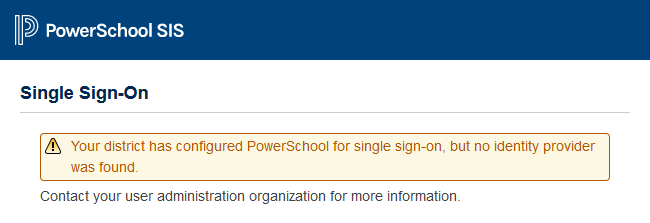
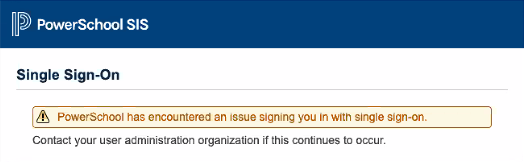
This article references error types that you may see at the end of the PowerSchool URL when testing. Some of the errors are discussed below.
Sample error
Possible solution
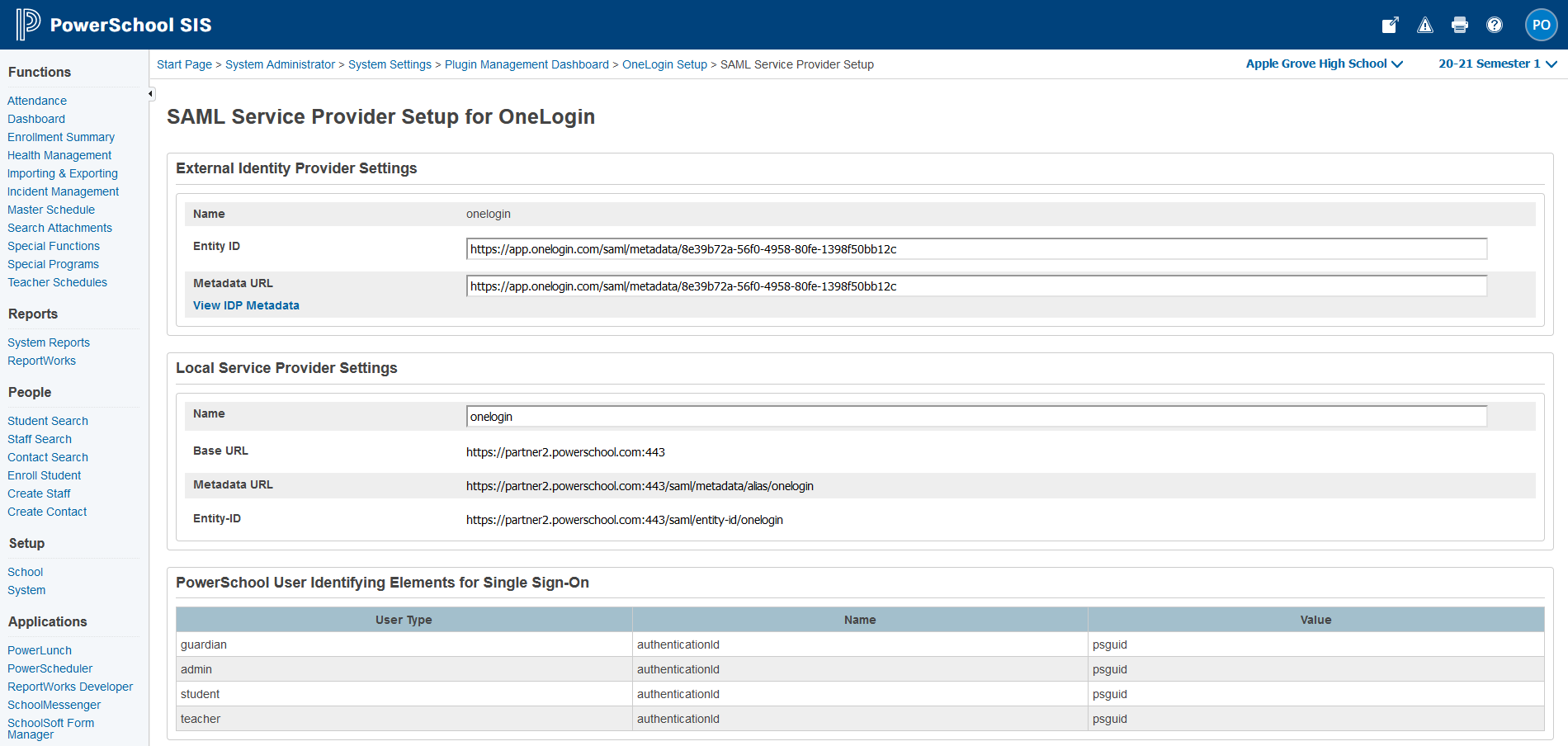
Navigate to Start Page > System Administrator > System Settings > Plugin Management Dashboard > [your plugin name] > SAML Service Provider Setup and review your new OneLogin plugin configuration to confirm that all URLs match exactly (including case) within your Onelogin PowerSchool app. Confirm that your OneLogin plugin is enabled. If the issue persists, contact PowerSchool support.
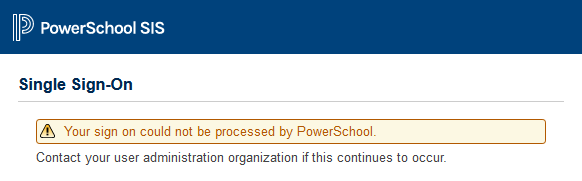
Sample error
Possible solution
- Confirm that the PSGUID for your Student user is correct within OneLogin. If the issue persists, contact PowerSchool support.
Sample SQL query to confirm the PSGUID for a student: SELECT psguid FROM Students WHERE studentID = ###
A sample of how to confirm the PSGUID that was sent in the SAML assertion is below.
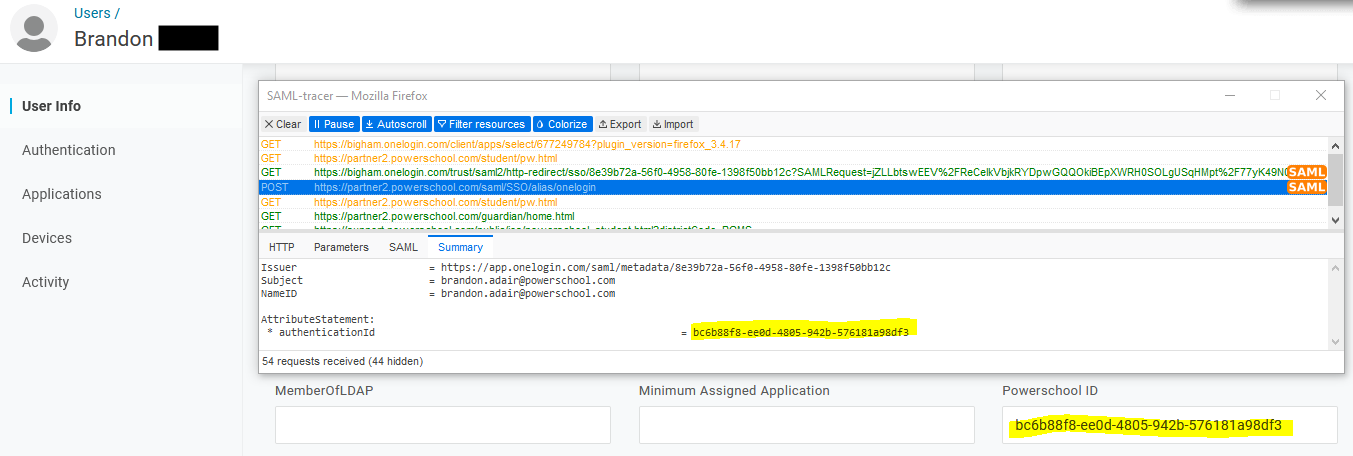
Your PowerSchool log file (\PowerSchool\logs\tomcat-oltp) returns ERROR com.pearson.powerschool.samlsp.impl.PSSAMLProcessingFilter - User with single sign-on identity provider credentials is not recognized by PowerSchool.
Possible solution
The user that you are testing with is not scheduled and/or enrolled within PowerSchool. If the issue persists, please contact PowerSchool support.
Sample error

Possible solution
The PSGUID configured for the OneLogin user you are testing with is incorrect. If the issue persists, please contact PowerSchool support.
Sample error

Possible solution
The PSGUID for the OneLogin user you are testing with is missing. If the issue persists, please contact PowerSchool support.
Sample configuration:
<?xml version="1.0" encoding="UTF-8"?>
<plugin xmlns="http://plugin.powerschool.pearson.com"
xmlns:xsi="http://www.w3.org/2001/XMLSchema-instance"
xsi:schemaLocation='http://plugin.powerschool.pearson.com plugin.xsd'
name="OneLogin"
version="1.0.0"
description="SSO plugin for OneLogin as the IdP">
<saml
name="onelogin"
idp-name="onelogin"
idp-entity-id="https://Replace_With_Your_OneLogin_Issuer_URL"
idp-metadata-url="https://Replace_With_Your_OneLogin_Issuer_URL">
<attributes>
<user type="teacher">
<attribute name="authenticationId" attribute-value="psguid" />
</user>
<user type="student">
<attribute name="authenticationId" attribute-value="psguid" />
</user>
<user type="guardian">
<attribute name="authenticationId" attribute-value="psguid" />
</user>
<user type="admin">
<attribute name="authenticationId" attribute-value="psguid" />
</user>
</attributes>
</saml>
<publisher name="OneLogin">
<contact email="support@onelogin.com" />
</publisher>
</plugin>