This knowledge base article describes how to configure RealPage to connect to OneLogin via SAML.
Before starting this process, identify a test account that has access to both RealPage and OneLogin. You also need to contact RealPage Support and ask to be migrated to the RealPage Unified Platform and to use OneLogin as your IDP. The RealPage team will ensure you have email addresses for your test users and assist with configuration; save the Audience URL and Consumer URL (sometimes called ACS URL) that the RealPage representative will give to you.
OneLogin
- Navigate to Administration > Applications > Applications, click the Add App button, and search for SAML Test Connector (Advanced).
- Select the app and name it RealPage Unified Platform, then change the icon if you wish (noting that end users will see it) and click Save.
- Click Configuration and enter the following values, then click Save:
| Value | URL to paste |
| Audience (Entity ID) | The Audience URL provided by RealPage. |
| ACS Validator | The Consumer URL provided by RealPage. |
| ACS (Consumer) | The Consumer URL provided by RealPage. |
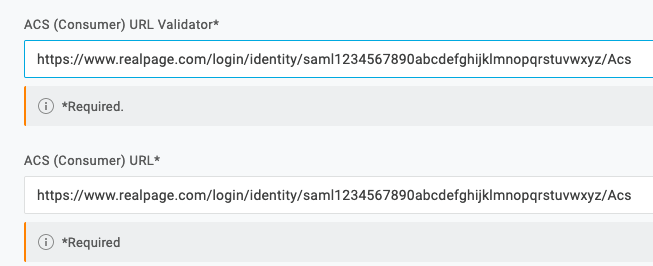
- Edit the value you just placed in the ACS Validator field using the following three rules:
- Add a dollar sign after the word Acs. It will look like this:
Acs$ - Add a carat in front of https://. It will look like this:
^https:// - Before each forward slash (/) or each period (.) add a backslash. Your final URL will look something like this:
^https:\/\/www\.realpage\.com\/login\/identity\/saml1234567890abcdefghijkl\/Acs$

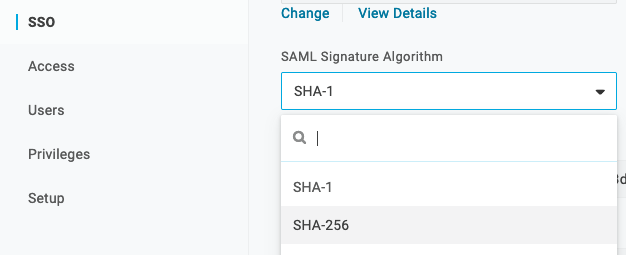
- Navigate to the SSO tab and change the Signature to SHA-256, then copy the Issuer URL and provide it to the customer service representative you're working with at RealPage.

- Click the Access tab and select which OneLogin role you want to grant to your users, then click Save.
Once you have the SAML Metadata file, attach it to the ticket you opened with RealPage. After they complete your setup, you can test your connection.
- For an SP-initiated test, via a separate browser or incognito browser session, navigate to https://login.RealPageglobal.com and click the CONTINUE button after entering your email address.
- For an IdP-initiated test, via a separate browser or incognito browser session, click the RealPage app icon from your OneLogin dashboard.