This article explains how to set up custom email servers for your OneLogin account, allowing you to present a cohesive brand and increase user trust by sending emails from your own recognized domain.
Prerequisites
- OneLogin account that supports the Advanced Branding add-on
Table of Contents
Setting Up Custom SMTP
Go to Settings > Branding in your OneLogin Admin Portal. Choose an existing brand (or Add a new one) and click SMTP Configuration.
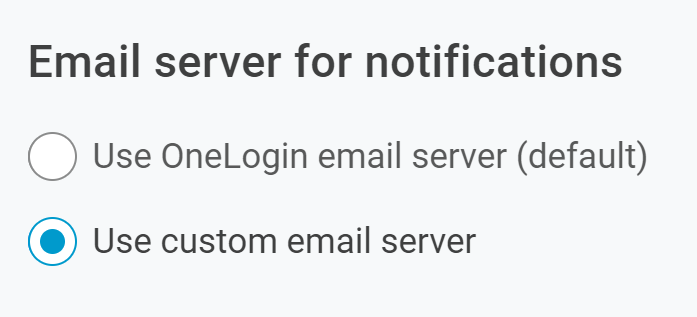
By default, automated messages sent by OneLogin are delivered from no-reply@onelogin.com, with "OneLogin" showing in the From field. To use your own server, select Use custom email server.
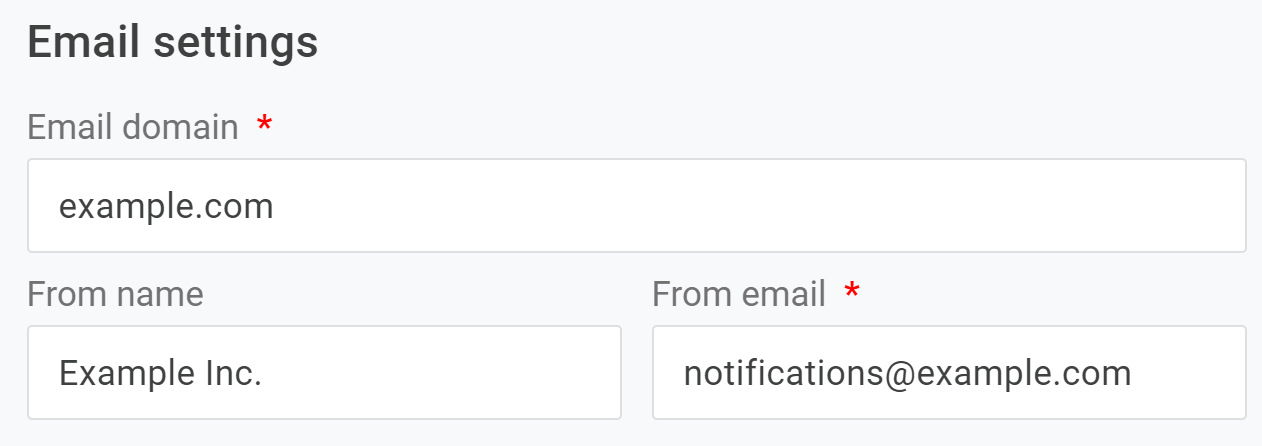
Email Settings
|
Email Domain |
The domain your server uses. |
|---|---|
|
From Email |
The name you want to appear in the From field. |
|
From Email |
The email you want to appear in the From field. |
Server Settings
Set up the email and server settings based on the email server you plan to use.
Setting Up SMTP with Office 365
Enabling STMP for specific mailboxes in Microsoft 365:
You can enable SMTP for Microsoft 365 using Microsoft Azure Portal. For more information, see the related Microsoft documentation.
Use the settings below to configure SMTP with Office 365 in OneLogin:
|
SMTP Server Address: |
smtp.office365.com |
|---|---|
|
SMTP Server Port: |
Port 587 (recommended) or port 25 |
|
SMTP Authentication: |
OAuth2 |
|
Use TLS Connection: |
Enabled |
|
Client ID, Client Secret, Scope, Token Host and Token Path: |
Specify the required credential parameters as required by OAuth 2.0 |
Setting Up SMTP with Gmail
Setting up SMTP Relay in Google Admin
- Sign into Google Admin with your administrator account and go to Menu > Apps > Google Workspace > Gmail > Routing.
- Under SMTP relay service click Configure. If the setting is already configured, click Edit or Add another.
- Name the setting and configure the following options:
- Allowed Senders: use Only addresses in my domains or Any addresses to allow OneLogin to send messages.
- Authentication: Select one or both authentication methods. If you choose to Only accept mail from the specified IP addresses you will need to Add your own public IP address.
- Encryption: ensure Require TLS encryption is checked.
- Save.
- Set up your on-premise server to point to Google
Use the settings below to configure SMTP with Gmail in OneLogin:
|
SMTP Server Address: |
smtp-relay.gmail.com |
|---|---|
|
SMTP Server Port: |
Port 587 |
|
SMTP Authentication: |
Login |
|
Use TLS Connection: |
Enabled |
|
Admin Username & Admin Password: |
Username and password of the hosted mailbox |