Digipass GO 7 is a FIPS 140-2 Level 2 Certified one-time password (OTP) hardware authentication device: in other words, it's a physical token that your users must have on their person in order to access their accounts with multi-factor authentication (MFA). After registering their token, users attempting to access OneLogin can press a button on their GO 7 device to receive a one-time 6-digit code to enter and verify their identity. This article describes how to import your batch of GO 7 token seeds and enable OATH authentication for your users.
This feature requires a OneLogin subscription that includes Multi-Factor Authentication. Speak with your account representative for more information.
Prerequisites
Before beginning this process, you should have:
- Access to the XML seed file provided by Digipass
- Familiarity with the OneLogin Developer API
- A OneLogin API credential with Manage all permissions, and the client ID and secret for that credential
- Final-Oath Tokens Postman Collection (Download)
-
Generate a new OAuth access token with the client ID and secret of your Manage all API credential.
-
Create an API endpoint using
/api/v5/oath_tokens/importand establish an Authentication header using the newly generated access token.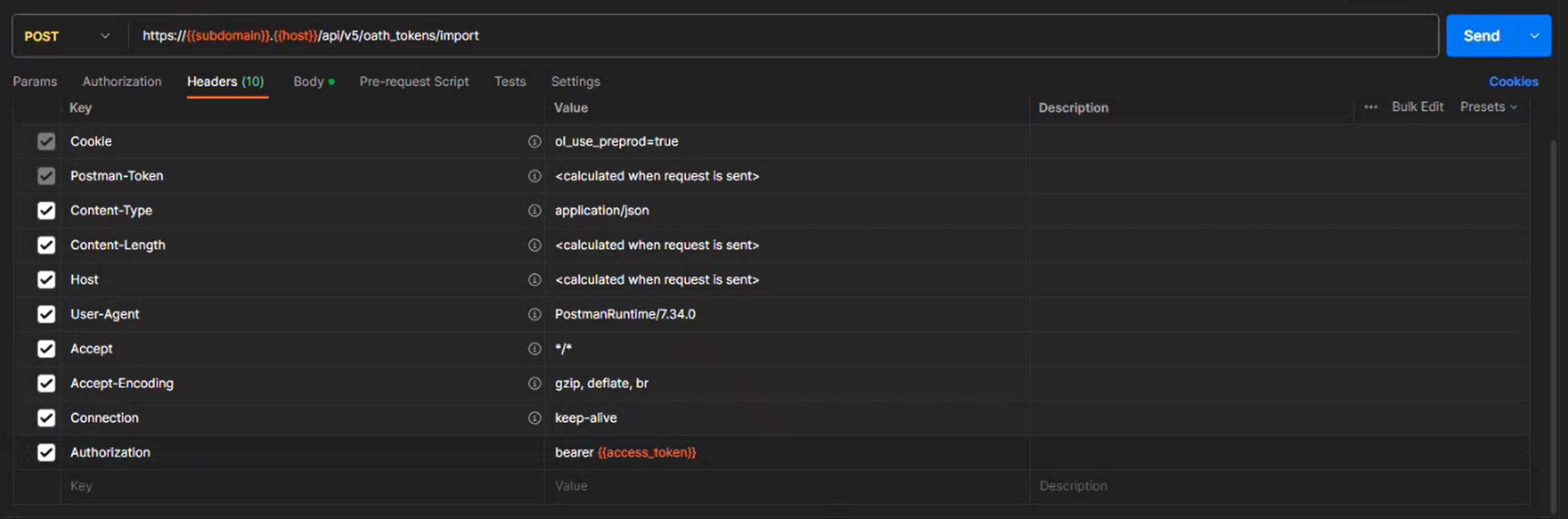
-
In the endpoint's body, create a JSON array with the following parameters for each GO 7 token you want to import to OneLogin:
{ "id" : "serial-number", "seed" : "otp-seed", "interval" : "30", "digits" : "6" }Best Practice: We recommend importing all token seeds when they are first made available to you, even if not all are currently required; this will prevent you from needing to track which seeds have and have not yet been imported and minimize the potential for future error.
-
Access the XML file provided by Digipass to retrieve the serial numbers and OTP seeds associated with your batch of tokens. The file contains a KeyPackage block to represent each token in your batch. Within each KeyPackage, locate the SerialNo and Secret to enter into the
idandseedparameters respectively, then repeat this process for each token to import.For example, if a KeyPackage in your XML file contains these lines:
<pskc:SerialNo>1234567890</pskc:SerialNo><pskc:Secret><pskc:PlainValue>abCde1fgHIjKL2mNo3PQRsTu+4=</pskc:PlainValue></pskc:Secret>You'll enter this line into your endpoint's array:
{ "id" : "1234567890", "seed" : "abCde1fgHIjKL2mNo3PQRsTu+4=", "interval" : "30", "digits" : "6" }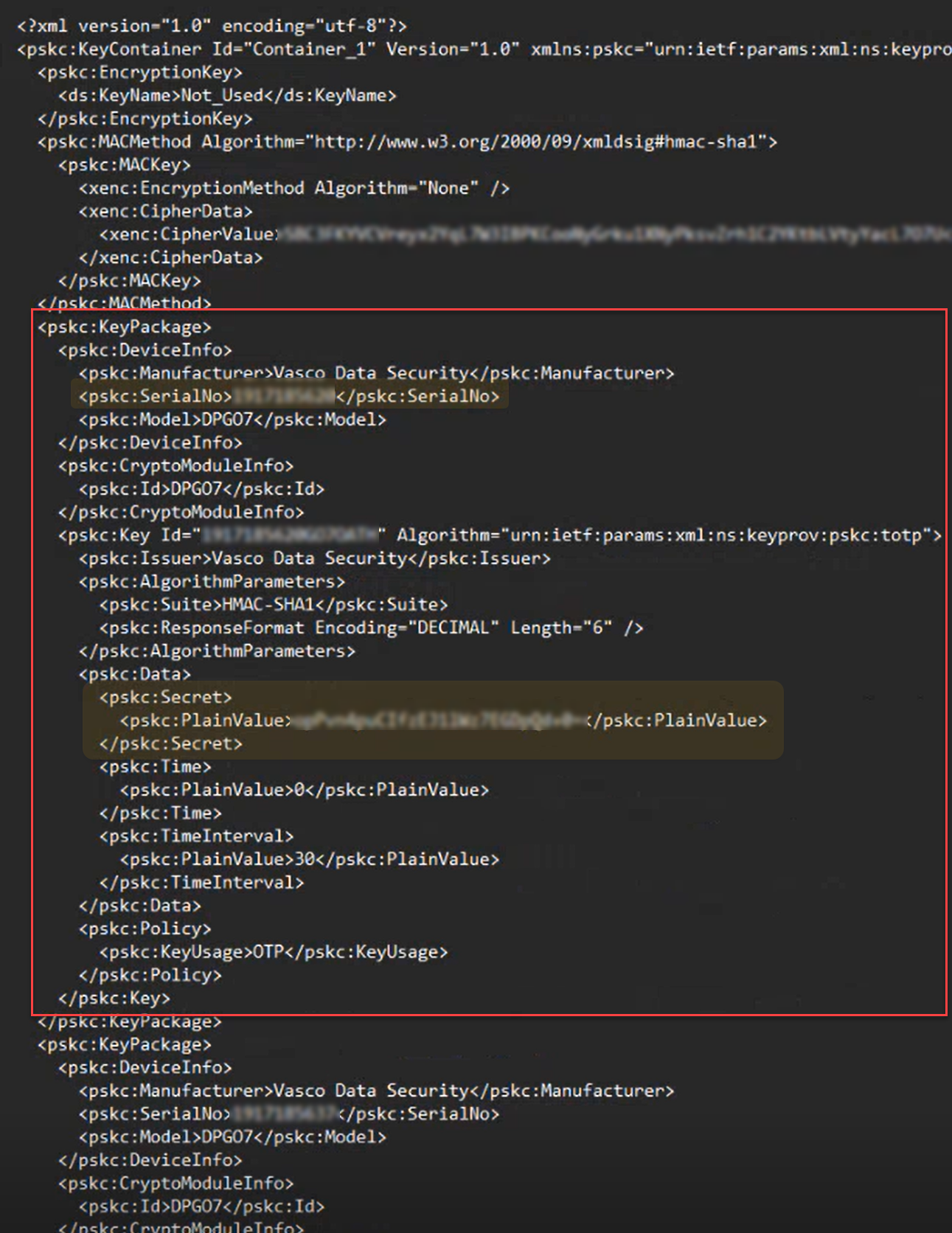
Note that the seed is a base64-encoded hex string. You may receive the seed file with the seeds displayed as hex strings, e.g.
ABCDEF1234567890D319DAF7CF636CEAB5706EAB.If you receive the seeds in this format, you must convert them using a hex to base64 encoder. The base64 encoding of the above hex string is
q83vEjRWeJDTGdr3z2Ns6rVwbqs=.Note: Do not use a standard base64 encoder, as it treats the input string as ASCII and will therefore produce a much longer, and incorrect, base64 encoded value.
-
After entering the data for all tokens, call the new endpoint to submit the token catalog to OneLogin.
-
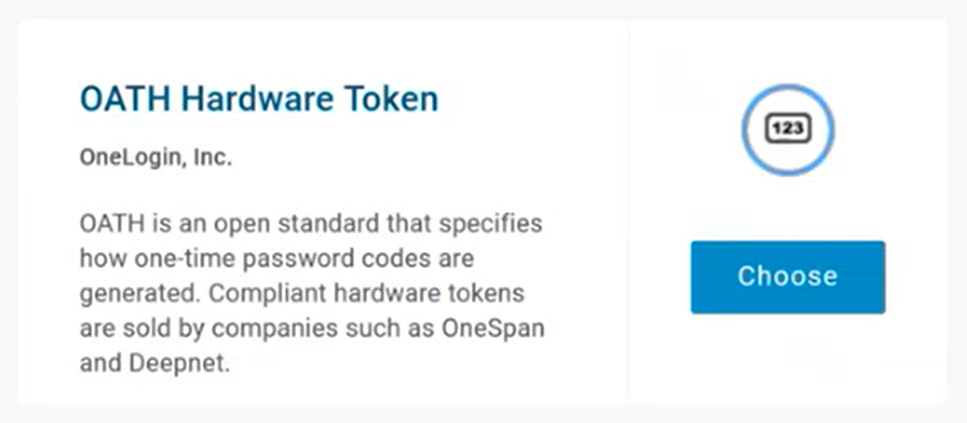
In your OneLogin admin portal, go to Security > Multi-Factor Authentication to add a new auth factor and select OATH Hardware Token from the OneLogin category.
-
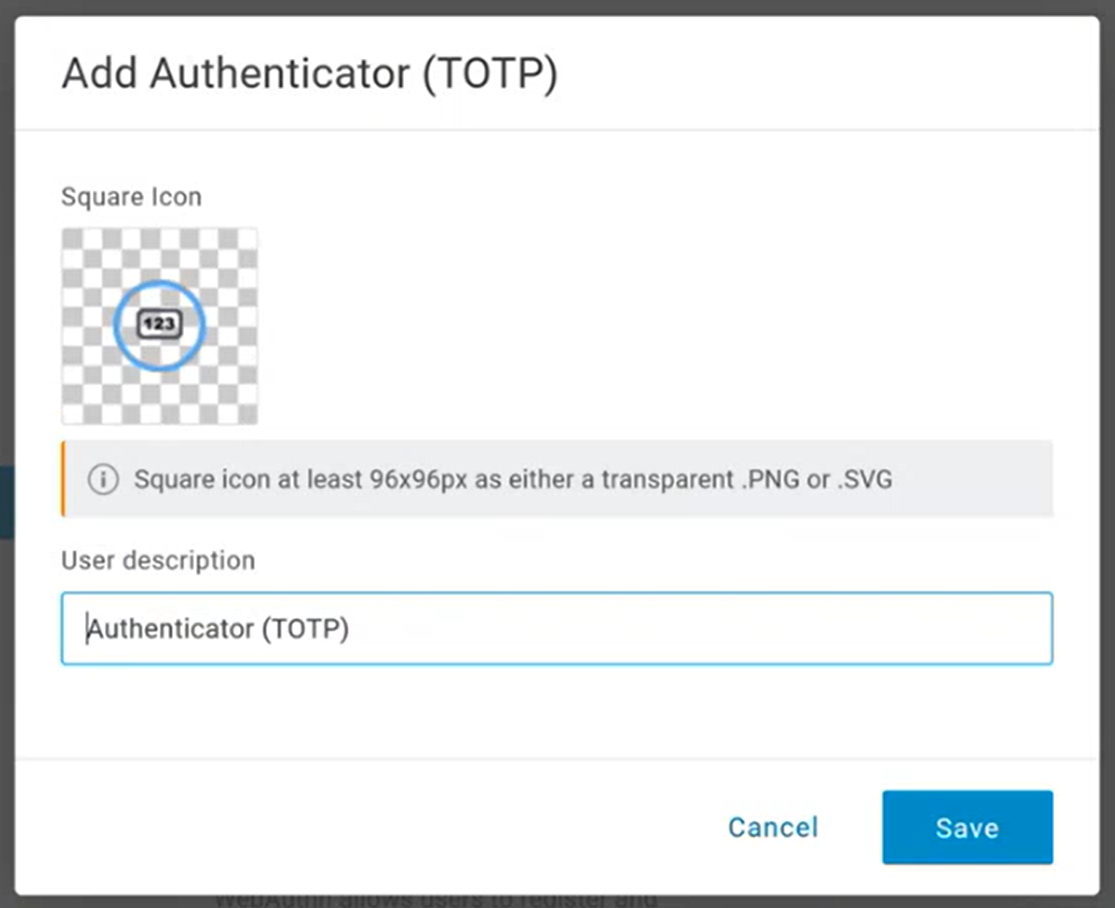
If desired, update the factor's icon and display name, then Save and assign it to your users. The next time the assigned users attempt to log in, they're prompted to register their token with the serial number printed on the back of the device and a newly generated OTP.
Note: These OTP tokens are not intended to support multiple users with a single device. We do not recommend registering a single device to multiple different users.
Three environment variables are required in postman:
|
|
|
|---|---|
|
|
The Client ID of the API credential |
|
|
The Client Secret of the API credential |