This topic describes how to sync users between Workday and OneLogin using the Workday Get_Workers API.
Configure OneLogin to:
- Import users and attributes from Workday (at a sync interval of 6 hours).
- Export a subset of user attributes to Workday every time a user is added or updated in OneLogin, allowing you to sync in both directions (exporting from OneLogin to Workday as well as importing from Workday to OneLogin).
You can also configure Workday to provide OneLogin with real-time updates when employees are terminated in Workday. See Workday Real-time Synchronization of Termination Events.
If you don't need to export user attributes from OneLogin to Workday, use the Workday Custom Reports directory connector to import Workday users into OneLogin. This may be the best option if you have Workday user attributes to import into OneLogin but aren't supported in the Workday Bidirectional directory connector. For more information, see Workday Custom Reports Directory Integration.
Note. To set up SSO for Workday, see Configuring SAML for Workday.
Configuration Overview
To configure Workday sync with OneLogin, you must:
-
Create a Workday Integration System User with access to the Workday domains that you will sync with OneLogin.
-
Configure OneLogin to sync users with Workday.
Create a Workday Integration System User
All Workday integrations, like the integration with OneLogin, require a separate Integration System User account with at least Get access to all of the Workday security domains touched by the integration. If you want to export attributes from OneLogin to Workday, you must create an Integration System User account with both Get and Put access to those domains that can be exported from OneLogin to Workday. These instructions tell you how to create and configure a "read-only" Integration System User account with Get access only and an admin Integration System User account with both Get and Put access.
Note. This procedure takes place entirely in Workday, and these instructions are provided as a convenience. For complete and up-to-date instructions, see Workday documentation.
Create a read-only Integration System User to import attributes from Workday only
-
Log in to Workday with an administrator account.
-
Search for and open the Create Integration System User task.
-
Create the user, configure the integration system user details, and save the configuration.
-
Create a security group.
-
Add the integration system user to this security group. In a later step, add the domains to sync with OneLogin.
- Search for and open the Create Security Group task.
- In the Type of Tenanted Security Group field, select Integration System Security Group (Unconstrained).
- Add the Integration System User you created above to the group and save the configuration.
-
Add the domains that you want to sync with OneLogin to the security group.
- Search for domain: Worker Data: Public Worker Reports and select it.
- Click the ellipsis (...) next to Worker Data: Public Worker Reports.
- In the window that opens, hover your cursor over Domain and click Edit Security Policy Permissions.
- Under Integration Permissions, add the security group that you created.
- Select the checkbox in the Get column.
- Click OK.
-
Activate your security policy changes.
- Search for security changes and open Activate Pending Security Policy Changes.
- Enter a comment, click OK, and confirm the changes.
Create an admin Integration System User to import and export attributes between Workday and OneLogin
-
Log in to Workday with an administrator account.
-
Locate and open the Create Integration System User task.
-
Create the user, configure the integration system user details, and save the configuration.
-
Create a security group.
Add the integration system user to this security group. In a later step, add the domains that you want to sync with OneLogin.
- Search for and open the Create Security Group task.
- In the Type of Tenanted Security Group field, select Integration System Security Group (Unconstrained).
- Add the Integration System User you created above to the group and save the configuration.
-
Add the domains that you want to sync with OneLogin to the security group.
- Search for domain: Worker Data: Public Worker Reports and select it.
- Click the ellipsis (...) next to Worker Data: Public Worker Reports.
- In the window that opens, hover your cursor over Domain and click Edit Security Policy Permissions.
- Under Integration Permissions, add the security group that you created.
- Select the checkbox in the Get column.
- Click OK.
- For any domains whose fields you want to export from OneLogin to Workday, repeat the above steps, selecting the checkboxes in both the Get and Put columns when you Edit Security Policy Permissions.
The domains that OneLogin can write to include:
Worker Data: Work Email
Worker Data: Work Address
-
Add your security group to the business process security policy for the Maintain Contact Information (web service) functional area.
- Search for Business Process Security Policies for Functional Area and select it.
- In the Functional Area field, enter Contact Information.
- Click OK.
- In the left pane, select Contact Change.
- Scroll to the bottom of the page and click the Edit Permissions button.
- Under Initiating Action: Maintain Contact Information (Web Service), add your security group.
- Click OK.
-
Activate your security policy changes.
- Search for security changes and open Activate Pending Security Policy Changes.
- Enter a comment, click OK, and confirm the changes.
Configure OneLogin
After you created a Workday Integration System User with permission to read or modify the fields synced with OneLogin, configure OneLogin to sync with Workday.
-
Log in to OneLogin as an administrator and go to Users > Directories.
-
Click New Directory and select Workday Bidirectional.
Don't select Workday or Workday Custom Reports.
-
Name the directory and choose OneLogin under Authenticate users in.
-
Click Save to enable additional configuration fields and tabs.
.png)
-
To use this directory connector to import users from Workday to OneLogin, select Enabled under Importing Users.
-
To enable role mapping, select Instead of managing users' roles manually... .
This option lets you assign users to OneLogin roles, groups, and other OneLogin attributes, using Workday user attributes as assignment criteria. For example, you can create a mapping to set all Workday users with the Job Profile Sales Development Rep to the OneLogin Role Sales. For more information, see Mappings.
-
To enable this directory connector to export user attributes from OneLogin to Workday, select Provisioning enabled.
When you select Enabled under Importing Users, the Workday directory connector imports users and their attributes from Workday to OneLogin. The Provisioning enabled option lets you export a subset of user attributes from OneLogin to Workday. For a list of exportable user attributes, see step 11.
Exportable attributes can be imported to OneLogin from Workday, providing bidirectional synchronization. Whenever one of these attributes is modified in either OneLogin or Workday, the other directory is also updated.
Note. This option requires that you select Enabled under Importing Users. There is no export-only option.
-
To automatically approve all user updates exported from OneLogin to Workday, select Auto approve changes.
This option prevents the failure of OneLogin-to-Workday provisioning events when attributes are configured in Workday to require approval workflow.
-
Select Use Change Contact API to use the Workday Update Contact API to update user contact information when the user record is in a workflow. For instance, if a user's work address is updated, but the approval process isn't complete, this record can't be updated using the default Main Contact API. The Change Contact API provides the capacity to update the user record while it's in this state. This applies to user contact attributes, including email.
Note: v30 or above is required to use this API. To find your current version, consult the URL in the API Endpoint field. If you have v29 or below and select the Use Change Contact API, you won't be able to update a user record while it's in a workflow process in Workday.
Security Groups
Prior to working with the v30 API, you must create a general set of permissions. Perform the following in the Workday UI.
- Search and select the domain Integration build.
- Click the ellipsis (...) next to Worker Data: Public Worker Reports.
- In the dialog, place cursor over Domain and click Edit Security Policy Permissions.
- Under Integration Permissions, add the security group you created.
- Select the checkbox in the Get column.
- Click OK.
- Activate your security policy changes.
- Search for security changes and open Activate Pending Security Policy Changes.
- Enter a comment, click OK, and confirm the changes.
To work with the new endpoint, you must create separate sets of permissions for Work Contact Data and Home Contact Data, as they are 2 separate API calls. Perform the following in the Workday UI.
Work Contact Data
- Search for Business Process Security Policy.
- Open Edit Business Process Security Policy.
- Select the appropriate Business process type, for example Work contact change.
- Locate Change Work Contact Information (Web Service), set security groups for permissions and save.
- Go to Profile > Workbench > Security and Audit.
- Locate Activate pending security policy changes on the Actions tab, enter a comment and confirm.
Home Contact Data
- Search for Business Process Security Policy.
- Open Edit Business Process Security Policy.
- Select the appropriate Business process type, for example Home contact change.
- Locate Change Home Contact Information (Web Service), set security groups for permissions and save.
- Go to Profile > Workbench > Security and Audit.
- Locate Activate pending security policy changes on the Actions tab, enter a comment and confirm.
-
Enter the API Settings required to connect to the Workday API.

API username and API password are the credentials for the Integration System User account you created in Creating a Workday Integration System User. Include @ + your Workday tenant name (@tenant_name) in the username. For example, integration_user@acme. If you intend to export OneLogin attributes to Workday, use the Integration System User with admin rights (both Get and Push permissions).
API endpoint is the Workday web service URL. For example:
https://server_name.workday.com/ccx/service/tenant_name/Human_Resources/v25.0?wsdl. If you do not know your endpoint URL, contact Workday or see the Workday Getting Started documentation for more information.Worker ID for fetching Schema is a Worker ID for any employee in your Workday system that has values populated in all fields that you are synching with OneLogin.
-
Click Save to connect to the API and retrieve available Workday fields to sync with OneLogin.
These fields appear on the Directory Attributes tab, which appears after Save is clicked.
-
On the Directory Attributes tab, map the Workday fields you want to sync with OneLogin.
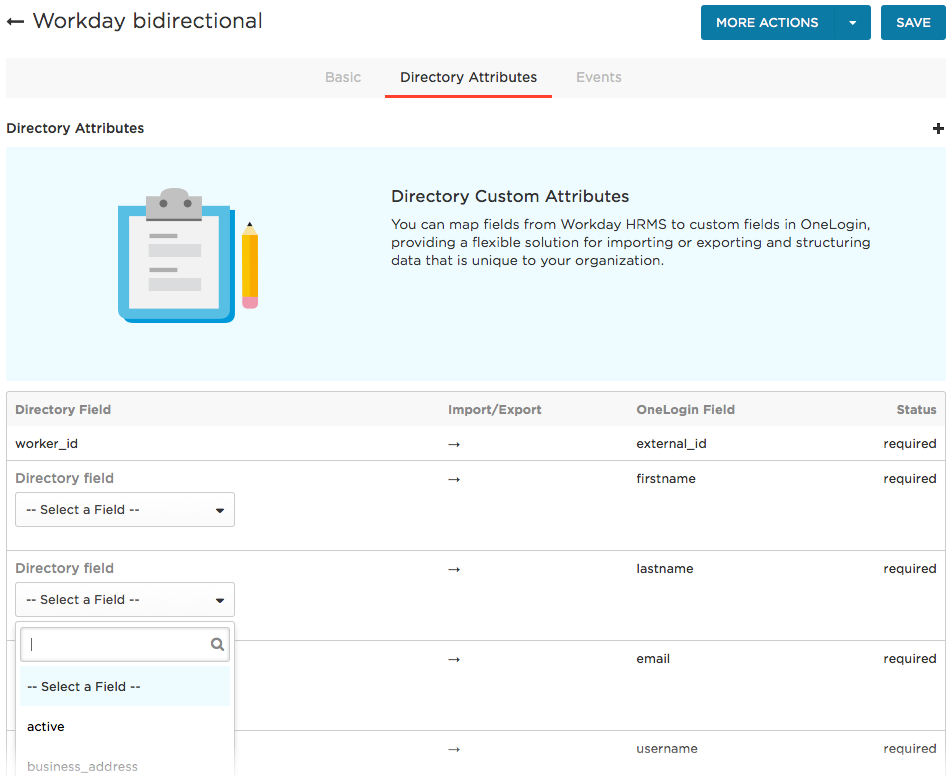
Select the Workday field from the dropdown in the Directory Field column for each required field.
Click the + plus button at the top right to add rows, where you can map additional Workday fields to OneLogin fields. For any new mappings, you must create a OneLogin custom user field to hold the value you want to sync with the Workday field. All custom fields will be available for selection from the dropdown in the OneLogin Field column in rows that you add.
The following table provides a list of the fields you must map between OneLogin and Workday, and the fields you can sync in both directions (exporting from OneLogin to Workday as well as importing from Workday to OneLogin). All of the other fields in the Workday Field dropdown are optional and can only be imported from Workday to OneLogin.
Workday domain Field name on Directory Attributes tab OneLogin Field Export? Required? Worker Data: External ID worker_idexternal_idYWorker Data: Work Email primary_work_emailemailYYWorker Data: Legal Name legal_first_namefirstnameYWorker Data: Legal Name legal_last_namelastnameYWorker Data: Username user_idusernameYWorker Data: Preferred Name preferred_first_namecustom field Worker Data: Preferred Name preferred_last_namecustom field Worker Data: Work Phone phone_number_workcustom field Yprimary_work_phone_device_type*custom field YWorker Data: Home phone phone_number_home_1custom field Yhome_phone_1_device_type*custom field YWorker Data: Work Address business_addresscustom field YWorker Data: Work Address business_address_citycustom field YWorker Data: Work Address business_address_statecustom field YWorker Data: Work Address business_address_zipcustom field YWorker Data: Work Instant Messenger primary_home_messenger_providercustom field YWorker Data: Work Instant Messenger primary_home_messenger_idcustom field YWorker Data: Home Instant Messenger home_messenger_1_providercustom field YWorker Data: Home Instant Messenger home_messenger_1_idcustom field Y
*If you export a phone device type field (for example,
primary_work_phone_device_type) from OneLogin to Workday, all user records must include a value for the corresponding phone number field (for example,phone_number_work). - Click Save.