| This article describes how to configure OneLogin to provision users to Salesforce.
Prerequisites:
Enabling Provisioning
- Log into OneLogin as an admin and go to Apps > Company Apps > Salesforce (or whatever name you've given to your Salesforce app).
-
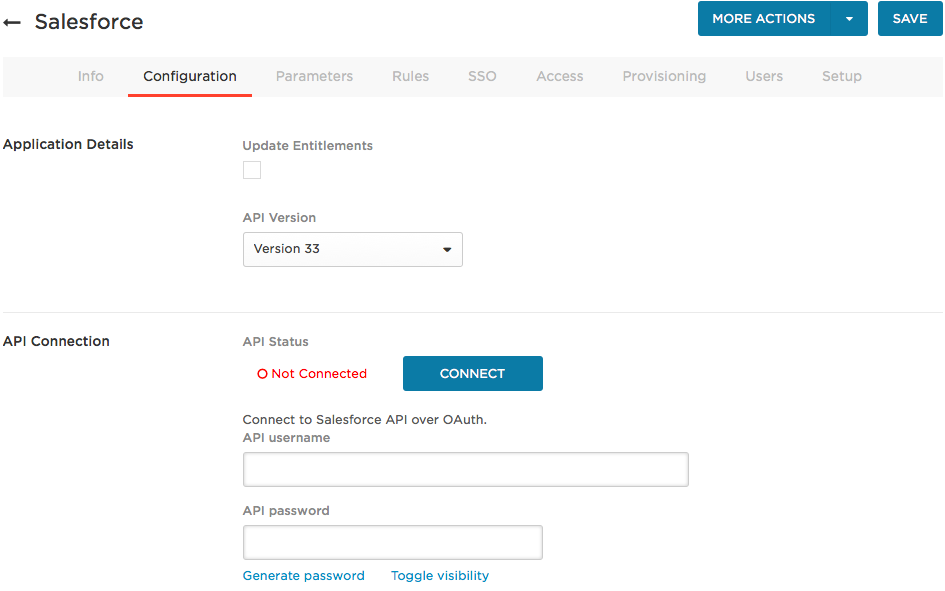
On the Configuration tab, connect to the Salesforce API.
-
Select whether to use Salesforce API Version 24, 33 or 41.
We highly recommend using version 41, which fixes several issues in earlier API versions. By default, Salesforce provides your account with access to all of its API versions, but you should go to Salesforce to verify that you do indeed have access to API version 41 before selecting it here.
-
Click Save.
OneLogin drops you in the Info tab after you save.
-
Return to the Configuration tab to connect to the API.
-
If you selected API version 33 or better, you will see an Authenticate button in the API Connection section. Click it to open a dialog, where you can click a link to a Salesforce login page. Enter your Salesforce administrative credentials to give OneLogin access to the Salesforce API over OAuth.
When the connection is complete, the Authenticate button is replaced by the Clear Token button. You can click this if you want to clear your API connection.
-
If you selected API version 24, you will continue to see the Connect button in the API Connection section. Enter your admin credentials in the API username and API Password fields and click Connect.
The API Password takes the form mypasswordXXXXXXXX, where mypassword is the password for your organization’s Salesforce account, and XXXXXXXX is your Salesforce API Security Token (see Prerequisites).
When the connection is complete, the API Status will show as  . .
-
(Optional) On the Configuration tab, click Update Entitlements to enable OneLogin to provision entitlements (such as Salesforce Roles, Permission Sets, and Licenses) to users in Salesforce.
You will set rules for entitlement provisioning on the Parameters and Rules tabs.
-
On the Provisioning tab, enable provisioning and set your admin approval policy.
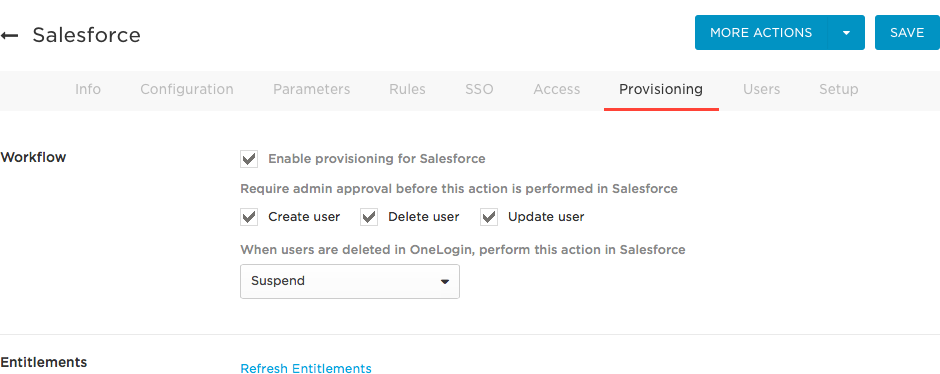
- Select Enable provisioning for Salesforce.
-
Select the provisioning actions that require admin approval.
If you select any of the available actions, an admin must go to Users > Provisioning and manually approve the action every time it occurs.
-
Select how users that are deleted in OneLogin are handled in Salesforce.
Choose between Delete, Suspend, or Do Nothing.
-
Under Entitlements, click Refresh.
Refreshing entitlements populates Permission Sets on the Parameters tab and updates the values available when you configure Rules.
- On the Parameters tab, map Salesforce user attributes to OneLogin attributes.
You can use these parameters to create provisioning rules (in the next step) that map OneLogin user attributes to Salesforce user attributes. You may already have completed this step, or parts of it, when you configured SSO for Salesforce.
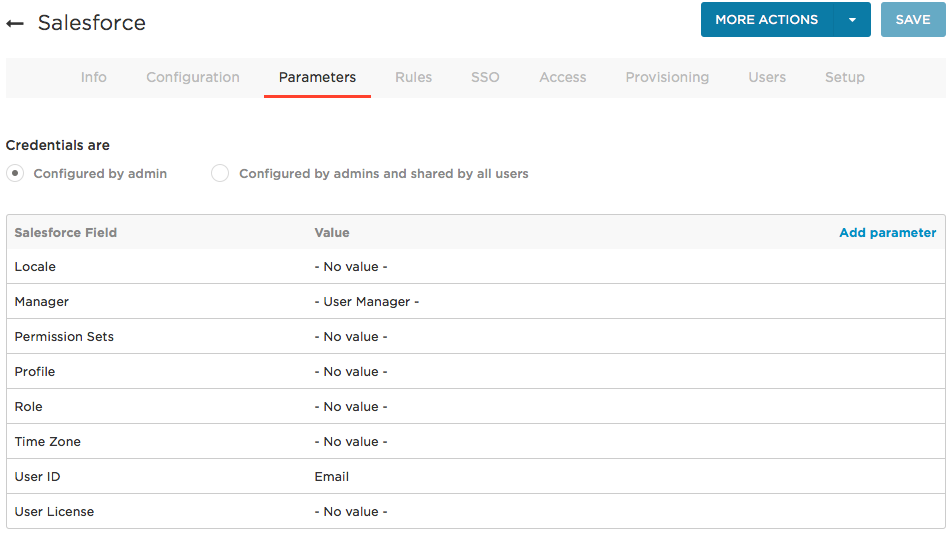
Click the parameter row to open an editor that lets you select alternate values. Note that -No value- means that OneLogin does not pass a value to the app in the SAML assertion or through the API: the user attribute is supplied by the app.
You can import your Salesforce values for the following parameters and create rules for how they should be provisioned by OneLogin:
- Locale
- Permission Sets
- Profile
- Role
- Time Zone
For more information about provisioning these attributes, see Provisioning Entitlements.
-
On the Rules tab, configure your provisioning rules.
-
Click New Rule to launch the New Mapping dialog.
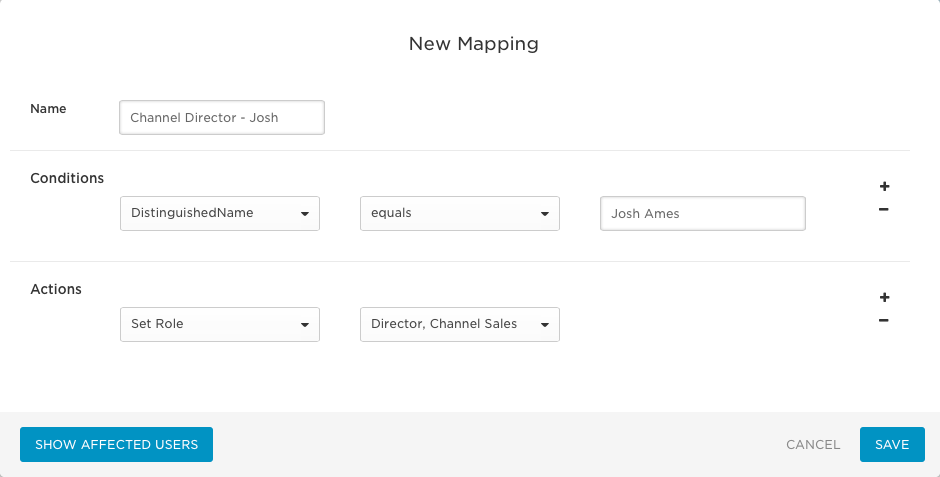
In this example, Conditions = DistinguishedName > contains > Josh Ames and Actions = Set Role > Director, Channel Sales means "If provisioning encounters a User named Josh Ames, assign him the Salesforce role of Director, Channel Sales."
- Click Show Affected Users to make sure that the mapping applies to the correct users.
- Click Save.
-
Go to the More Actions menu and click Reapply Provisioning Mappings to apply the new rule.
Important! You must reapply mappings any time you create or update rules!
Provisioning Entitlements
OneLogin lets you provision the following Salesforce attributes:
- Locale
- Permission Sets
- Profile
- Role
- Time Zone
If the attribute is not listed above, OneLogin does not provision it.
Note: You can assign licenses by provisioning Profiles to users. Salesforce doesn't allow updating licenses via API and that is why the 'License' attribute is not present in the Parameters tab. The license must be assigned to a Profile in Salesforce and then users must be provisioned with this Profile from OneLogin. The licenses of existing/provisioned users will not be changed since there is no license attribute in the Salesforce app. They will, however, get any license associated with the profile with which they are getting provisioned. For instance, if a user is provisioned with the 'Standard User' profile, they will get a license associated with that profile. You will just have to ensure that the required license is tied to a profile and that users have been assigned the corresponding profile in OneLogin.
-
Confirm that you are connected to the the Salesforce API, have enabled provisioning, refreshed entitlements, and saved your Salesforce app before you provision these attributes. You must perform these tasks to populate the attribute parameters with the current Salesforce values. See Enabling Provisioning.
- Go to Company Apps > Salesforce (or whatever name you gave your Salesforce app).
- Go to the Parameters tab.
- Click the Profile field to bring up the field editor.
-
Click Include in User Provisioning.
- Select the profile that you want to assign by default to any provisioned users who do not fit the conditions of the provisioning rules you will set up in the next step.
- Click Save.
- Go to the Rules tab.
- Click New Rule to bring up the New Mapping editor.
-
Name your mapping and then create a mapping that associates users or a group of users with the desired profiles.
- Click Show affected users to see which users will be affected by your configuration before you commit to any mappings.
- Click Save.
-
Go to the More Actions menu and click Reapply Provisioning Mappings to apply the new rule.
Important! You must reapply mappings any time you create or update rules!
Testing Provisioning
To confirm that provisioning from OneLogin to Salesforce is working, add a user to OneLogin and go to Users > Provisioning to approve the provisioning event, if necessary. When the user is marked as Provisioned, go to Salesforce and confirm that the new user has been added. |