When using OneLogin's Active Directory Connector (ADC) to support Windows Domain Authentication, we recommend installing at least three ADC instances per Active Directory (AD) domain for load-bearing and failover. This article describes the architecture of this installation and walks you through configuring these instances to maximize reliability and availability for your organization.
Prerequisites
To begin, you must have at least one AD connector already installed, using ADC 5 and with SSL enabled.
The OneLogin Active Directory Connector must be installed on Windows Server 2012 R2 or later. As of April 3rd, 2024, no previous versions of Windows Server operating systems are supported for the OneLogin ADC.
Overview
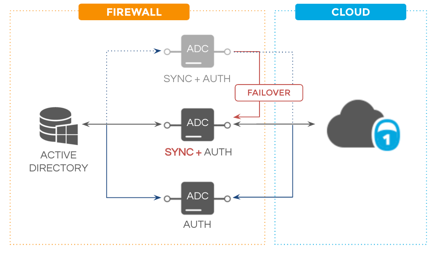
In a typical ADC installation with multiple connectors, you want to have at least three ADC instances: one for managing both authentication and real-time user synchronization, and at least two more focused solely on authentication.
OneLogin recommends multiple Active Directory Connector installations for each Active Directory domain to provide load balancing and failover. OneLogin's Active Directory Connector high availability model includes:

This architecture provides both load-balancing and failover: authentication requests are load-balanced among all ADC instances, and if an authentication-only ADC instance fails, authentication requests can be directed to the additional instances. Additionally, OneLogin checks the health of the ADC instance responsible for user synchronization every 15 minutes, and if it fails, OneLogin can automatically promote one of the authentication-only instances to manage user synchronization. User synchronization failover is often delayed in order to replicate data. However, because authentication remains unaffected during failover, end users retain access to apps.
Creating Additional ADC Instances
-
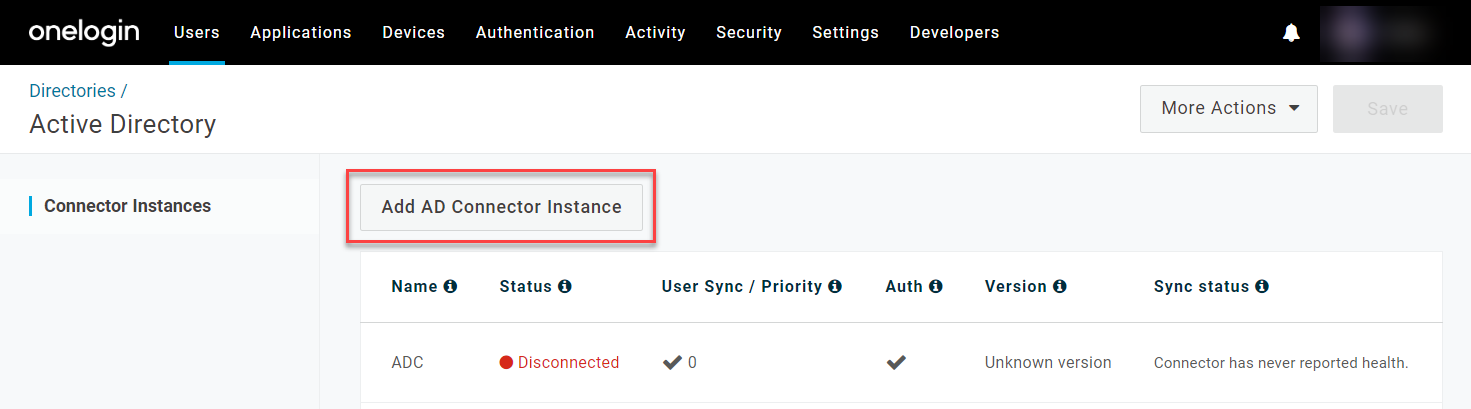
In your OneLogin admin portal, go to Users > Directories and select your target directory, then click Add AD Connector Instance.
-
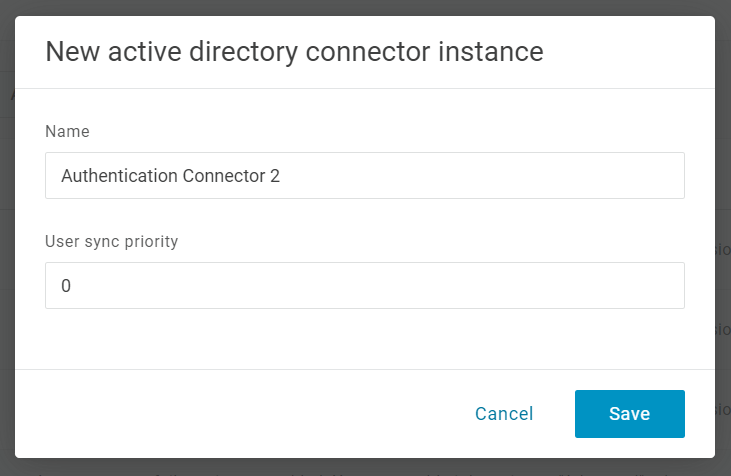
Give the connector a descriptive Name and click Save.
-
Click the new connector to configure it, download the connector installer, and copy the Installation Token. Ensure that User Synchronization is disabled while Authentication & Windows Domain Authentication is enabled, as user sync is reserved for the primary AD connector on your domain.
-
Proceed with installing the authentication-only connector to its host machine, using port 443 for SSL.
-
Repeat these steps for as many other instances as you're configuring.
Failed Active Directory Connectors
If any ADC instance fails, the connector is marked with an orange warning icon under either User Sync or Auth to indicate which service experienced the failure. Hover over the icon for more details.

When the problem is resolved, open the connector and click Continue to return it to an Active status.
- If an authentication-only connector fails, the other connectors will continue bearing the authentication load until the failed connector is back online.
- If your user-syncing connector fails, it will follow any automatic failover process you have configured. If you do not have automatic failover enabled, you should manually reassign user syncing to another connector as soon as possible to avoid any user-affecting downtime.
Tip! You can configure an automatic notification with the Active Directory connector stopped event condition to send you an email whenever an ADC instance fails.
Automatic Failover
If the ADC instance responsible for synchronization fails, an authentication-only instance is automatically promoted to manage user syncing. To enable this option, go to Advanced and select Enable auto-switch sync failover.
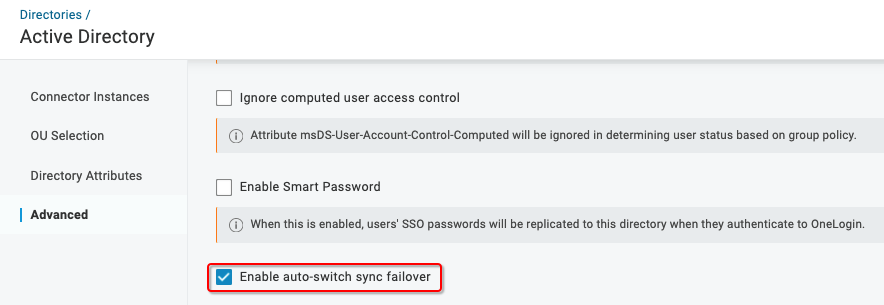
Servers that perform user synchronization can vary by CPU power, memory, or physical proximity to the LDAP/Active Directory servers. When an unhealthy connector is detected, OneLogin chooses another active connector based first on the number of domains it can reach, then in ascending order of your assigned User sync priority from 0-1000.
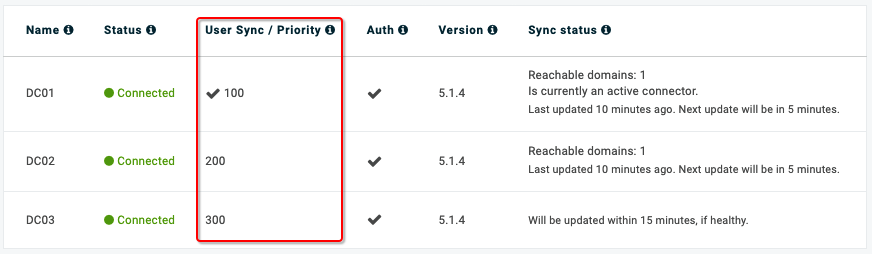
Best Practice: We recommended assigning priorities in increments of 100 to permit room for additional future servers.
Manual Failover
If you prefer to manage failover manually, you can leave automatic switching disabled and instead promote a connector from your list of ADC instances by opening the desired instance and enabling User Synchronization.

Click Continue in the confirmation dialogue. User synchronization will be removed from the failed connector and applied to your chosen instance.
Removing an Active Directory Connector Instance
To remove any authentication-only ADC instance, select it from your list of connector instances and click either Disable or Delete.
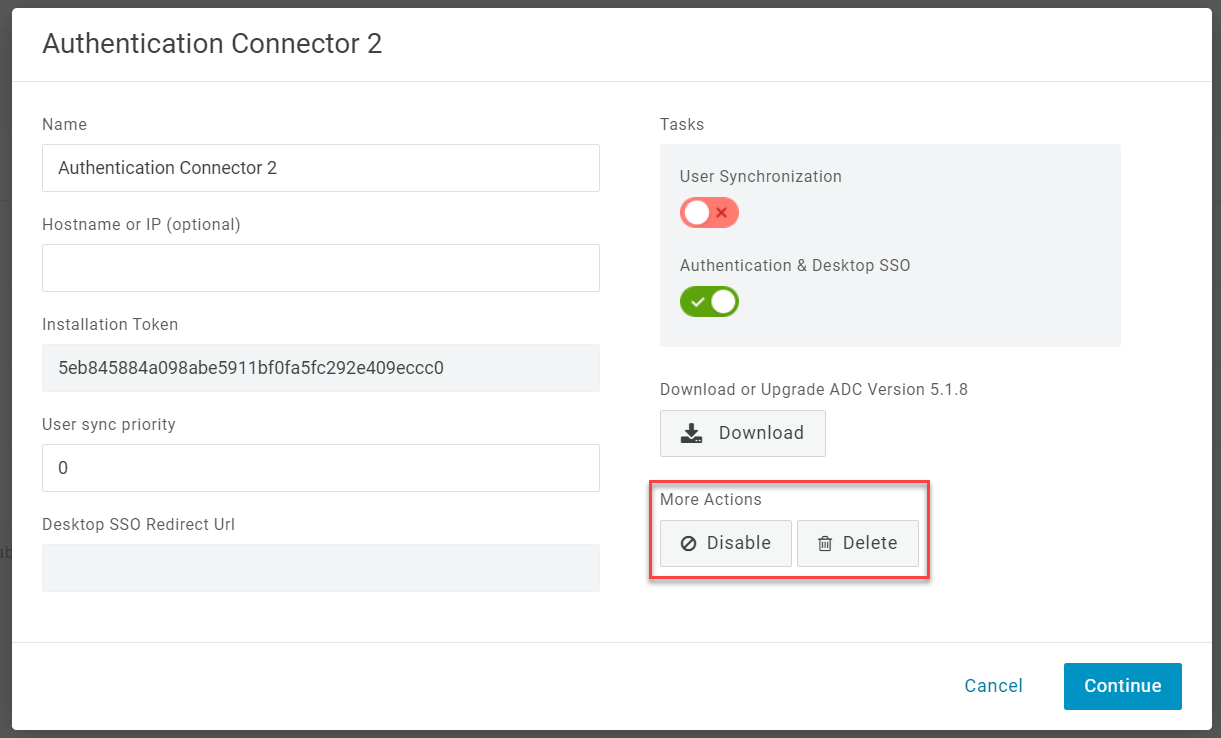
- Disabled connectors continue to be displayed under the list of AD connectors and can be reenabled at any time.
- Deleted connectors are permanently removed and cannot be reenabled.
|