This topic describes how to configure OneLogin to provide SSO for Paycom using SAML.
Note: before beginning this process, ensure you know your organization's Client Code in Paycom and that you are a super user or above in OneLogin.
OneLogin
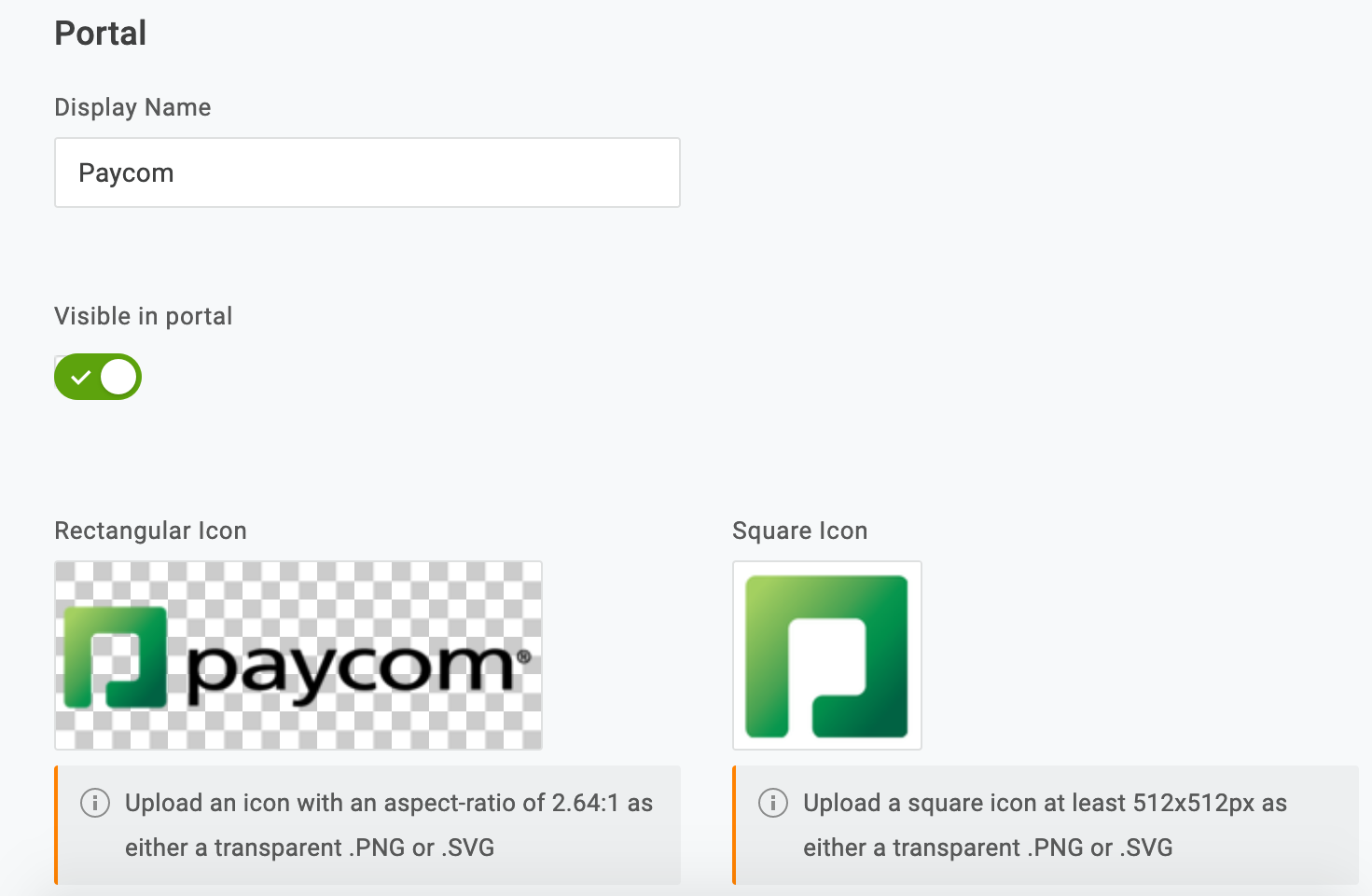
- Navigate to Administration > Applications > Applications, then click the Add App button, search for Paycom in the search box, and select Paycom. Rename the app if you wish and click Save.
- Navigate to the Configuration tab, enter your Client Code and choose whether you're configuring OneLogin for Employee Self-Service or Client Users.
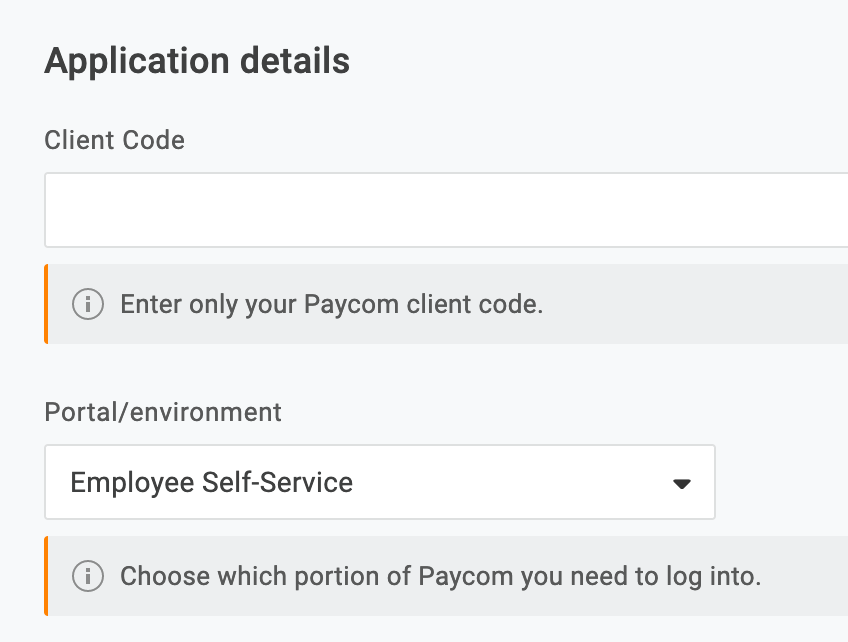
Note: Paycom allows SSO to be configured separately for each portal/environment, so a separate application and configuration is needed for each.
- Navigate to the SSO tab and change the SAML Signature Algorithm to SHA-256, then copy down the OneLogin SAML 2.0 Endpoint (HTTP) and OneLogin Issuer URL values, then paste them somewhere safe so you can access them later.
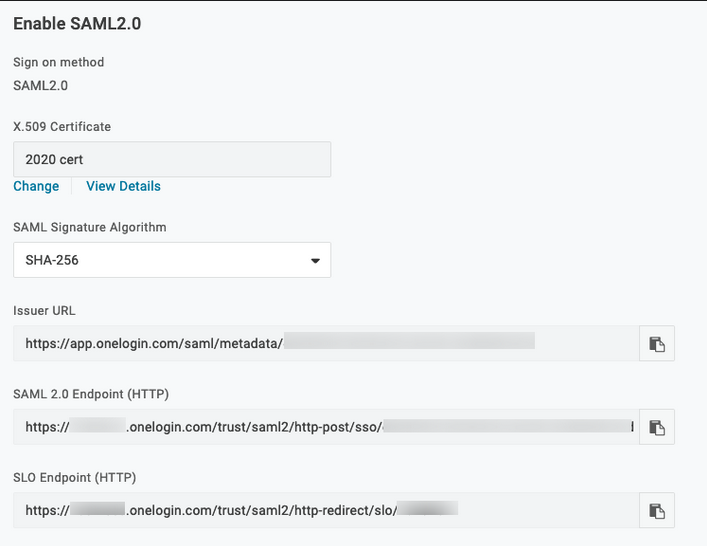
- Click View Details under the X.509 Certificate field, then copy the X.509 Certificate key and paste it somewhere safe.
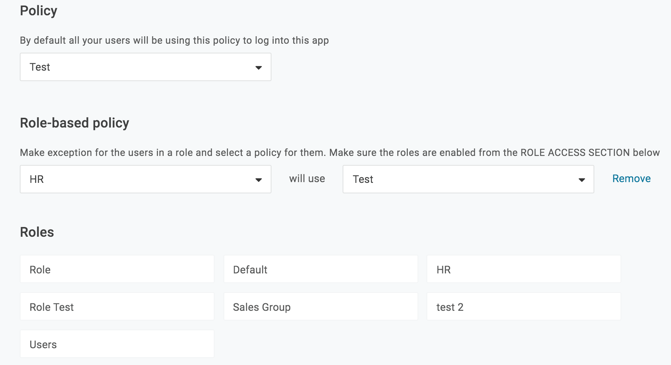
- Go to the Access tab and select the Role to which you want to assign Paycom access. Click Save. For more information about Roles and App Security Policies, see this knowledge base article.
Paycom
- Login to your application portal as an admin, then navigate to User Options > Single Sign-On and select either Client Users Setup or Employees Setup, depending on your organizational needs.

- Click Yes on the radio button for Enable ESS Single Sign-On.
Note: Paycom allows mixed mode if you do not disable Standard Paycom Login. Mixed mode allows users to access Paycom using both single sign-on and local credentials and is recommended for the duration of testing.
- Paste the OneLogin Issuer URL into the Paycom Issuer (Entity ID) field and paste the OneLogin SAML 2.0 Endpoint (HTTP) into the Paycom SSO Endpoint field.
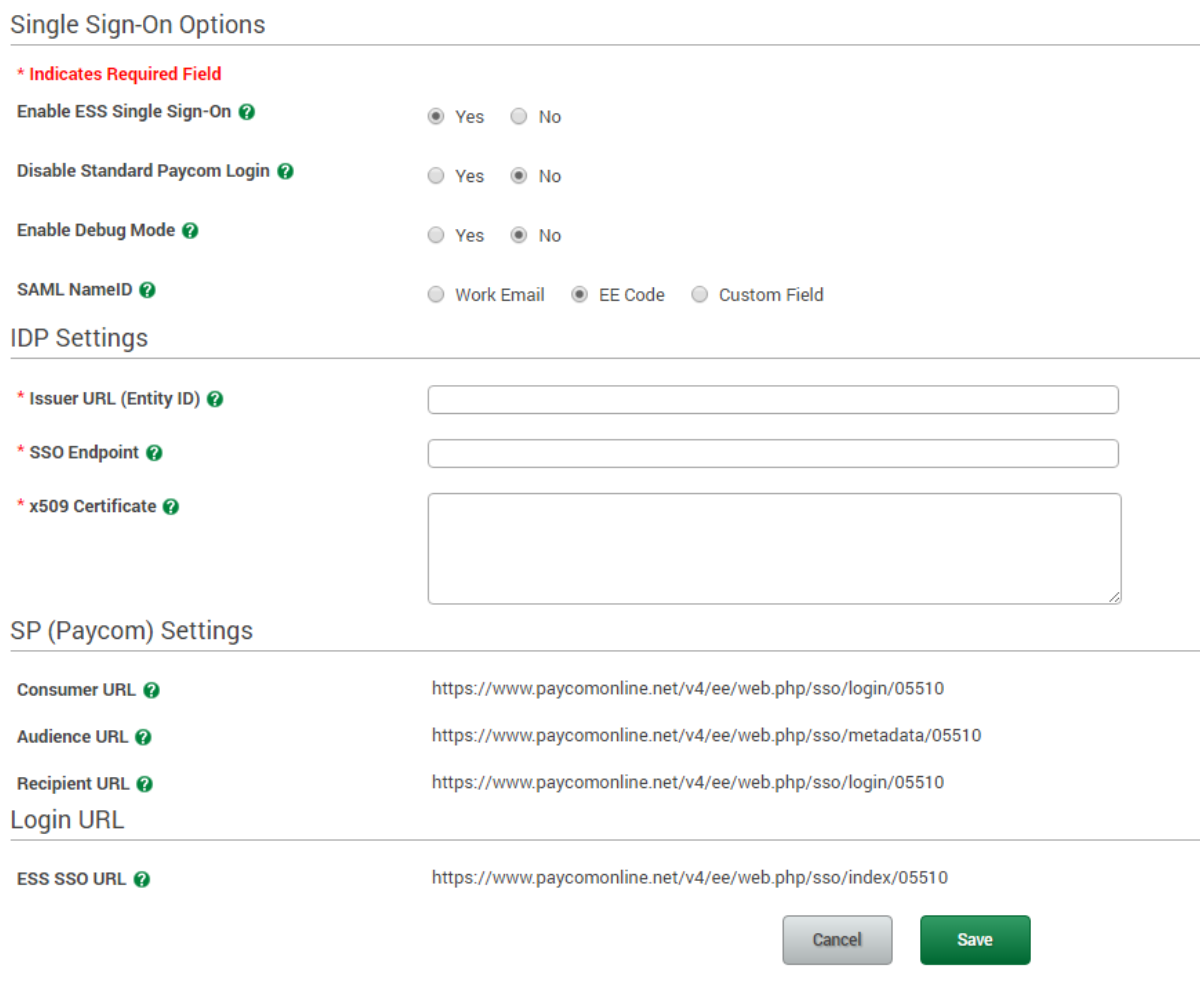
- Change the SAML NameID setting to Work Email.
- Paste the x509 certificate you copied from OneLogin into the Paycom x509 Certificate field.
Test the SAML connection.
- Verify that your user account uses the same email in both OneLogin and Paycom and that you're logged out of Paycom. You can create a test user or use your own account.
- Log into OneLogin as an admin and provide the test user (or yourself) access to the Paycom app in OneLogin, then log into OneLogin as the test user.
- Return to the Paycom login page before your OneLogin session ends.
- If the test user is granted access to Paycom without providing login credentials, then SAML works.