This topic describes how to configure OneLogin to provide SSO for UKG Ready (formerly known as Kronos Workforce Ready) using SAML.
Before starting this process, ensure that you are a Super User or Administrator in OneLogin and an Administrator in UKG.
- In the Admin portal, go to Applications > Applications and search and select UKG Ready. Edit the Display Name if you wish, then click Save.

- From the More Actions drop down, click Download Metadata and note where the file is saved.
UKG Ready
- Navigate to the Admin portal of Kronos Workforce Ready, then go to Maintenance > Companies > All System Companies > Edit Company and check Enable Single Sign-On in the Login/Logout Preferences widget.

- Click Import Metadata From Identity Provider and choose the file you just downloaded from OneLogin, then click Check Set Login URL For SP-Initiated SSO if you want your login URL to redirect to OneLogin.
Note: without this setting, users will need to access UKG Ready from OneLogin only to utilize SAML SSO.

- Copy the Endpoint URL and Audience URL from UKG Ready and paste them somewhere safe for later retrieval.
OneLogin
- Navigate to the Configuration tab and paste the Endpoint URL and Audience URL into their respective boxes.

- Go to the Parameter tab, ensure the Value of the NameID matches the UKG Ready Username.
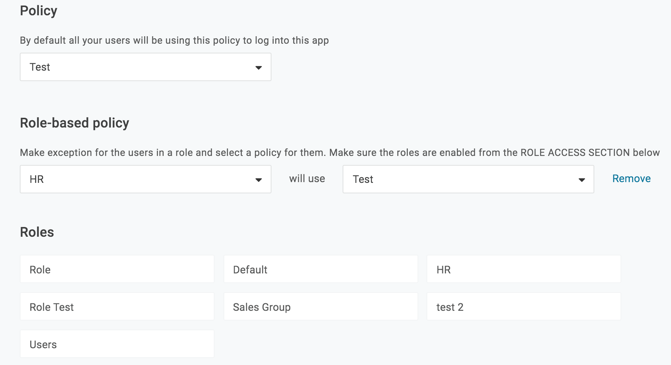
- Select the Access tab to assign OneLogin Roles and provide any App Security Policies for your users, ensuring that you provide access to yourself, or a test account, and test your completed OneLogin SAML integration with UKG Ready before you assign additional roles.
Test the SAML connection
- Verify that your user accounts in OneLogin and UKG Ready use the same email or username.
- You can create a test user, or use your own account.
- Verify that you're logged out of UKG Ready.
- Log into OneLogin as an admin and provide the test user (or yourself) access to the UKG Ready app in OneLogin.
- Log into OneLogin as the test user and click UKG Ready from the portal.
- If the test user is granted access to UKG Ready without providing login credentials, then SAML works
Notes:
The Bypass Redirect URL will allow a user to login with username and password even after SAML is enabled.

Checking the Only Login Through Single Sign-On box on any user’s Account Information page will disallow the user from accessing the application with username and password, including the Bypass Redirect URL.
