This topic describes how to configure OneLogin to provide SSO for LearnCore using SAML.
-
Log into OneLogin as an admin and go to Apps > Add Apps.
-
Search for and select the LearnCore connector.
The initial Configuration tab appears.
-
Click Save to add the app to your Company Apps and display additional configuration tabs.
The Info tab appears.
-
Go to the Parameters tab and map LearnCore attributes to OneLogin attributes.
In most cases, you should accept the default values. Ensure that the LearnCore fields are set to the values that appear below.
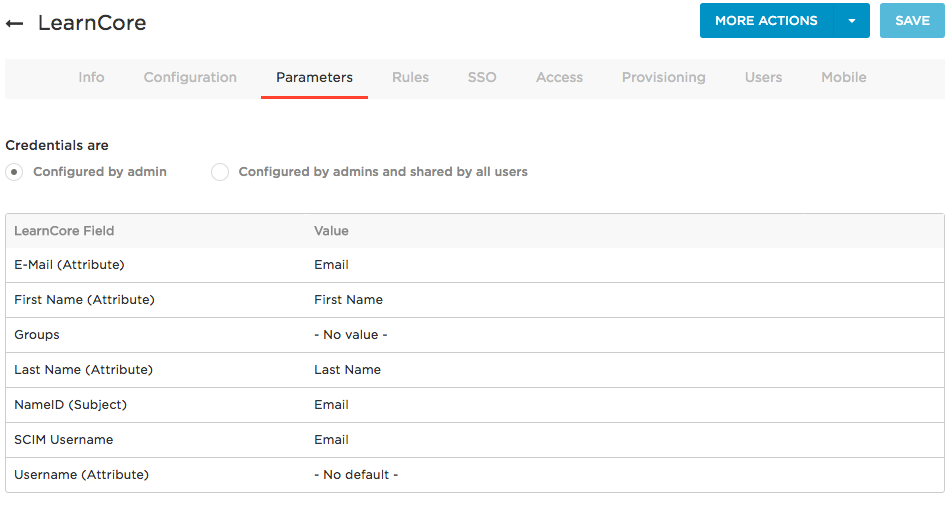
-
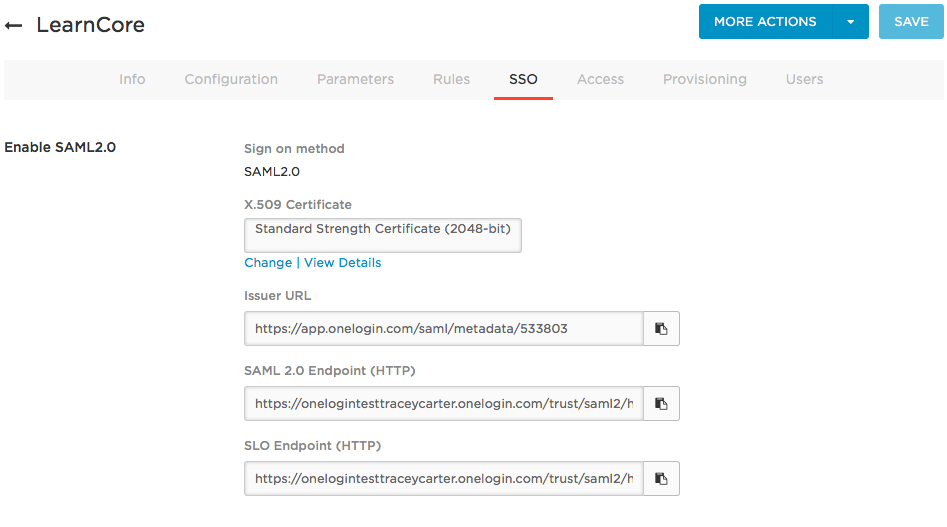
Go to the SSO tab to retrieve the values that you will need to send to your LearnCore support team to set up SAML SSO.
Copy the SAML 2.0 Endpoint (HTTP) value and the X.509 Certificate and email them to your LearnCore support team. To get the X.509 Certificate, under the X.509 Certificate field, click the View Details link. This creates a pop-up window. Copy the entirety of the X.509 Certificate, including "----BEGIN CERTIFICATE----" and "----END CERTIFICATE----".
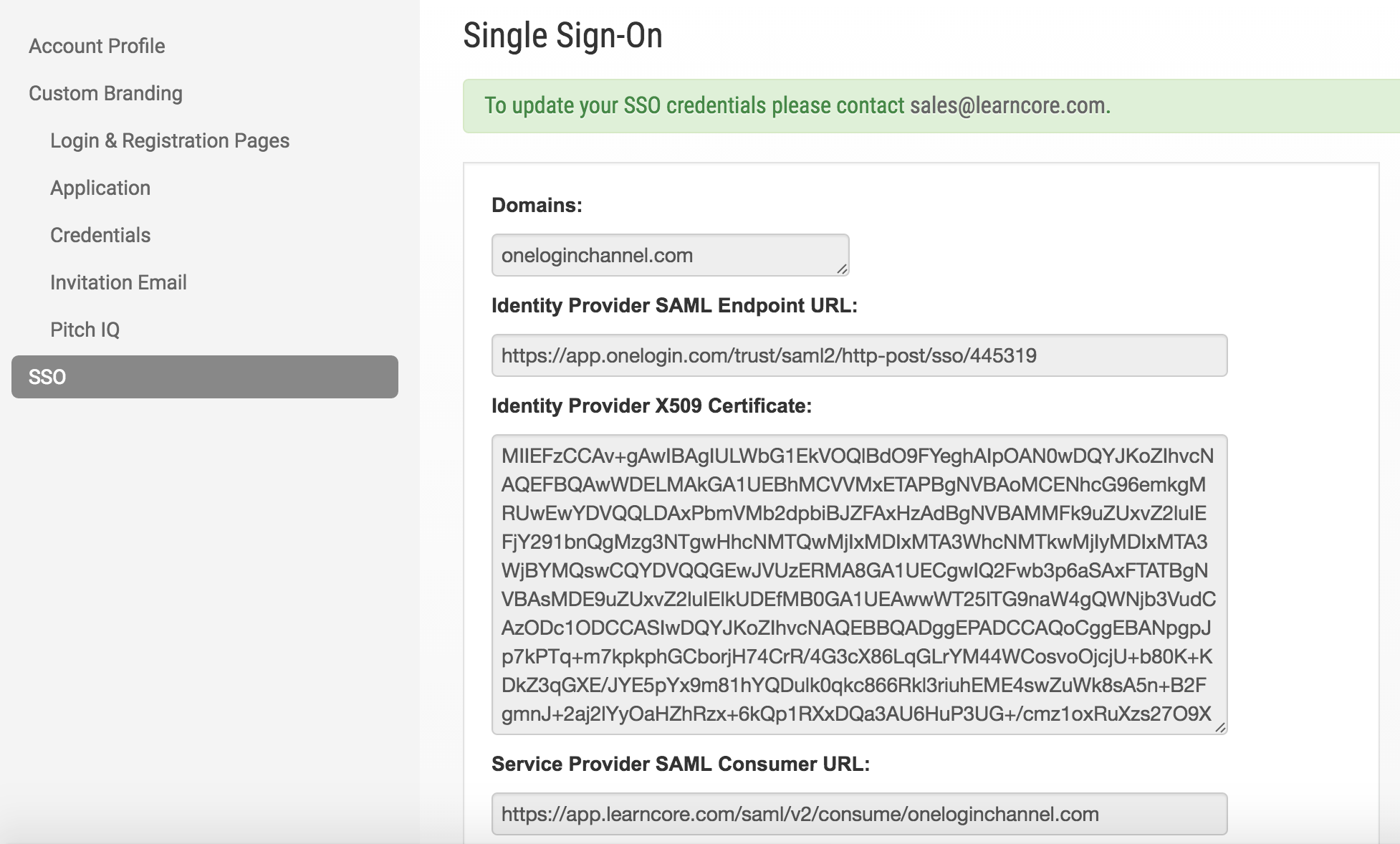
Once you have sent your SAML SSO values to LearnCore and they have been applied, your LearnCore Single Sign-On tab should appear as follows.
-
On the OneLogin Access tab, assign the OneLogin roles that should have access to LearnCore and provide any app security policy that you want to apply to LearnCore.
You can also go to Users > All Users to add the app to individual user accounts.
-
Click Save.
-
Test the SAML connection.
-
Ensure that you have a user account in both OneLogin and LearnCore that use the same email as the username.
You can create a test user, or you can use your own account if you choose.
-
Make sure you are logged out of LearnCore.
-
Log in to OneLogin as an admin and give the test user (or yourself) access to the LearnCore app in OneLogin. (See step 6 above)
-
Log in to OneLogin as the test user.
-
Click the LearnCore icon on your OneLogin dashboard.
If you are able to access LearnCore, then SAML works.
|