This topic describes how to configure OneLogin to provide SSO for Microsoft Dynamics CRM using WS-Federation with SAML 1.1.
Note. OneLogin SSO for Dynamics CRM works for users already defined in Dynamics CRM and whose Dynamics CRM UPN (User Principal Name) is identical to their email address in OneLogin. This connector does not support Just-in-Time (JIT) provisioning.
Prerequisites
-
Microsoft Dynamics CRM 2016
Other versions may work, but we have only tested version 2016.
- Experience administering Dynamics CRM
-
Encryption certificate for Dynamics CRM claims encryption
The Dynamics CRM WS-Federation SSO connection requires two certificates to establish trust between OneLogin and Dynamics CRM: 1) a SAML certificate to sign the SAML assertions returned from OneLogin, and 2) an encryption certificate to enable the encryption of the SAML assertions.
The SAML certificate is generated by OneLogin and included in the metadata that you provide to Dynamics CRM in step 7d, below. The encryption certificate must be available in your Dynamics CRM server's certificate store. You will select it in step 7e, below.
Consult your Microsoft Dynamics CRM documentation for instructions.
Configuring the SSO connection
-
Log into OneLogin as an admin and go to Apps > Add Apps.
-
Search for and select the Dynamics CRM connector.
Be sure to select the connector that uses WS-Federation with SAML 1.1.
-
On the Configuration tab, click Save to add the app to your Company Apps and display additional tabs.
You can also change the display name and change the icons that appear to users on this page.
After you save, OneLogin takes you to the Info tab.
-
Go to the Configuration tab and enter your Dynamics CRM Login URL and Audience.
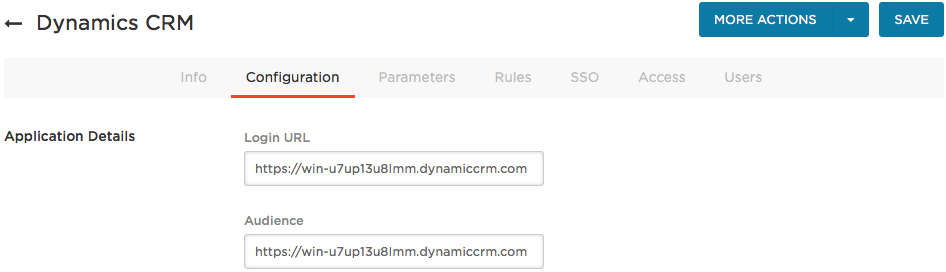
The Login URL is the URL of the external domain where your Dynamic CRM internet-facing servers are located.
The Audience URL is usually identical to the Login URL.
-
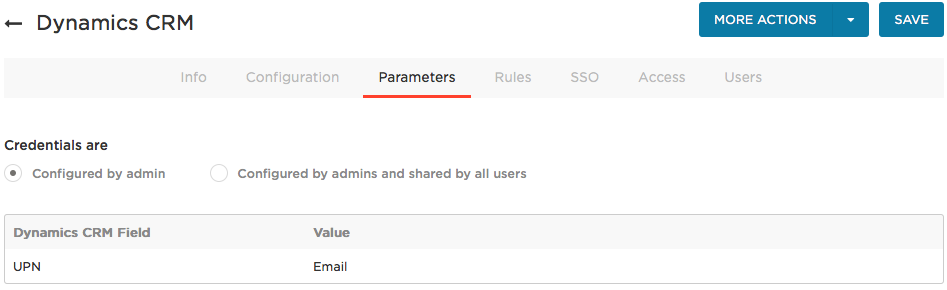
Go to the Parameters tab and map Dynamics CRM attributes to OneLogin attributes.
In most cases, you should keep the Configured by admin default. For more information, see Setting Credential Configuration Options.
Set UPN (User Principal Name) to Email. This is the only parameter passed in the SAML assertion. Click the UPN row to open the Edit Field UPN dialog and select Email from the drop-down.
-
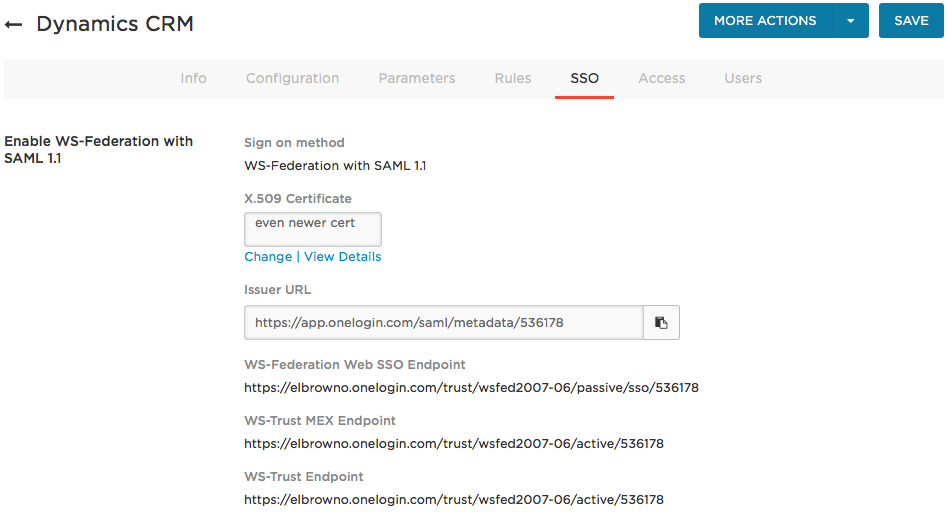
Go to the SSO tab to retrieve the Issuer URL that you'll copy into your Dynamics CRM account to complete the SAML SSO configuration:
-
Configure your Dynamics CRM server with OneLogin's SAML metadata.
-
Access the Dynamics CRM server.
- Run the Micrososft Dynamics CRM Deployment Manager.
- In the Actions list, select Configure Claims-Based Authentication and click Next.
- Enter the Issuer URL that you copied from OneLogin into the Federation metadata URL field and click Next.
-
Enter the common name (CN) of the encryption Certificate that is used to encrypt the SAML assertions that are passed between OneLogin and Dynamics CRM.
You can also select the certificate from the drop-down list.
- Save the configuration.
- Restart Dynamics CRM.
For more information about configuring claims-based authentication, see the Microsoft documentation: https://technet.microsoft.com/en-us/library/gg188575.aspx
Note that OneLogin replaces AD FS in the scenarios provided by Microsoft
-
Return to OneLogin and go to the OneLogin Access tab, where you can assign the OneLogin roles that should have access to Dynamics CRM and provide any app security policy that you want to apply to Dynamics CRM.
You can also go to Users > All Users to add the app to individual user accounts.
Note. Before you assign users, you might want to test the configuration first. See step 11, below.
-
Click Save.
-
Test the SAML connection.
-
Ensure that you have a user account in both OneLogin and Dynamics CRM that use the same email as the username.
You can create a test user, or you can use your own account.
-
Make sure you are logged out of Dynamics CRM.
-
Log in to OneLogin as an admin and give the test user (or yourself) access to the Dynamics CRM app in OneLogin. (See step 9 above)
-
Log in to OneLogin as the test user.
-
Click the Dynamics CRM icon on your OneLogin dashboard.
If you are able to access Dynamics CRM, then SAML works.
|