This topic describes how to configure OneLogin to provide SSO for Lucidchart using SAML. (If you want to set up SSO for Lucidchart with form-based authentication, see Adding a Form-Based Application.)
-
Log in to OneLogin and go to Apps > Add Apps.
-
Search for Lucidchart and select it.
-
On the initial Configuration tab, in the Connectors section, select SAML2.0 - user provisioning.
-
Click Save to add the app to your Company Apps and display additional configuration tabs.
-
On the Configuration tab, enter your Lucidchart Domain value.
For example, acme.com. Do not enter a full URL. This value tells OneLogin where to send the SAML message in Lucidchart.

-
Click Save.
-
On the Parameters tab, map Lucidchart user attributes to OneLogin attributes.
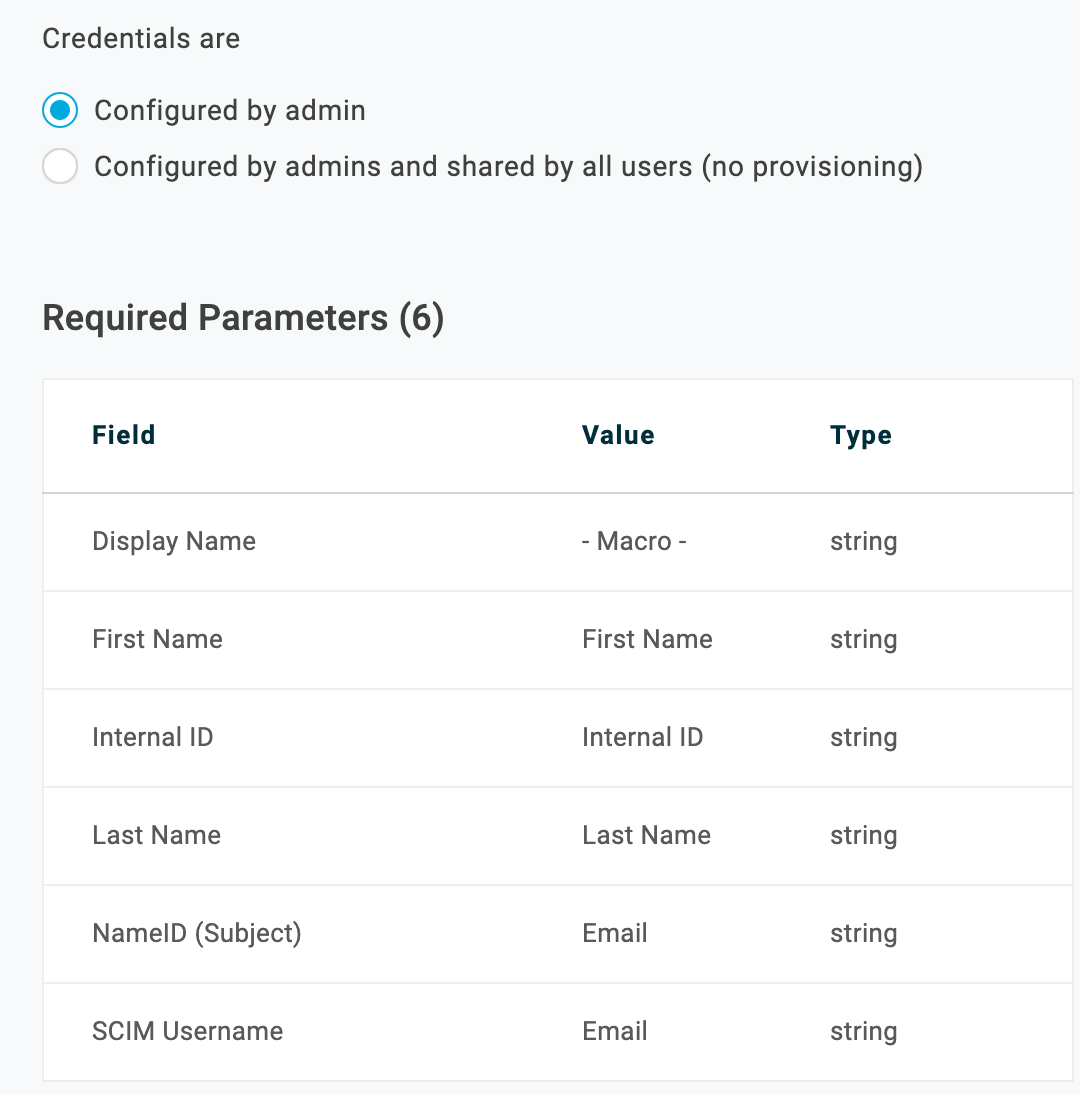
Some parameters are included in the SAML assertion during SSO, others are used when provisioning users to Lucidchart using the Lucidchart SCIM API. For SSO using SAML, you should accept the defaults, unless otherwise noted:
| Lucidchart Field |
Default OneLogin Value |
SAML or Provisioning? |
Notes |
|
First Name
|
First Name
|
SAML
|
|
|
Last Name
|
Last Name
|
SAML
|
|
|
NameID (Subject)
|
Email
|
SAML
|
Leave Value set to Email. Most Lucidchart implementations use email as the NameID.
|
|
SCIM Username
|
Email
|
Provisioning
|
See Provisioning Users to Lucidchart.
|
|
User can edit charts
|
- No default -
|
Provisioning
|
See Provisioning Users to Lucidchart.
|
-
On the Access tab, assign the OneLogin roles that should have access to Lucidchart and provide any app security policy that you want to apply to Lucidchart.
You can also go to Users > All Users to add the app to individual user accounts, and return to this app configuration page to complete SSO configuration.
-
Click Save.
-
On the SSO tab, copy the X.509 certificate that you'll need to provide in Lucidchart.
To copy the X.509 certificate, click View Details and click the Copy to Clipboard icon for the X.509 Certificate.
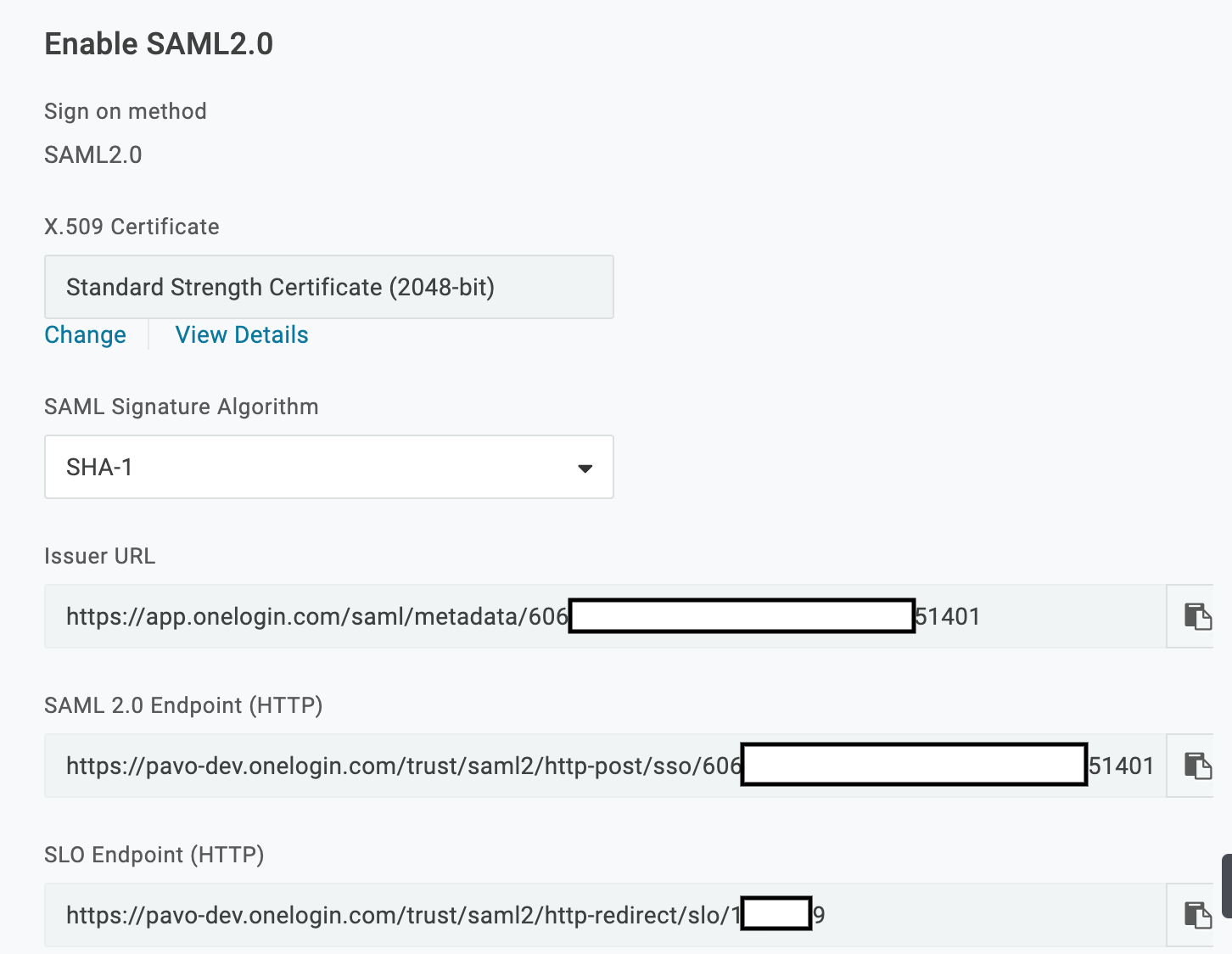
If you want to use a different certificate, go back to the SSO tab, click Change, select the new certificate, and follow the above instructions.
Alternatively, you can create an entirely new X.509 certificate for selection by going to Settings > Certificates and clicking New.
-
Go to Lucidchart and complete the setup as described here.
-
Test the SAML connection.
-
Make sure you are logged out of Lucidchart.
-
Give yourself access to the Lucidchart app in OneLogin.
-
Log in to OneLogin.
-
Click the Lucidchart icon on your OneLogin dashboard.
-
If you are able to access Lucidchart, then SAML works.
Next steps:
Provisioning Users to Lucidchart |