This topic describes how to configure OneLogin to provide SSO for Workday using SAML.
Note. If you want to set up SSO for Workday with form-based authentication, see Adding a Form-Based Application.
Note. If you want to sync users between Workday and the OneLogin Cloud Directory or a third-party user store like Active Directory, see Workday as a Directory.
To configure SSO for Workday using SAML:
-
Log into OneLogin as an admin and go to Apps > Add Apps.
-
Search for and select the Workday connector that supports SAML2.0.
The initial Configuration tab appears.
-
Click Save to add the app to your Company Apps and display additional configuration tabs.
The Info tab appears.
-
Go to the Configuration tab.
-
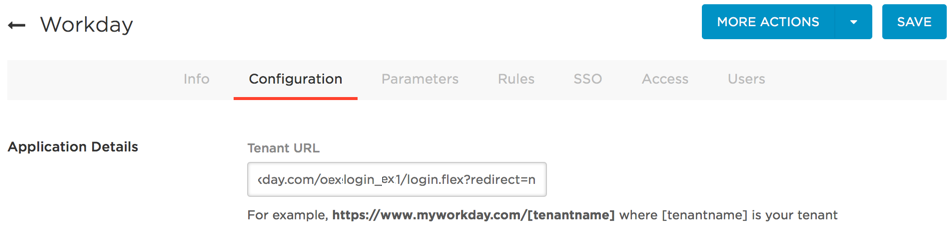
In the Tenant URL field enter your tenant name.
https://impl.workday.com/your_company
-
Click Save.
-
Go to the Parameters tab and map Workday attributes to OneLogin attributes.
In most cases, you should keep the Configured by admin default. For more information, see Setting Credential Configuration Options.
The Workday field Email should be set to the OneLogin attribute Email. If, however, your Workday implementation doesn't use Email as the Username, click the parameter row to open the Edit Field dialog and select the correct attribute from the drop-down list.

-
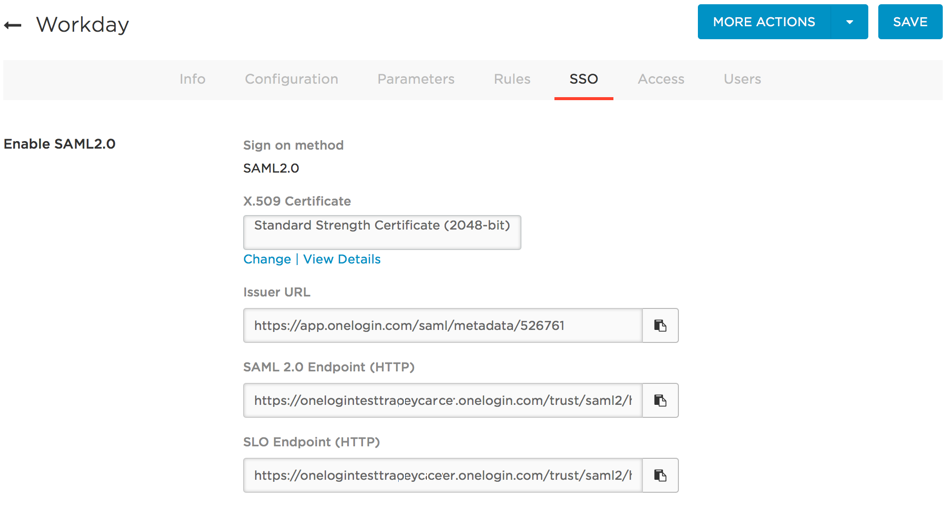
Go to the SSO tab to configure your Workday account with OneLogin's SAML settings.
-
In a new browser tab, log into your organization's Workday account as admin.
-
On your Workday admin dashboard, click Account Administration > Edit Tenant Setup - Security.
The Edit Tenant Setup - Security page appears.

-
Scroll down to the Single Sign-on section and ensure that the Login Redirect URL Environment setting is set to Implementation.
-
Scroll down to the SAML Setup section and select Enable SAML Authentication.
-
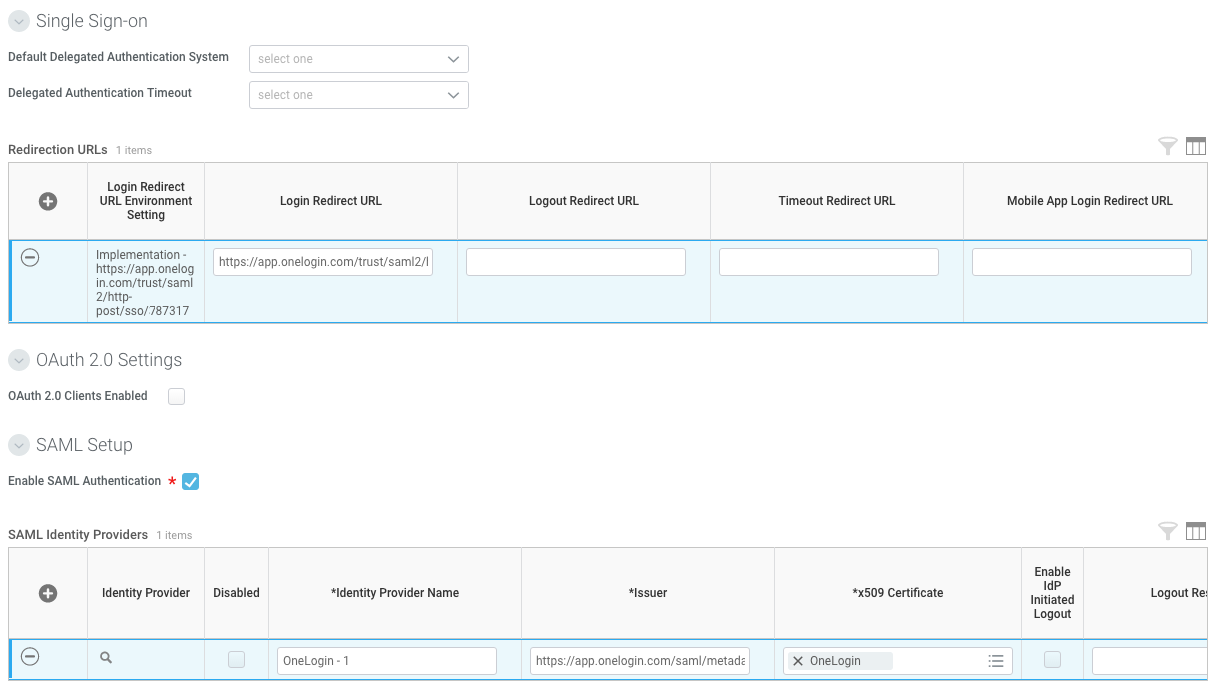
With both the OneLogin SSO tab and the Workday Edit Tenant Setup - Security page open, copy the SAML values from OneLogin to the analogous Workday fields in the SAML Setup section of the Edit Tenant Setup - Security page.
| Copy this OneLogin SSO field value: |
To this Workday SAML Setup field: |
|
Issuer URL
|
Issuer in the SAML Identity Providers table
|
|
SAML 2.0 Endpoint (HTTP)
|
Login Redirect URL in the Redirection URLs table
|
|
OneLogin
|
Identity Provider Name in the SAML Identity Providers table
|
When you are done, the Single Sign-on and SAML Setup sections of your Workday Edit Tenant Setup - Security page should look like this:
-
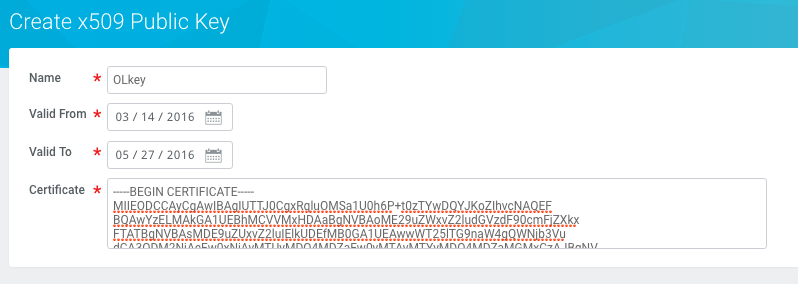
In Workday, click the menu icon on the right side of the X509 Certificate field in the SAML Identity Providers table, and select Create X509 Public Key from the drop-down list.
The Create X509 Public Key page appears.
-
In the Name field, enter a name for the key.
-
Click the Valid From and Valid To fields to define a period of time for which the key is valid.
You must begin with a date that precedes the current date and terminate on a date later than the current date.
-
In the OneLogin SSO tab under the X.509 Certificate field, click the View Details link. This creates a pop-up window. Copy the entire X.509 Certificate, including "----BEGIN CERTIFICATE----" and "----END CERTIFICATE----"
-
Paste the entire X.509 Certificate from the OneLogin SSO tab into the Certificate field on the Workday Create X509 Public Key page.
-
On the Workday Create X509 Public Key page, click OK.
-
On the OneLogin Access tab, assign the OneLogin roles that should have access to Workday and provide any app security policy that you want to apply to Workday.
You can also go to Users > All Users to add the app to individual user accounts.
- Click Save.
-
Test the SAML connection.
-
Ensure that you have user accounts in both OneLogin and Workday that use the same email as the username.
You can create a test user, or you can use your own account if you choose.
-
Make sure you are logged out of Workday.
-
Log in to OneLogin as an admin and give the test user access to the Workday app in OneLogin. (See step 10 above)
-
Log in to OneLogin as the test user.
-
Click the Workday icon on your OneLogin dashboard.
If you are able to access Workday, then SAML works.
|