This article describes how to provision users from OneLogin to LearnCore using the LearnCore API.
This feature requires a OneLogin subscription with the Advanced Directory add-on.
Setting up provisioning involves four tasks:
Prerequisites
- Configuring SAML SSO for LearnCore
- Contact LearnCore support to get the SCIM Bearer Token and the API Token for your account.
Connecting to the LearnCore API and Enabling Provisioning
-
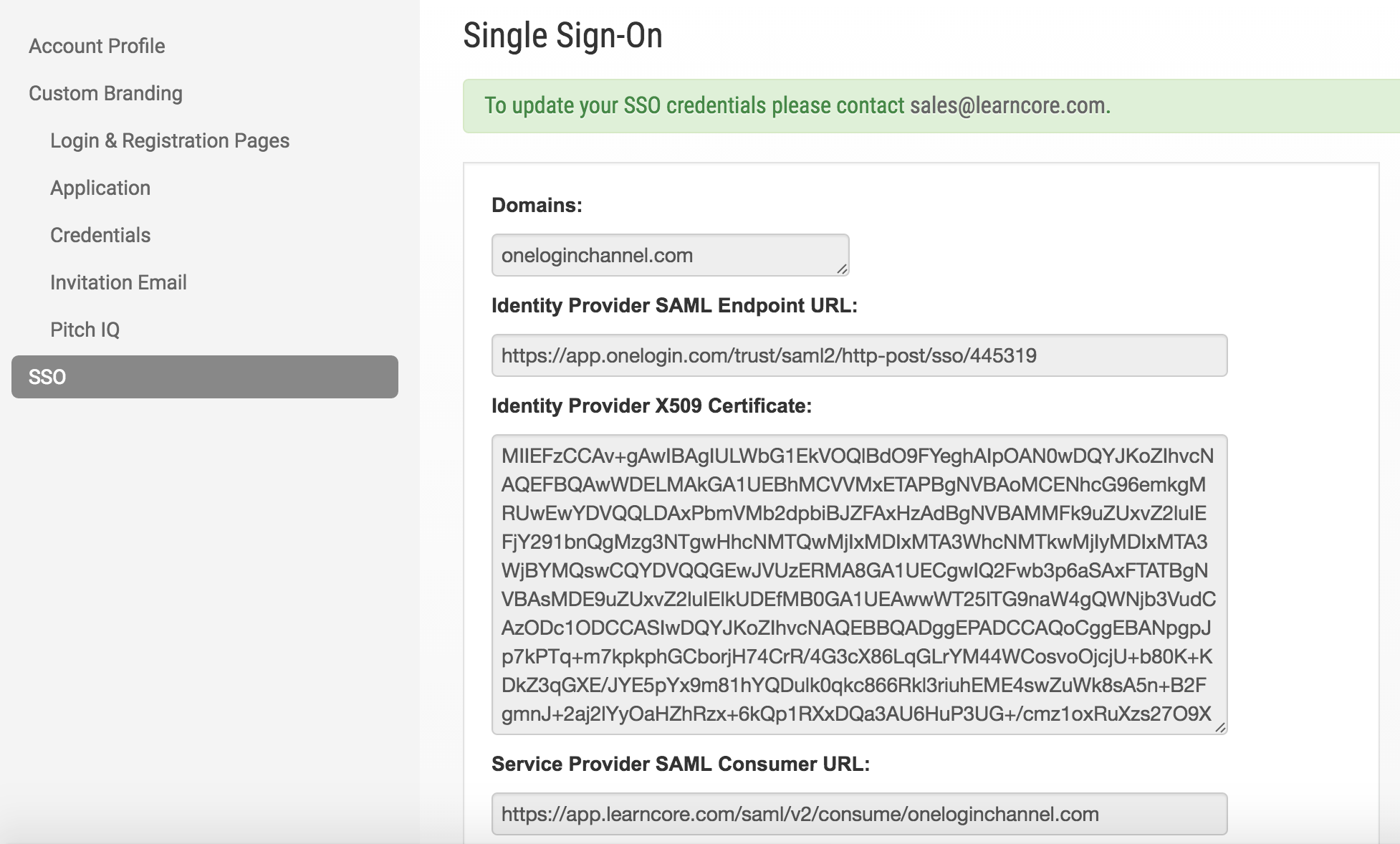
Log into your LearnCore account as an admin to obtain the SAML Consumer URL that you must copy to OneLogin.
Note: You must already have configured SAML SSO for LearnCore to be able to access the Service Provider SAML Consumer URL that is needed here.
-
In the upper left corner, click your name, and then select Account Management.
-
Click SSO.
-
Copy the value in the Service Provider SAML Consumer URL field.
-
-
In OneLogin, go to Apps > Company Apps and select your LearnCore app.
-
Go to the Configuration tab to enter the values required to connect to LearnCore to enable provisioning.
OneLogin field LearnCore value SAML Consumer URL The Service Provider SAML Consumer URL that you copied from LearnCore SCIM Base URL https://api.learncore.com/scim/v1Custom Headers Host: api.learncore.com
X-LearnCore-ApiKey: YOUR API KEY...where YOUR API KEY is the API key that you requested from LearnCore support (see Prerequisites)
SCIM Bearer Token The SCIM bearer token that you requested from LearnCore support 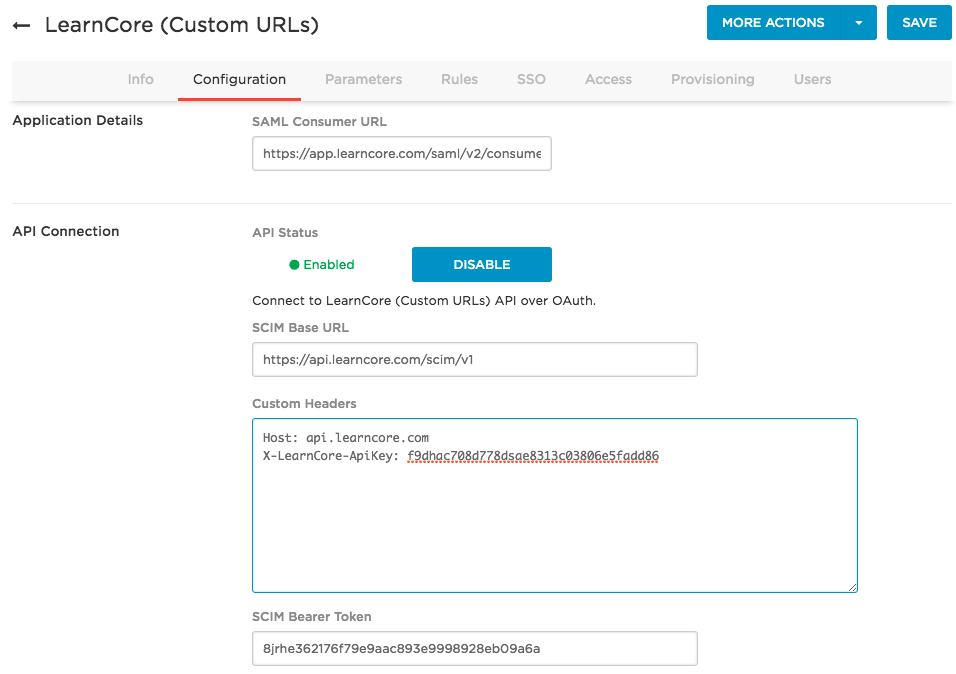
-
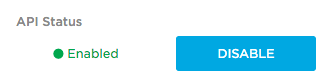
Click Enable.
If your configuration is correct, the API status changes to Enabled.
-
When you are connected, click Save.
-
Go to the Provisioning tab.
-
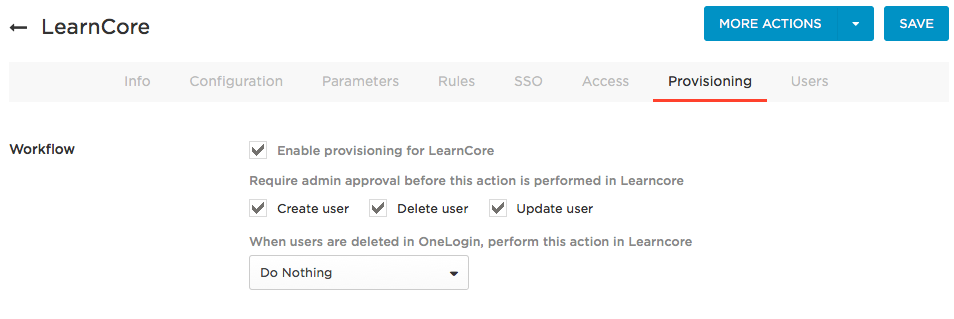
Select Enable provisioning for LearnCore.
Important! Once you enable this option and give users access to the app, the provisioning process will begin. You must select this option now to enable options required to complete subsequent steps. To ensure that you do not inadvertently provision users to LearnCore before you are ready, enable the action controls described in the next step.
-
Select the provisioning actions that should require administrator approval.
Choose among Create user, Delete user, and Update user.
For any action you select, a OneLogin administrator must go to Users > Provisioning and manually approve each action for provisioning to complete. Clear these options if you want OneLogin to provision new users and user updates to LearnCore without administrative approval.
Important! When you first configure provisioning, we recommend that you enable these approval options so that you can confirm that the correct users are being provisioned with the correct entitlements. Once you have confirmed that provisioning is working as expected, you can clear these options to enable provisioning to proceed without approval, if you want.
-
Select what happens to a user in LearnCore when that user is deleted from OneLogin.
Choose among Delete, Suspend, or Do Nothing.
-
Click Save.
Mapping LearnCore Attributes to OneLogin Attributes
In this task, you map LearnCore user attributes to default OneLogin user attributes. These mappings tell OneLogin how to populate user attribute values to LearnCore when provisioning users from OneLogin. You can also use some of these parameters to create provisioning rules (in the next task).
-
In OneLogin, go to Apps > Company Apps and select your LearnCore app (you're probably already here).
-
Go to the Parameters tab.
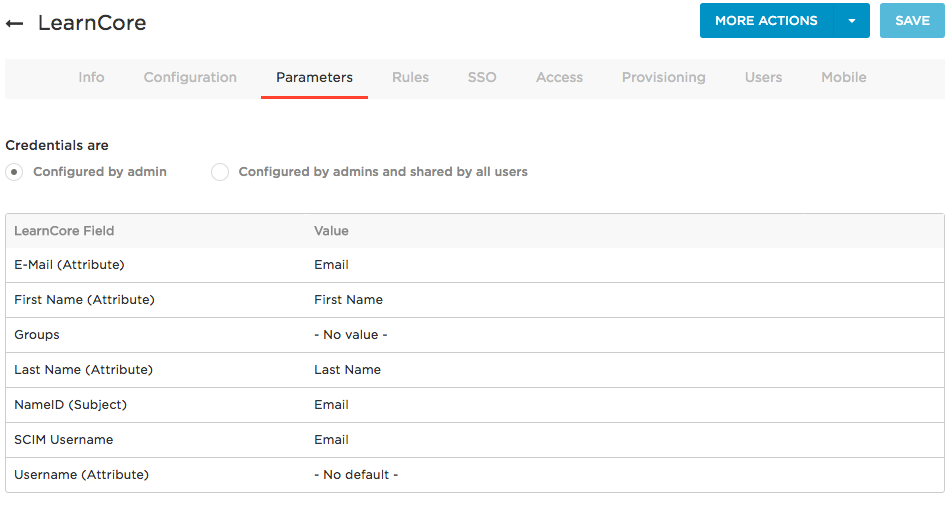
-
For each field that you want to include in user provisioning, click the parameter row to open the Edit Field dialog, where you can change the default value and select Include in User Provisioning.
Some attributes are by definition included in provisioning, and therefore do not have the Include in User Provisioning option.
In most implementations, you can accept all of the default attribute mappings, except the following:
Username (Attribute): Should be set to OneLogin Email.
Groups: To provision users as members of particular LearnCore groups, you must first go to the Provisioning tab and click Refresh to import the available group values from LearnCore. These values then appear on the Edit Field Groups dialog when you click the Groups row:
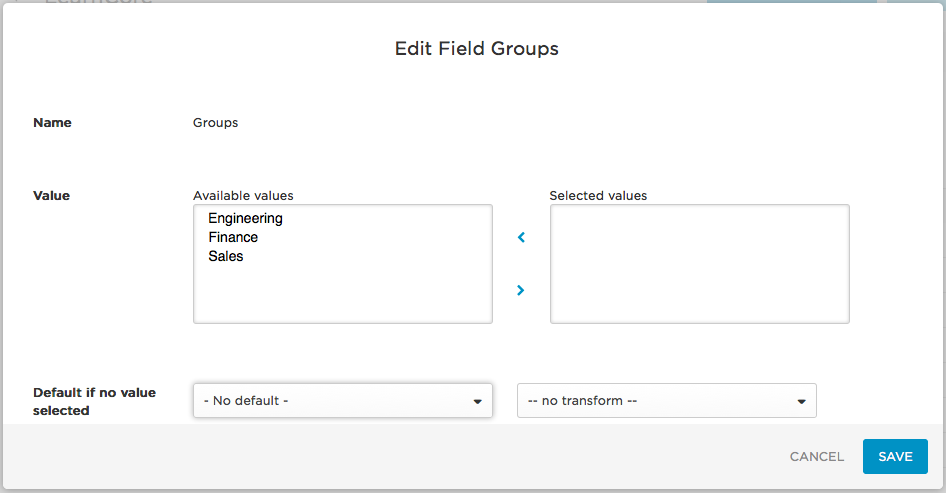
To provision all LearnCore users into a group or groups, select the groups in the Available values field and use the > arrow to add them to Selected values. Every OneLogin user provisioned to LearnCore will be added as a member of the group or groups you select here.
To provision subsets of your users to one or more LearnCore groups use Rules.
-
Click Save.
Using Rules to Provision Users to LearnCore Groups
You can define rules to provision subsets of your OneLogin users into LearnCore groups. For example, you can define a subset of users by filtering on a specific OneLogin user attribute value and then define an action that provisions the subset of users to a specific LearnCore group.
-
In OneLogin, go to Apps > Company Apps and select your LearnCore app (you're probably already here).
-
Go to the Rules tab.
-
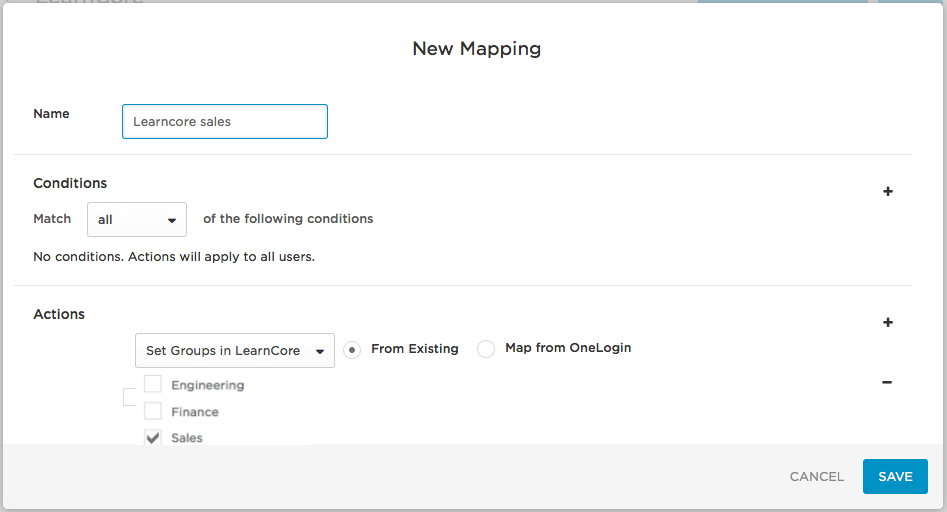
Click New rule to open the New Mapping dialog, where you can set the conditions and actions that determine which users will be provisioned from from OneLogin to specific LearnCore groups.
-
Give your rule a name.
-
In the Conditions area, click + to add a condition. Use the fields to define a condition that defines a subset of users to be acted upon by the rule. Conditions are based on OneLogin user attribute values.
For examples, see Rule Mapping Examples below.
-
In the Actions area, click + to add an action. Use the fields to define the action that will be performed on users by the rule. Available actions include:
-
Create a new LearnCore group and provision users to it
-
Provision users to an existing LearnCore group
For examples, see Rule Mapping Examples below.
-
-
(Optional) Check whether the rule applies to the users you expect by entering a user's first or last name in the Check Rules with Users field and clicking Check.
-
Click Save.
-
Go to the More Actions menu and click Reapply Provisioning Mappings to apply the new rule.
Important! You must reapply mappings any time you create or update rules!
To add another provisioning rule, click New rule. The order in which rules are applied matters and can impact provisioning results. On the Rules tab, drag and drop the rule rows to put them in the order that produces correct results. To test results, see Testing Provisioning.
Rule Mapping Examples
Here are some rule configuration examples that address common implementation scenarios.
Provision Members of an AD/LDAP Security Group to New LearnCore Groups
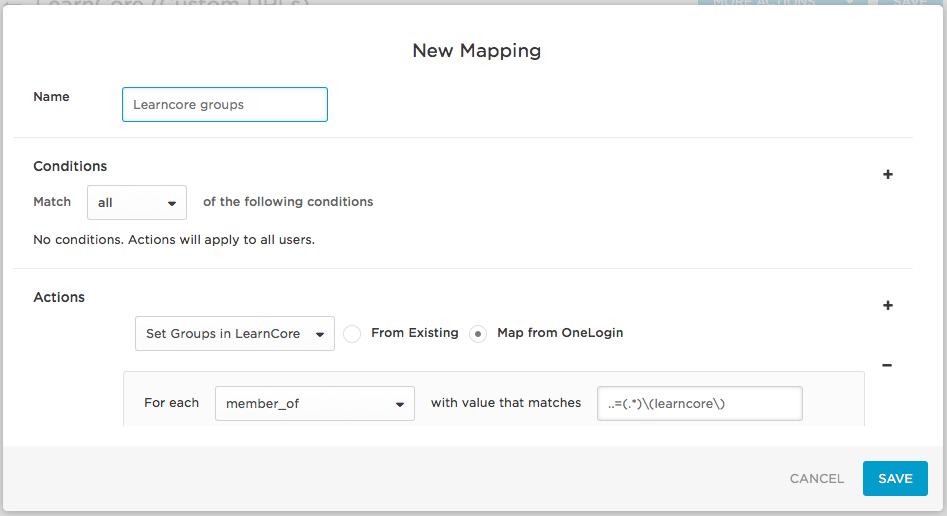
To do this, define a rule mapping like this one:
Conditions
For use cases like this one in which you are provisioning users to new LearnCore groups, no conditions need to be set. All settings are configured in the Actions area.
Actions
-
In the first drop-down, select Set Groups in LearnCore App Name to provision OneLogin users to groups in LearnCore.
-
Select the Map from OneLogin option to provision users to new LearnCore group created based on information in OneLogin.
-
Select a For each value of member_of to provision users to LearnCore based on their
member_ofuser attribute value.The OneLogin
member_ofuser attribute value is populated by Active Directory (AD) and reflects the user's membership in an AD/LDAP security group. -
To identify the AD/LDAP security groups that will be used to create groups in LearnCore and provision users to them, provide a regular expression (regex) in the adjacent field.
Provisioning will parse through AD/LDAP security group data and apply the regex. For each matching value, a group will be created in LearnCore. Any users who are members of a matching AD/LDAP security group in OneLogin will be provisioned to the newly created group in LearnCore.
For key regex guidance and examples, see Using Regex to Provision Members of AD/LDAP Groups to New App Groups.
Provision Members of an AD/LDAP Security Group to an Existing LearnCore Group
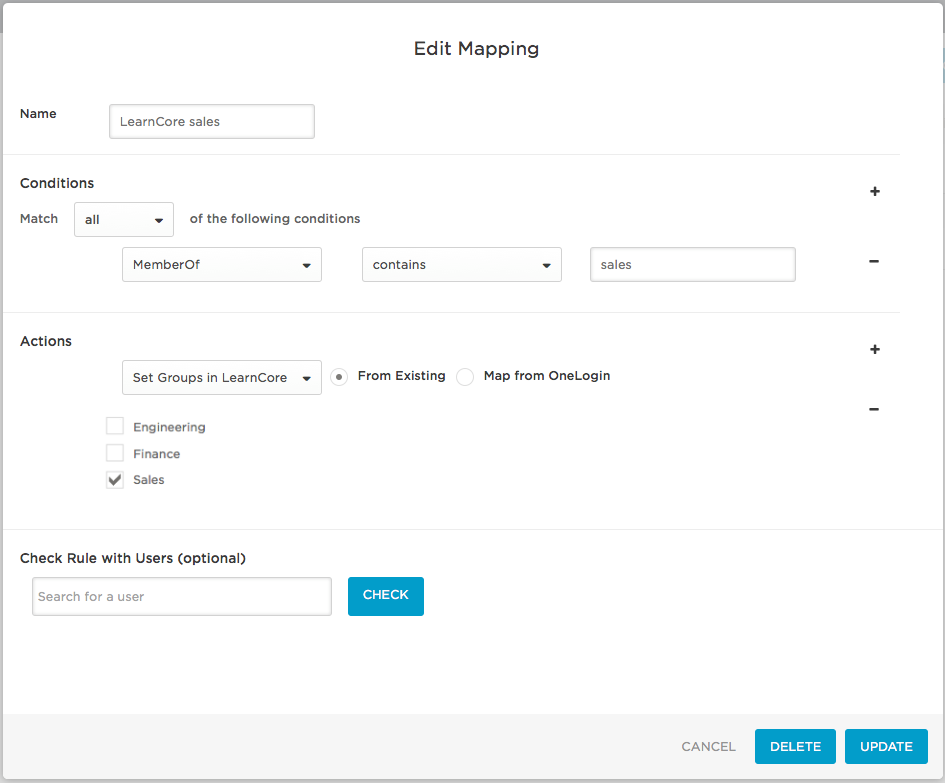
To do this, define a rule mapping like this one:
Conditions
-
In the first drop-down, select MemberOf to provision users based on their
member_ofuser attribute value. The OneLoginmember_ofattribute value is populated by AD and reflects the user's membership in an AD/LDAP security group. -
Use the two adjacent fields to write a condition to select the AD/LDAP security groups that contain the users that you want to provision to LearnCore.
Actions
-
In the first drop-down, select Set Groups in LearnCore App Name to provision users in the selected AD/LDAP security groups.
-
Select the From Existing option to provision users to an existing LearnCore group.
-
Select the existing LearnCore group to which you want to provision the users who are members of the selected AD/LDAP security group.
Example
In the example displayed in the screenshot above, we created a rule that assigns all users who are members of the AD group sales to the LearnCore group Sales.
Writing Good Rules
Take the time to design your rules to produce provisioning results that are useful to your users. Be wary of writing rules that result in confusing or arbitrary provisioning. For example, take this rule that uses the regex \AJ.*
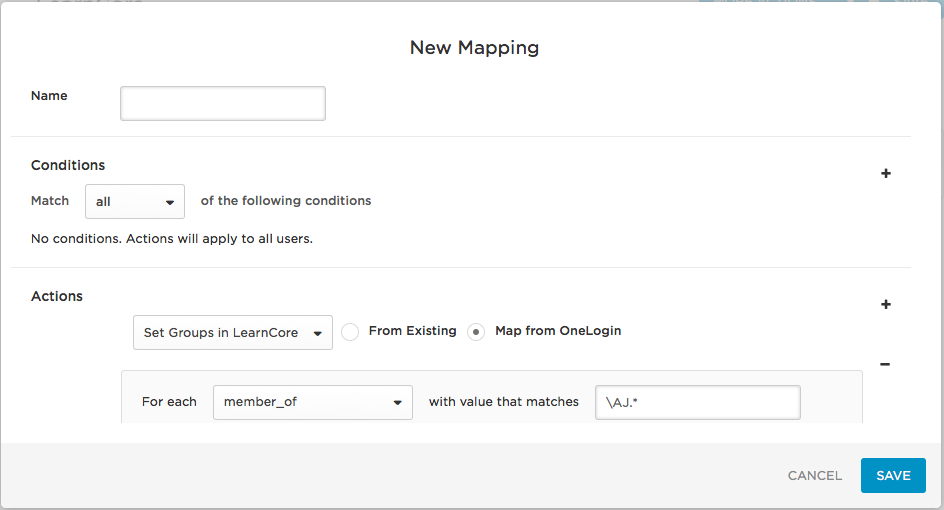
Consider provisioning applying the regex to each individual string in this comma-delimited list representing firstname user attribute values: Arturo, Benjamin, Cathy, Jennifer, John, Jonathan, Joshua, XiLin, Yelena, Zenith
This rule will take all firstname user attribute values that begin with J and create matching groups in your app and provision users to them. In this case, provisioning will create groups in your app for Jennifer, John, Jonathan, and Joshua. Users with the selected firstname values would then be provisioned to their matching groups in your app.
For most organizations, this rule would result in less-than-useful group creation and user provisioning.
Testing Provisioning
Now that you've added LearnCore to your OneLogin account and configured it to support user provisioning, you should test your provisioning setup with a new test user to confirm that provisioning from OneLogin to LearnCore is working. We recommend that you perform this testing before you assign users to the LearnCore app (on the OneLogin Access tab).
- Go to Apps > Company Apps and select your LearnCore app.
-
Go to to the Provisioning tab and verify that the following options are selected:
-
Enable provisioning for LearnCore
-
Create user
-
Delete user
-
Update user
-
-
Create a test user.
-
Give the user access to the LearnCore app.
- Go to Users > All Users and select your test user.
-
Go to the Applications tab for the user and check the provisioning status indicator for LearnCore.
It should be in Pending status. Click the LearnCore row to approve the provisioning event.
The provisioning row should now display as Provisioned. If it displays as Failed, click the row to view the reason for the failure and to retry the provisioning event.
-
When the user has been successfully provisioned according to OneLogin, go to LearnCore and confirm that the new user has been added with the correct attributes.
Log in to your LearnCore account as an administrator. You should see this test user in your account.